Work together
Roles and permissions
On this page
Each member of an organization has one role there: Owner, Editor, Member or Viewer. The role decides what the person can change in that organization. You can be Owner in one organization and Viewer in another. The same rules apply in the app and through the AI assistant.
Four roles
Each role can do everything the role below it can, and more:
- Viewer reads everything: the dashboard, the map, every list, the processes, the alignment pages, the members and the Logs.
- Member also creates and edits elements: programs, applications, servers, flows, architecture documents, processes and their steps, capabilities, and the links between them.
- Editor also deletes elements, manages typologies (including organization roles and process domains) and manages contacts.
- Owner also manages people (invitations, roles, removals), the organization's name and logo, custom fields, export and, on the hosted service, the plan and the deletion of the organization.
Each step of the ladder adds rights to the one below it.
The full table
| Action | Owner | Editor | Member | Viewer |
|---|---|---|---|---|
| See every workspace page: dashboard, map, lists, processes, alignment | Yes | Yes | Yes | Yes |
| Create and edit programs, applications, servers, flows, architecture documents (DAT) and their versions, processes, capabilities | Yes | Yes | Yes | No |
| Edit process steps, RACI and links (step and application, capability and application, process and process), additional contacts | Yes | Yes | Yes | No |
| Delete programs, applications, servers, flows, processes, capabilities, DAT references and versions | Yes | Yes | No | No |
| See the typologies | Yes | Yes | Yes | Yes |
| Create, edit and delete typologies (organization roles, statuses, editors, flow types, infrastructures, process domains) | Yes | Yes | No | No |
| See members and contacts | Yes | Yes | Yes | Yes |
| Add, edit and delete contacts | Yes | Yes | No | No |
| Invite people, see and delete invitations | Yes | No | No | No |
| Change a member's role or organization role, remove a member | Yes, except their own role | No | No | No |
| Leave the organization | Yes, if another Owner exists | Yes | Yes | Yes |
| See the Configuration page (name, logo) | Yes | Yes, read only | Yes, read only | Yes, read only |
| Change the organization's name and logo | Yes | No | No | No |
| Define custom fields (Custom Data Fields) | Yes | No | No | No |
| Export the organization's data (Import/Export) | Yes | No | No | No |
| See and change the plan (hosted service) | Yes | No | No | No |
| Delete the organization (hosted service) | Yes | No | No | No |
| Read the Logs | Yes | Yes | Yes | Yes |
| Personal settings, own AI tokens, delete own account | Yes | Yes | Yes | Yes |
| AI assistant: read | Yes | Yes | Yes | Yes |
| AI assistant: create and change elements (token with write access) | Yes | Yes | Yes | No |
| AI assistant: create and change typologies and contacts (token with write access) | Yes | Yes | No | No |
| AI assistant: custom field definitions (token with write access) | Yes | No | No | No |
A Member can create and edit an element but not delete it. A Member can still remove the parts of an element, such as a step, a RACI letter or a link, because editing them means replacing them.
Organization roles are not permissions
Project Manager, Developer, Business Analyst and the like are organization roles: job titles that describe what a person does. They come from Typologies › Organization Roles. They show next to people in lists, in the RACI pickers and in swimlanes by role. They give no rights: a Project Manager can be a Viewer.
Change the role of a member
Only Owners can change roles.
- Open Users & contacts.
- On the member's row, click the pencil (Edit user). The "Edit User" window opens.
- Choose the Role: Owner, Editor, Member or Viewer.
- Optionally, choose an Organization Role, or None.
- Click Update. The app says "User updated successfully".
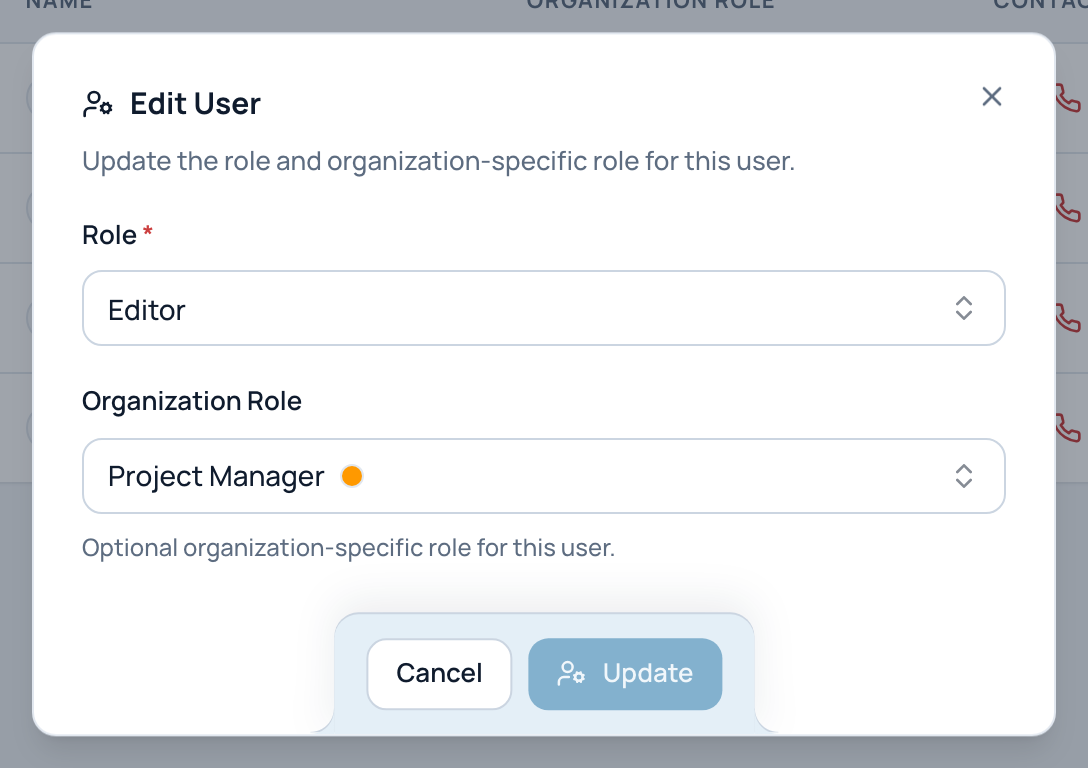
In the example, Jane Smith is an Editor whose organization role is Project Manager.
- Role
- Organization role (optional)
- Update
An Owner cannot change their own role: "You cannot modify your own role as an owner, but you can modify your organization-specific role." An organization can have several Owners. To hand over ownership, make someone else Owner; they can then change your role.
When your role does not allow something
- Buttons you cannot use stay visible but greyed out. Hover one to read "You do not have permission to perform this action".
- Owner-only entries, Custom Data Fields, Plan and Import/Export, are hidden from the sidebar. The Invitations tab and the Invite button are hidden too.
- If you open an Owner-only page from a link, it shows "Access Denied".
If you need more rights, ask an Owner of the organization.
The AI assistant follows your role
Claude, connected through your token, never has more rights than you, and only in the organization of that token. See Permissions, tokens and safety.
Related pages
- Invite people: choose a role at invitation time.
- Manage members and contacts: the Users & contacts page.
- Permissions, tokens and safety: the assistant's two conditions to change data.