Map your IT landscape
Read the dashboard
On this page
The dashboard is the home page of an organization. Open it with Dashboard at the top of the sidebar. It greets you, counts what your map holds, sums up the health of your processes and shows the latest changes. Every member sees it, whatever the role. Almost every tile and card is a link to the page that explains it.
At a glance
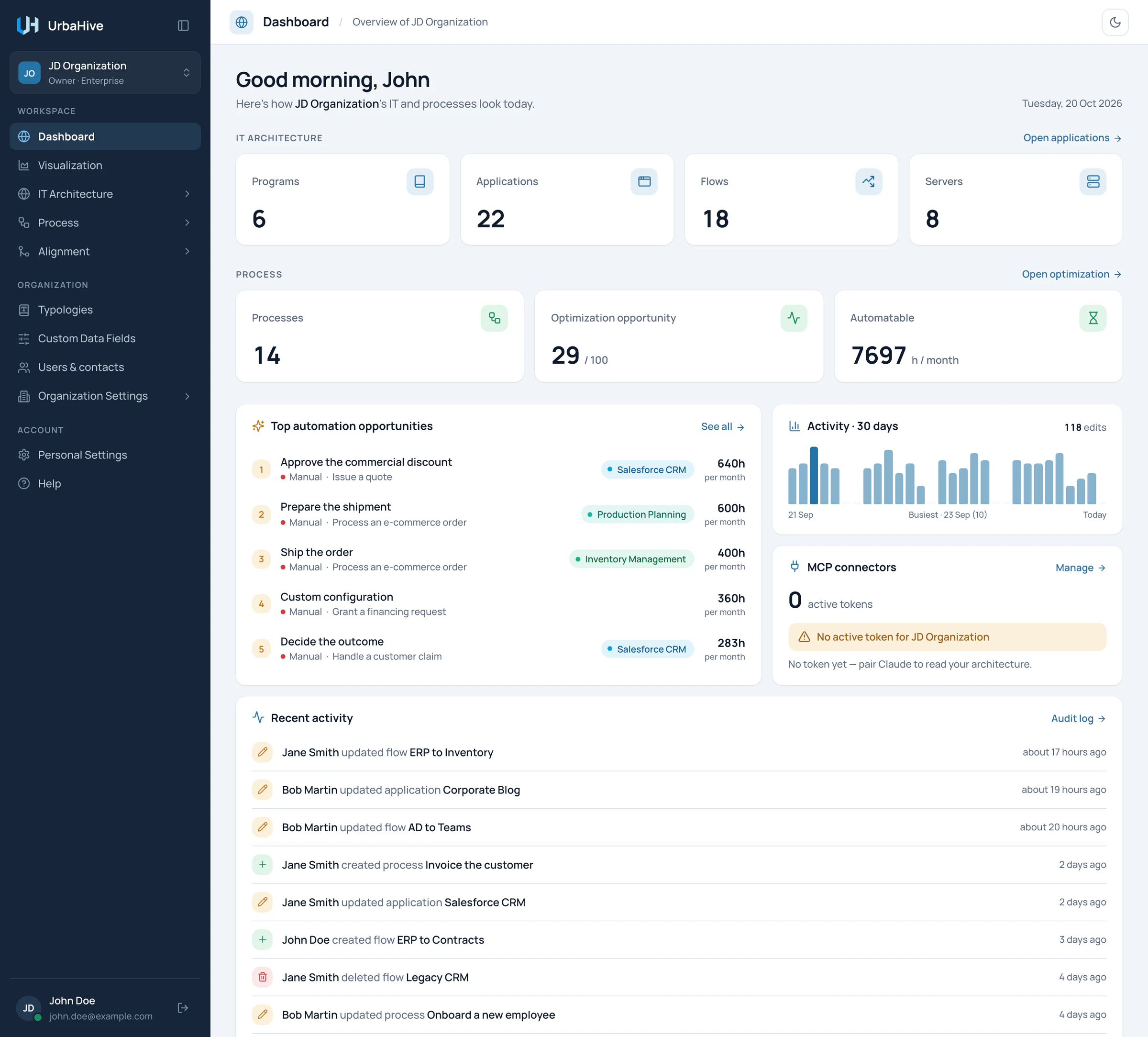
The dashboard of the example organization, JD Organization.
- IT ARCHITECTURE counts
- PROCESS: count, optimization opportunity, automatable hours
- Top automation opportunities
- Activity · 30 days
- MCP connectors (AI assistant)
- Recent activity
The header says "Overview of" and the name of the current organization. Under it, a greeting with your first name and today's date.
IT Architecture
Four tiles count your Programs, Applications, Flows and Servers. Click a tile to open its list. The Open applications link at the right of the row opens the Applications list.
Process
Three tiles sum up your business processes:
| Tile | What it shows | Click to open |
|---|---|---|
| Processes | How many processes your catalog holds. | The process Catalog |
| Optimization opportunity | A score out of 100: the average optimization score of your processes, weighted by how often each runs per month. The higher it is, the more there is to gain. | Optimization |
| Automatable | Hours per month spent on steps that are still manual or semi-automatic. A semi-automatic step counts for half. | Optimization |
The figures come from the steps of your processes: their duration, their execution mode and the monthly volume of each process. See Understand the optimization score. The Open optimization link opens the Optimization page.
Top automation opportunities
This card lists the five steps whose automation would give back the most hours. Each row shows the rank, the step, its mode (Manual or Semi), its process, the first application it uses and the hours per month.
Click a row to open its process. See all opens the Optimization page. Until a process has a monthly volume and manual or semi-automatic steps with a duration, the card says "No opportunity to surface yet". See Find what to automate.
Activity · 30 days
One bar per day shows how many changes your organization made over the last 30 days. The card gives the total and the busiest day. Hover a bar to read its date and count. The numbers come from the audit log.
MCP connectors
This card is about the AI assistant. It shows how many of your own tokens are active, whether one is active for this organization, and when one was last used. Manage opens Personal Settings on the Connectors tab. See What the AI assistant does.
Note
On an on-premise installation where your administrator has turned the AI connector off, this card is not shown.
Recent activity
The last changes made in the organization, newest first: who created, updated or deleted which element, and how long ago. Audit log opens Logs, with every change and its details. See Follow changes in the audit log.
Banners and empty states
- While your organization has no flow, a Get Started banner sits at the top, with Go to Quick Start. See Your first steps.
- If you have no current organization, for example after leaving your last one, the dashboard says "You don't have an active organization. Select one below, or create a new one to get started." and offers a list of your organizations.
Related pages
- Explore the map: see the same elements drawn.
- Understand the optimization score: what the Process figures mean.
- Follow changes in the audit log: the details behind Recent activity.