Optimize and align
Impact analysis
On this page
Before you change, replace or retire something, check what is directly connected to it. The impact analysis draws one element in the middle and everything one step away from it: the capabilities an application serves, the processes that use it, its program, its server, the people involved. Everyone in the organization can open it.
Open it
The impact analysis has no entry in the sidebar. You open it from the element you want to study:
- click the lightning button Impact analysis on a row of the Catalog (processes), Capabilities, Applications, Servers or Programs list, or of Typologies › Infrastructure;
- or, in the coverage matrix, click a filled cell, then the capability or application name in its Cell details panel.

The lightning button sits first among the buttons at the end of a row, here in the Applications list.
- Impact analysis
- Edit
- Delete
Flows and architecture documents (DAT) have no lightning button. They appear in the details window of their applications instead.
Read the graph
The element you picked sits in the middle, marked CENTER. What points to it is on the left; what it points to is on the right. Each arrow carries a label that says how the two relate. For an application, for example:
- on the left, the capabilities it realizes (labelled with the relation, such as "primary") and the processes that use it ("uses");
- on the right, its program ("in program") and its server ("hosted on").
For a process, you see its capability ("realised by"), its domains, the people of its steps with their RACI letters, its parent L1, the processes it triggers or is triggered by, its sub-processes and the applications its steps use.
How the graph is laid out, and the colour of each layer.
The colour of a box and of its arrows gives its layer:
| Layer | Elements |
|---|---|
| Technical | Servers and infrastructures |
| Applicative | Applications and programs |
| Functional | Capabilities |
| Business | Processes and process domains |
| People | Members and contacts |
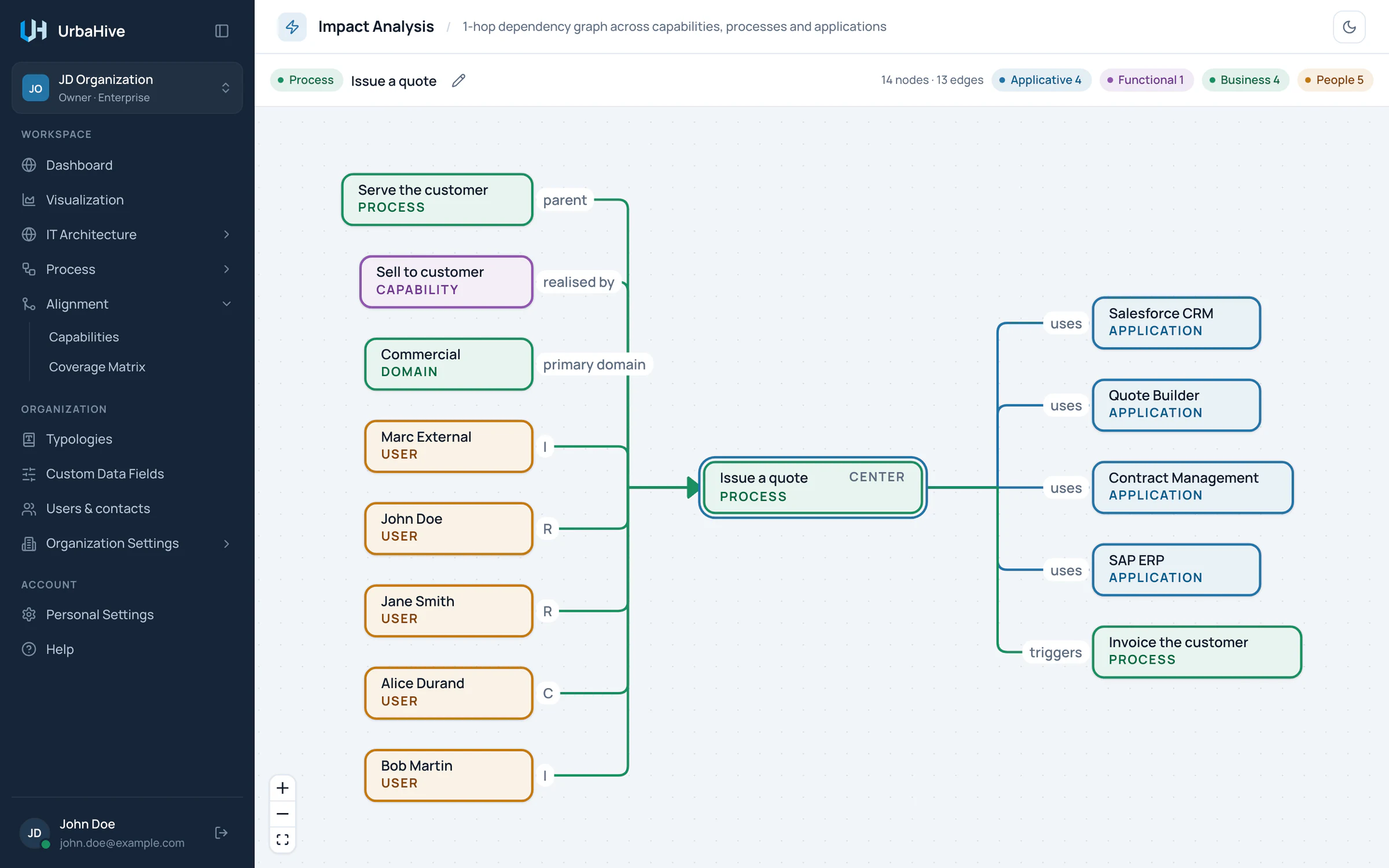
In the example, the impact analysis of the process Issue a quote shows its capability, domains, people and applications.
- The element you picked (CENTER)
- What points to it (left)
- What it points to (right)
- People and their RACI letters
- Open in editor
- Counts per layer
Go further
The graph always shows one step around the centre, never more. To follow a chain, click a neighbour: it becomes the new centre, and the graph redraws around it. The page address changes too, so the browser's Back button takes you to the previous centre.
People appear as neighbours, and you can make a person the centre this way. You then see the programs, applications and servers they are responsible for, the processes and capabilities they own, and the processes where they hold a RACI letter. A process domain cannot become the centre.
The toolbar
Above the graph, the toolbar shows the type and the name of the centre, followed by a pencil: Open in editor for a process, Edit for the other elements. On the right, it counts the boxes and arrows ("N nodes · M edges") and gives one count per layer.
You cannot move the boxes. Use the buttons at the bottom left to zoom and to fit the graph in the window.
Empty graph
When nothing is connected to the element yet, the page says "Nothing connected to this entity yet." Link it first: for example, add an application to a capability, or name a responsible person.
Tip
The impact analysis does not tell you whether a delete is allowed. UrbaHive refuses to delete an element that others still use: see Deleting: what blocks what.
Related pages
- The coverage matrix: all capabilities against all applications.
- Create or edit a process: the links between processes.
- How the building blocks fit together: the links between IT elements.