Map your IT landscape
Add your own fields
On this page
Custom fields add the information your organization needs and UrbaHive does not ask for: a criticality tier, an annual cost, a protocol, a business unit. Owners define them in Custom Data Fields, in the Organization group of the sidebar. Anyone who can edit an element then fills them in. Other roles do not see this page.
Choose the object type
The page shows seven tiles, one per type of element, each with its number of fields: Programs, Applications, Servers, DAT Reference, Flows, Process Catalog and Capabilities. Click a tile to see and change its fields.
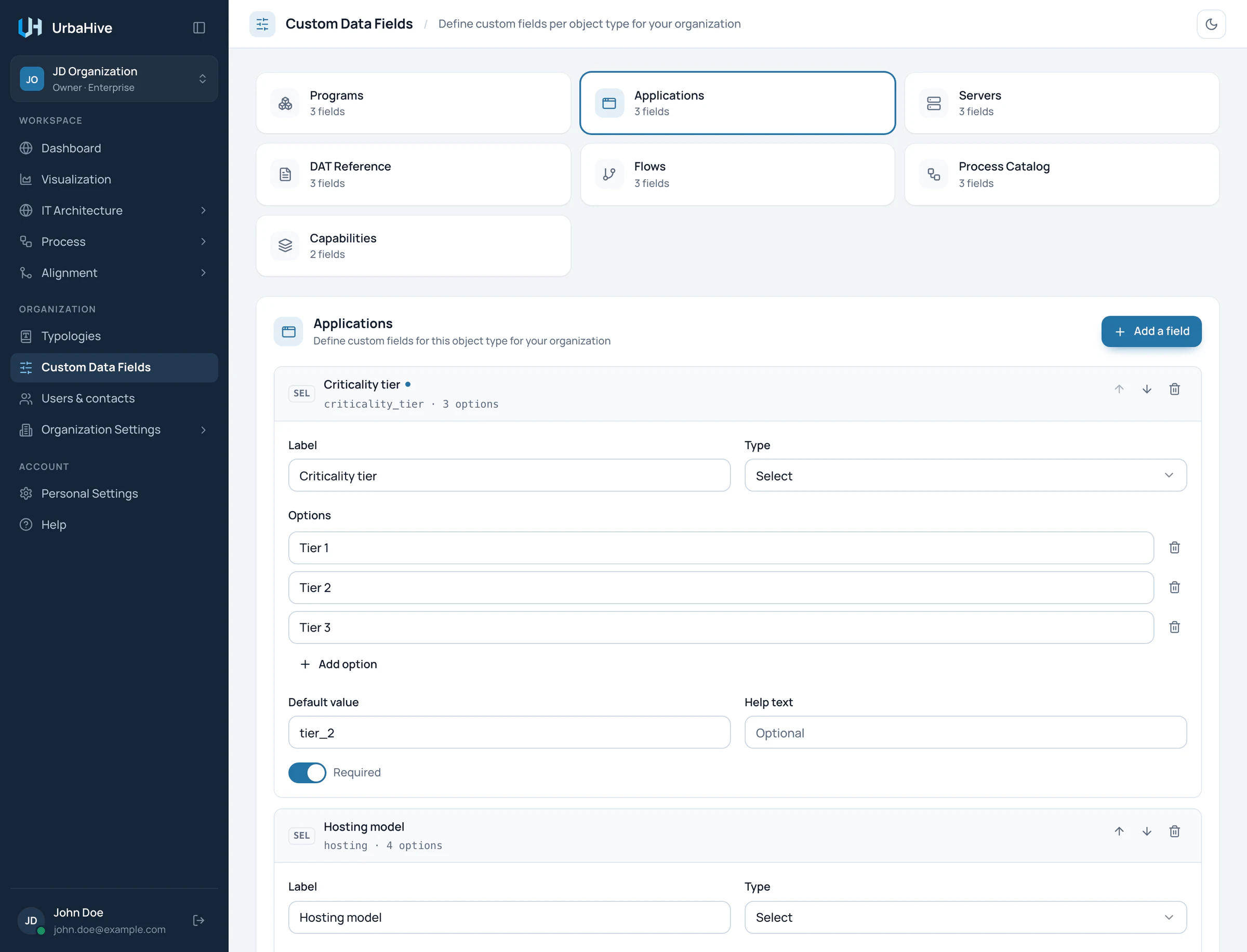
In the example, the Applications tile is selected. Its first field, Criticality tier, is a required Select with three options.
- Add a field
Add a field
- Click the tile of the object type, then Add a field. A new field card appears.
- Fill in Label, the name people will see. Paste the whole label into the field in one go, rather than typing it letter by letter.
- Choose its Type: Text, Long text, Integer, Decimal, Select, Switch (yes/no) or Date.
- For a number, set Min, Max and Step if you want limits. For a Select, type the Options, one per line, with Add option for each new one.
- Optionally, give a Default value and a Help text, and turn on Required.
- A bar appears at the bottom: "You have unsaved changes". Click Save changes, or Discard to drop them. UrbaHive confirms with "Custom fields saved".
The icons at the top right of each card are Move up, Move down and Remove field. The order of the cards is the order of the fields in the windows.
Messages you may see
| Message | What to do |
|---|---|
| "Every field needs a label" | Fill in the Label of each card, or remove the empty card. |
| "Select field "…" needs at least one option" | Add at least one option to that field. |
| "Select field "…" has an empty option" | Fill in or remove the empty option. |
| "Two fields end up with the same key — rename one" | Two new fields clash. Remove the newer one, then add it again and paste its whole label in one go. |
Where the values appear
- In the edit windows of that object type, under Custom fields. A required field carries a red asterisk; the help text shows under the label.
- In the details windows, under Custom fields. Switches always show; other fields show once they are filled in.
- In list searches: the search field of a list also finds custom field values.
- In the JSON export, with the definitions of the fields. See Export your data.
Good to know
- Required marks the field with an asterisk and asks people to fill it in. It does not prevent saving an element with the field empty.
- A Default value pre-fills the field when someone opens the edit window of an element that has no value yet. It is stored only when that window is saved, so the details window may still show nothing.
- Removing a field hides its values everywhere.
- Changes to field definitions are not recorded in Logs. Values typed on elements are, with the element's other changes.
Related pages
- Describe data flows: an example with protocol and data format fields.
- Work with lists and windows: where the fields are filled in.
- Roles and permissions: why only Owners define fields.