Account and plan
Your profile, e-mail and password
On this page
Your personal settings hold your contact details, your e-mail address and your password, and the way to delete your account. Open Personal Settings in the Account group of the sidebar. The Settings page has three tabs: Personal Information, Connectors and Critical Actions. These settings are yours: they follow you in every organization.
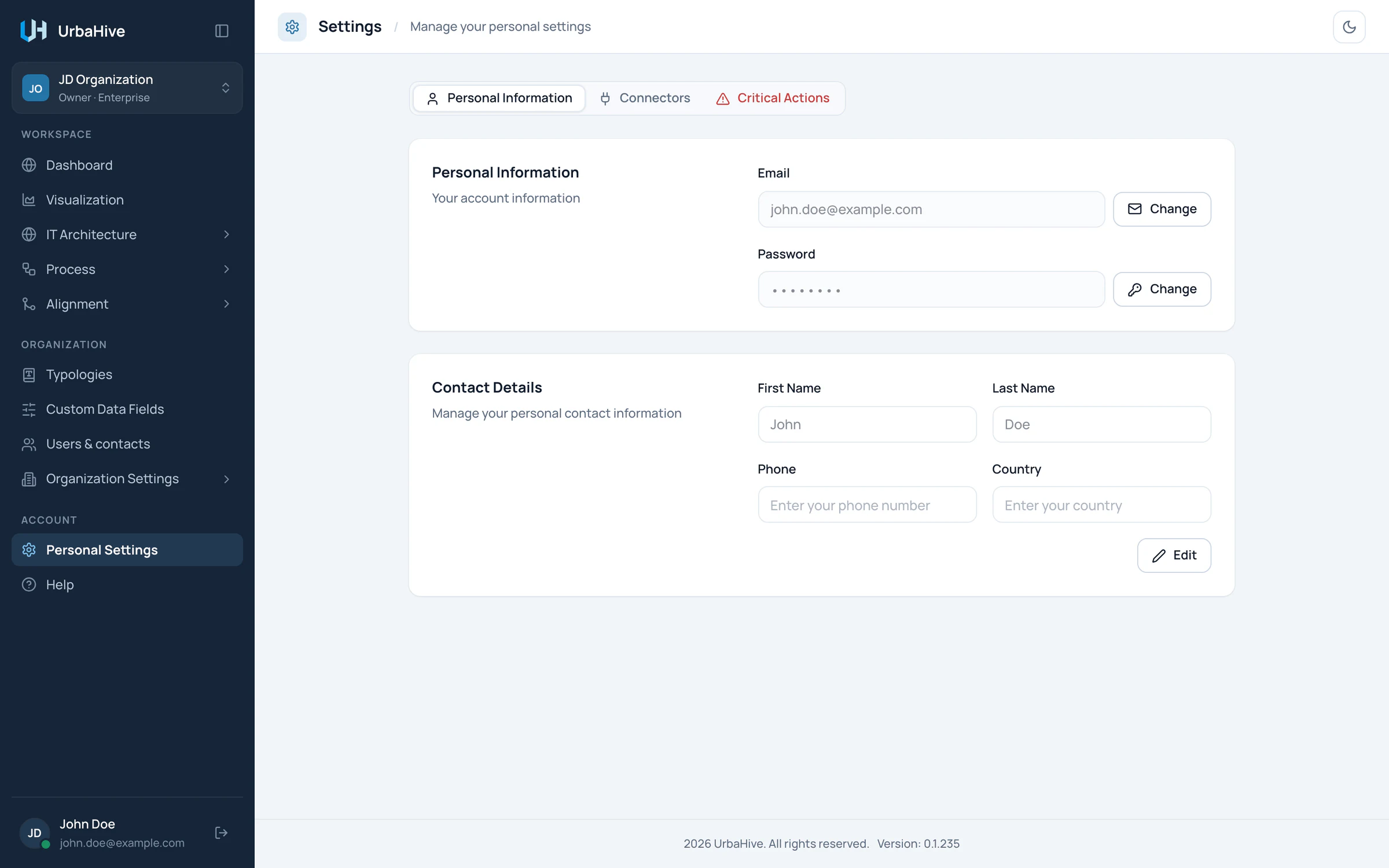
The Personal Information tab: your e-mail and password at the top, your contact details below.
- Personal Information, Connectors, Critical Actions
- Email: Change
- Password: Change
- Contact Details: Edit
The Connectors tab is where you connect the AI assistant. See Connect Claude to UrbaHive. On an on-premise installation, it appears only if your administrator has turned the AI connector on.
Contact details
- In the Contact Details card, click Edit.
- Change your First Name, Last Name, Phone or Country.
- Click Save. UrbaHive confirms with "Profile updated successfully".
Your colleagues see these details in Users & contacts and wherever you are named as responsible.
Change your e-mail address
- Next to Email, click Change. The Change Email Address window opens.
- Type the New Email Address and click Send code.
- Type the 6-digit code sent to the new address, then click Verify code.
- If the window then asks for a second code, sent to your current address, type it too.
UrbaHive confirms with "Email address updated successfully." From now on, you sign in with the new address.
Change or set your password
- Next to Password, click Change. The Change password window opens.
- Type your New password. It follows the same rules as at sign-up; the checklist turns green as each rule is met.
- Type it again in Confirm new password.
- Click Update password.
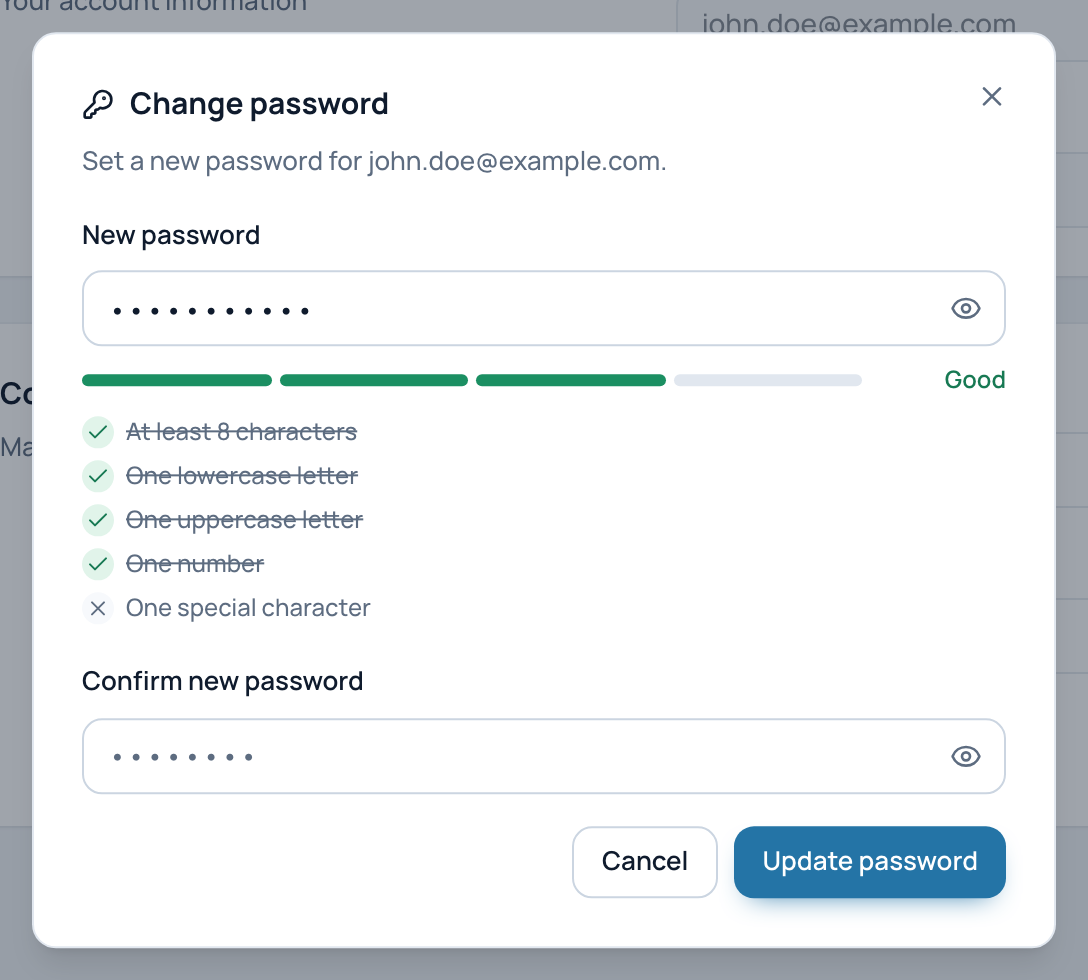
The Change password window. In the example, four of the five rules are met: a special character is still missing.
- New password
- The five rules
- Confirm new password
- Update password
UrbaHive does not ask for your current password here. If you have always signed in with one-time codes, this is how you set a password.
What is not here
- The light or dark theme is a button in the page header, not a setting. See Light or dark.
- There is no language setting: UrbaHive is in English.
Delete your account
You can delete your account only once you belong to no organization. The Critical Actions tab says so next to Delete my account: "Only possible once you belong to no organization. This cannot be undone."
- Open the Critical Actions tab and click Delete my account. The window lists your organizations and your role in each.
- Click Leave on each organization, then Yes, leave. You become an external contact there: nothing you were responsible for is lost.
- Where you are the only Owner, the row offers Switch & manage users instead. It takes you to that organization's users. Make someone else Owner there, or delete the organization, then come back.
- When the window says "You don't belong to any organization.", click Next step.
- Type your e-mail address and click Delete my account. You are signed out.
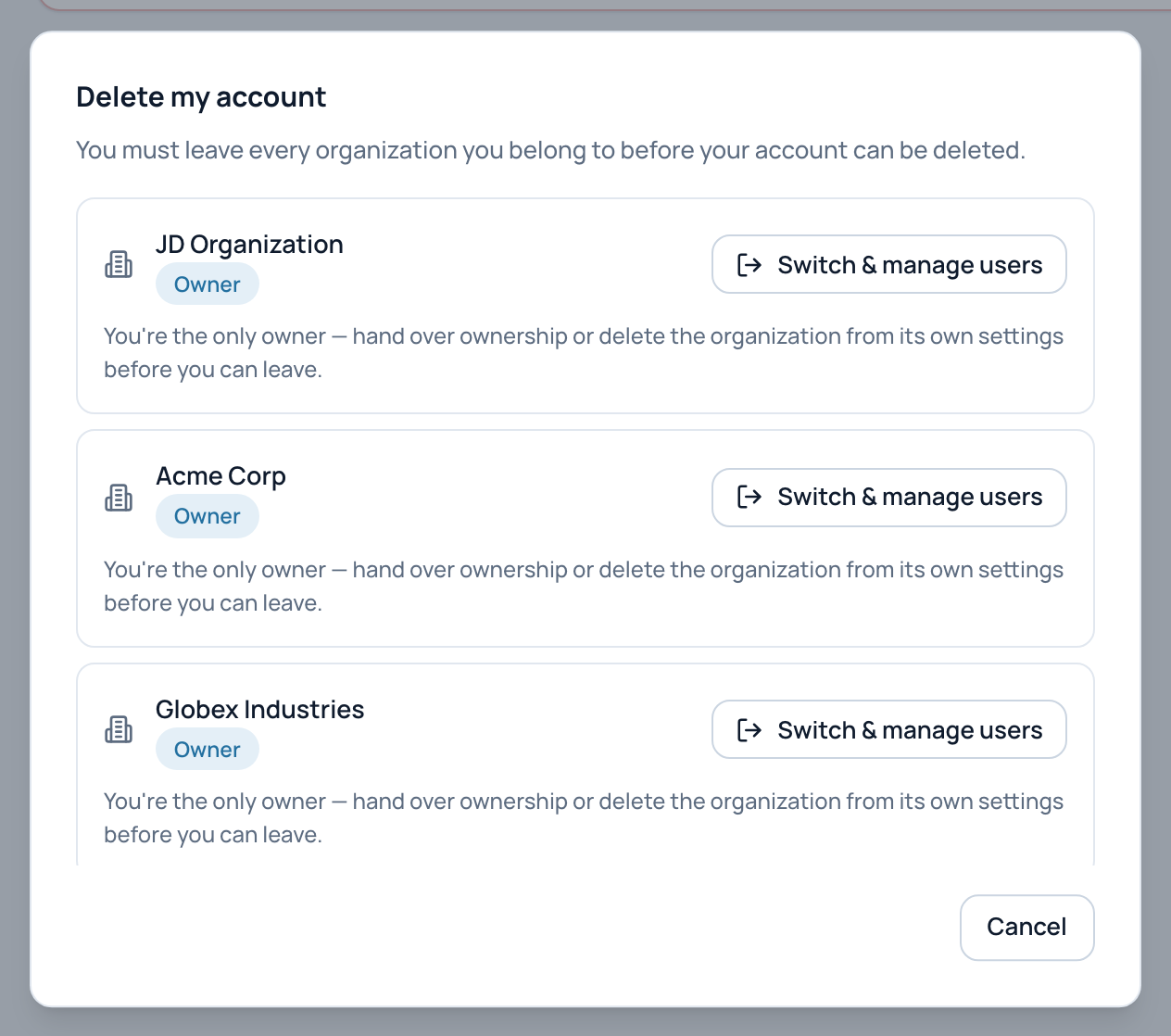
The first step. In the example, John Doe is the only Owner of each organization, so every row offers Switch & manage users.
- Leave every organization first
- Each organization and your role
- Only Owner: hand over or delete it first
- Cancel
Warning
Deleting your account cannot be undone. On the hosted service, remember your own DefaultOrganization: you are its only Owner, so delete it or hand it over first. Your name stays in the history of each organization, as an external contact.
To hand over ownership or remove an organization, see Change the role of a member and Organizations: switch, create, configure. On an on-premise installation, ask your administrator to delete an organization.
Related pages
- Create your account and sign in: codes and password resets.
- Connect Claude to UrbaHive: the Connectors tab.
- Manage members and contacts: leaving an organization from Users & contacts.