Work together
Manage members and contacts
On this page
The Users & contacts page, in the Organization group of the sidebar, lists the people of the organization. Three cards at the top switch between Users (the members), Invitations (Owners only) and Contacts. Everyone in the organization can see the members and the contacts.
Members
The Users tab lists the "People with an account in your organization." The columns are:
| Column | What it shows |
|---|---|
| Role | Owner, Editor, Member or Viewer: what the person can do here. |
| Name | The person's name, with "You" on your own row. |
| Organization role | Their job title, such as Project Manager, or a dash. |
| Contact | A mail icon and a phone icon. Green when the person has filled them in: click to copy. Red when missing. |
| Date Added | When the person joined. |
| Actions | Edit user and Remove user (Owners), or Leave this organization on your own row. |
Click a row to open the person's details: their roles, contact information, and the programs, applications and servers they are responsible for.
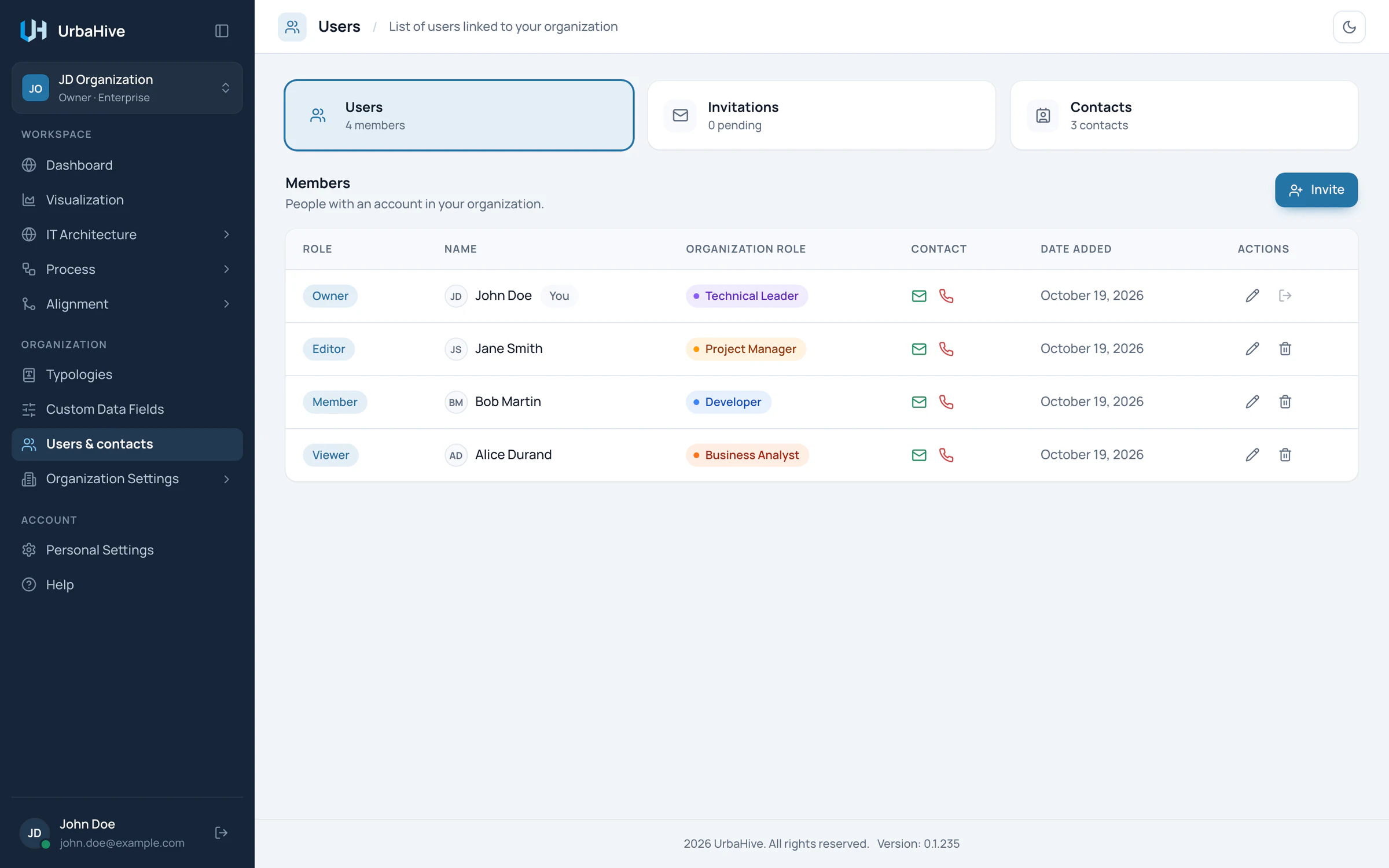
The four members of the example organization, each with a role and an organization role.
- Users, Invitations (Owners), Contacts
- Invite
- Role: Owner, Editor, Member or Viewer
- Organization role (job title)
- Contact details: click to copy
- Edit user, Remove user
People fill in their own phone and name in their personal settings. See Your profile, e-mail and password.
Change a member's role
Owners change roles and organization roles with the pencil, Edit user. See Change the role of a member.
Remove a member
Only Owners can remove a member. The person loses access either way; you choose what happens to the work they hold.
- On the member's row, click the trash can (Remove user). A window opens: "Remove" followed by their name and "from the organization".
- Choose one option:
- Turn them into an external contact: nothing is lost. Their name stays on everything they were responsible for, and their RACI assignments and contact links follow them.
- Remove their links: the window counts what will be lost, for example the processes and capabilities left without an owner and the RACI assignments deleted.
- Click Continue.
- Type the person's e-mail address, or the word "confirm".
- Click Convert to contact or Remove the links. Back returns to the choice.
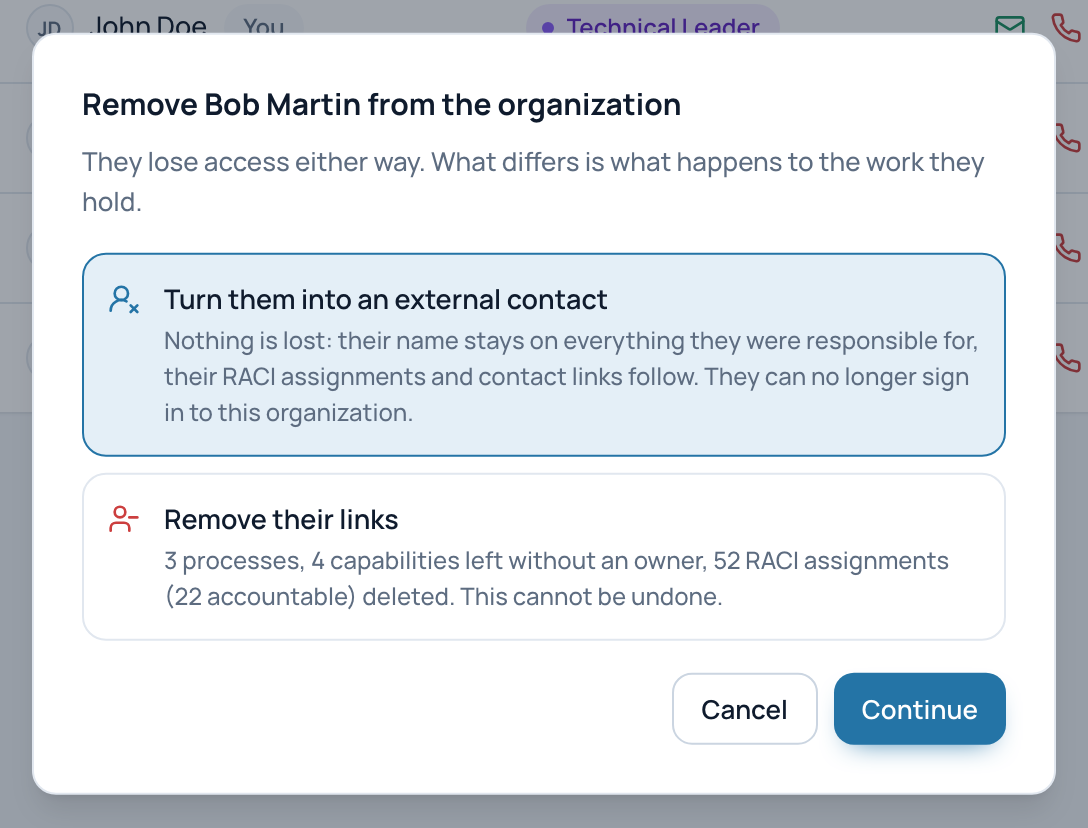
The first step of removing a member: keep their name on their work, or remove their links.
- Keep their name on their work
- Remove their links (counts what is lost)
- Cancel
You cannot remove yourself (leave instead), nor the last Owner of the organization. The AI assistant tokens the person had for this organization stop working.
Warning
Remove their links cannot be undone. When in doubt, turn the person into an external contact: you can still delete the contact later.
Contacts
Contacts are "People you can assign as responsible or RACI actor without a login account": suppliers, auditors, consultants, colleagues who never sign in. You can name them as responsible for an element and as R, A, C or I on a process step. They take no seat. Owners and Editors manage contacts.
- Open the Contacts tab and click Add contact. The "New contact" window opens.
- Type a First name and a Last name (at least one of the two).
- Choose the Type: External or Internal.
- Optionally, choose an Organization role and fill Email and Phone.
- Click Create contact.
Members who left the organization, or were turned into contacts when removed, also appear in this list.
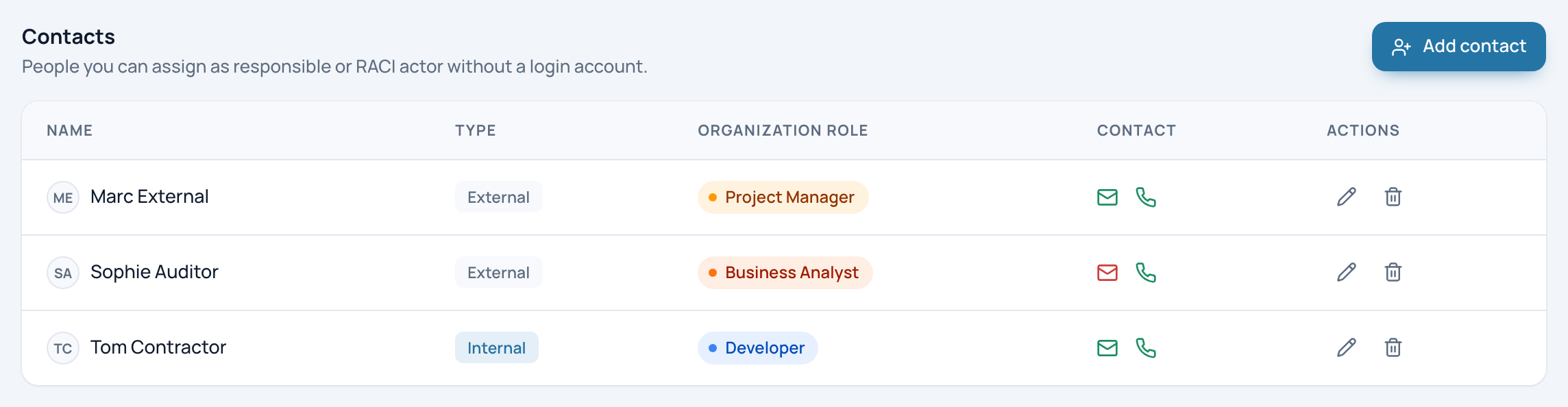
The Contacts tab of the example: three people without a login, internal or external.
- Internal or External
- Organization role
- Add contact (Owners and Editors)
Delete a contact
- On the contact's row, click Delete contact.
- Choose Remove their links, or Hand their work to someone else and pick who takes over: a member or another contact.
- Click Continue, type the contact's e-mail or "confirm", then click Remove the links or Transfer and remove.
Related pages
- Invite people: add members.
- Roles and permissions: what each role can do.
- Describe a step: name members and contacts in the RACI.