Business processes
Describe a step: RACI, applications and time
On this page
The Edit step panel describes one step: its type, its name, how it runs, who does it, which applications it uses and how long it takes. To open it, click a card on the canvas, or click the pencil (Open editor) of a row in the steps list. The panel opens on the right of the editor. Click Close (X) or the empty canvas to close it.
Every change in the panel is saved by itself, as everywhere in the editor. See Auto-save. If your role is Viewer, you can open the panel to read a step, but you cannot change it.
The panel at a glance
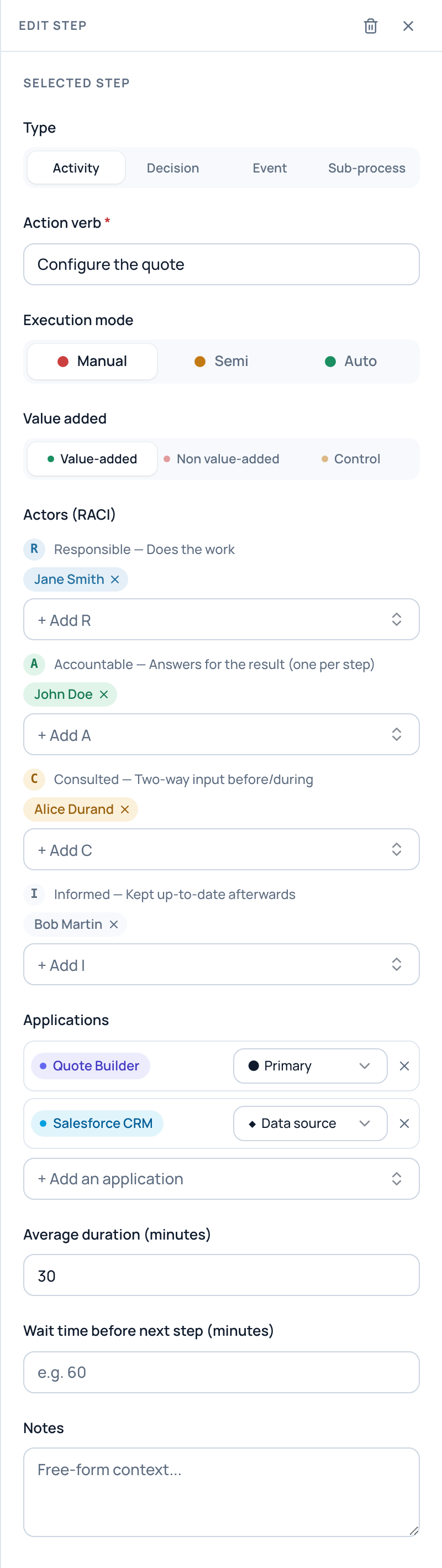
The Edit step panel of the step Configure the quote, in the example process Issue a quote.
- Type
- Action verb (the step's name)
- Manual, Semi or Auto
- Value added
- Responsible, Accountable, Consulted, Informed
- Applications and their relation
- Duration and wait time
Type and name
- Type: Activity, Decision, Event or Sub-process. You can change it at any time, except for a decision that already has several outputs: "Remove the extra outputs first — only a decision can branch".
- Action verb (required): the name of the step. Start it with a verb, for example "Approve the discount".
- Delegates to (Sub-process only, required): the process this step hands the work over to. See Sub-process steps.
How it runs
- Execution mode: Manual, Semi or Auto. It is the coloured dot on the card, and it feeds the optimization score.
- Value added: Value-added, Non value-added or Control. It is a label for your own analysis. It does not change the optimization score.
Who does what (RACI)
The Actors (RACI) section has one row per letter:
| Letter | Meaning in the app |
|---|---|
| R · Responsible | "Does the work" |
| A · Accountable | "Answers for the result (one per step)" |
| C · Consulted | "Two-way input before/during" |
| I · Informed | "Kept up-to-date afterwards" |
- Click the picker of a row, such as + Add R.
- Pick a person. The list holds the members of the organization and its contacts (marked "Contact IN" or "Contact EX"), each with their organization role.
- To take someone off, click the X on their chip.
You can name several people for R, C and I. A step has only one A: adding a second A replaces the first.
The R of a step, or its A when it has no R, decides the lane the step sits in when you read the process in swimlanes. See Readings, swimlanes and PDF export.
Tip
A step held by a single R, with nobody Consulted or Informed, counts as a knowledge risk in the optimization score. Adding a C or an I lowers that risk.
Applications
- Click + Add an application and pick the application.
- Choose its relation to the step in the select next to it. A new link starts as Primary.
| Relation | Meaning in the app |
|---|---|
| ● Primary | "App where the action is performed" |
| ○ Supporting | "Reference, notification, BI…" |
| ◆ Data source | "Provides or stores the data touched" |
The applications show as badges on the card. They also count in the score (the more tools a process uses, the more fragmented it is) and appear in the impact analysis.
Time and notes
- Average duration (minutes): how long the work itself takes.
- Wait time before next step (minutes): how long the work waits before the next step starts.
- Notes: free context. In the swimlanes, notes show as bubbles under the cards.
How often the process runs is not set per step: it is the Volume / month of the whole process, in the process window. Durations and volume together give the hours shown on the Optimization page.
Delete a step
- Open the step's panel and click Delete step (the trash can at the top).
- The window "Delete this step?" warns that the step will be permanently removed. Click Delete.
On a branched process, the arrows that led to the deleted step now lead to its first output, so the flow stays connected.
Note
The Outputs of a decision and the Next step field are explained in Decisions, branches and loops.
Related pages
- Build a process in the editor: add and reorder steps.
- Decisions, branches and loops: outputs and conditions.
- Understand the optimization score: how mode, applications, time and RACI count.
- Manage members and contacts: the people you can name.