Work together
Invite people
On this page
To work with colleagues in an organization, an Owner invites them by e-mail and chooses their role. The invited person decides whether to accept. Only Owners can invite; the other roles do not see the Invite button.
Seats
Each organization has a number of seats. A seat is taken by each member with an account and by each pending invitation. Contacts (people without a login) take no seat.
| Plan | Seats |
|---|---|
| Free | 1: the Owner alone. Upgrade before you can invite anyone. |
| Starter | 5 |
| Professional | 25 |
| Enterprise | Set by contract |
The plans are those of the hosted service; see Plan and billing. On an on-premise installation, your administrator sets the number of seats.
Send an invitation
- Open Users & contacts and click Invite. The "Invite User" window opens.
- Type the Email Address of the person.
- Choose the Role they will have once they accept: Owner, Editor, Member (the default) or Viewer.
- Click Send Invitation. The app says "Invitation sent successfully".
The invitation stays open for 7 days. The link in the e-mail works for one hour. On the hosted service, a person who opens the link after that is offered a new sign-in code.
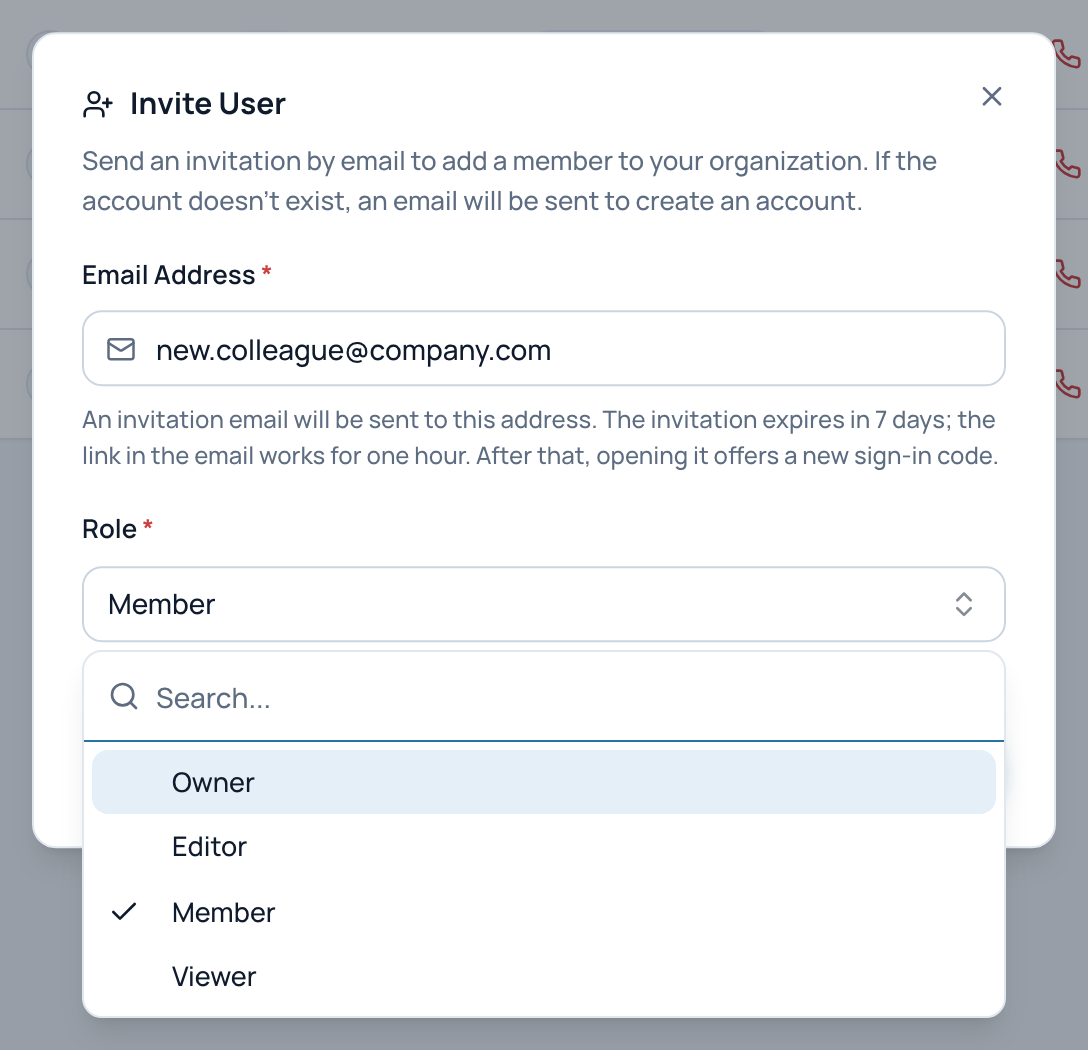
The Invite User window with a sample address and the list of roles open.
- Email Address
- Role given on acceptance
- Owner, Editor, Member or Viewer
You cannot choose the organization role (job title) in this window. Set it after the person has joined, with Edit user. See Change the role of a member.
Messages you may see
- "This person is already a member of this organization. Change their role from the members list."
- "This email has already been invited to this organization": an invitation for that address is still open.
- "User quota exceeded (active users and pending invitations). Maximum allowed: N, current: N": every seat is taken. Upgrade the plan or delete a pending invitation. On an on-premise installation, the message asks you to contact your administrator.
- "Invitation created but email sending failed": the invitation exists, but the e-mail did not leave. Delete the invitation and invite again.
Follow your invitations
The Invitations tab of Users & contacts (Owners only) lists the invitations of the organization with their Email, Role, Status (Pending, Accepted or Rejected) and Expires On date. Accepted invitations leave the list: the person now shows as a member.

An invitation waiting for an answer, with the role it offers and its expiry date.
- Invited address
- Role on acceptance
- pending, accepted or rejected
- Expires after 7 days
- Delete invitation
There is no button to send an invitation again. To resend one, click Delete invitation, confirm, then invite the person again.
Note
Deleting an invitation does not cancel a link already sent: it stays usable for up to one hour after it was e-mailed.
What the invited person sees
What arrives depends on whether the person already has an UrbaHive account:
- No account yet. They receive "You have been invited to UrbaHive" with an Accept Invitation button. The button signs them in. They then give their first and last name and may set a password. See Your first sign-in after an invitation. On the hosted service, they also get an organization of their own, named DefaultOrganization.
- Already an account. They receive "Invitation to join" followed by the organization's name, with a Join UrbaHive button, and they sign in as usual.
In the app, a "You're invited" banner appears at the top of every page. Clicking it opens the "Pending Invitations" window: one card per organization, with the role offered and the time left before it expires. The person clicks Accept or Reject. Accepting switches them to that organization with the role you chose.
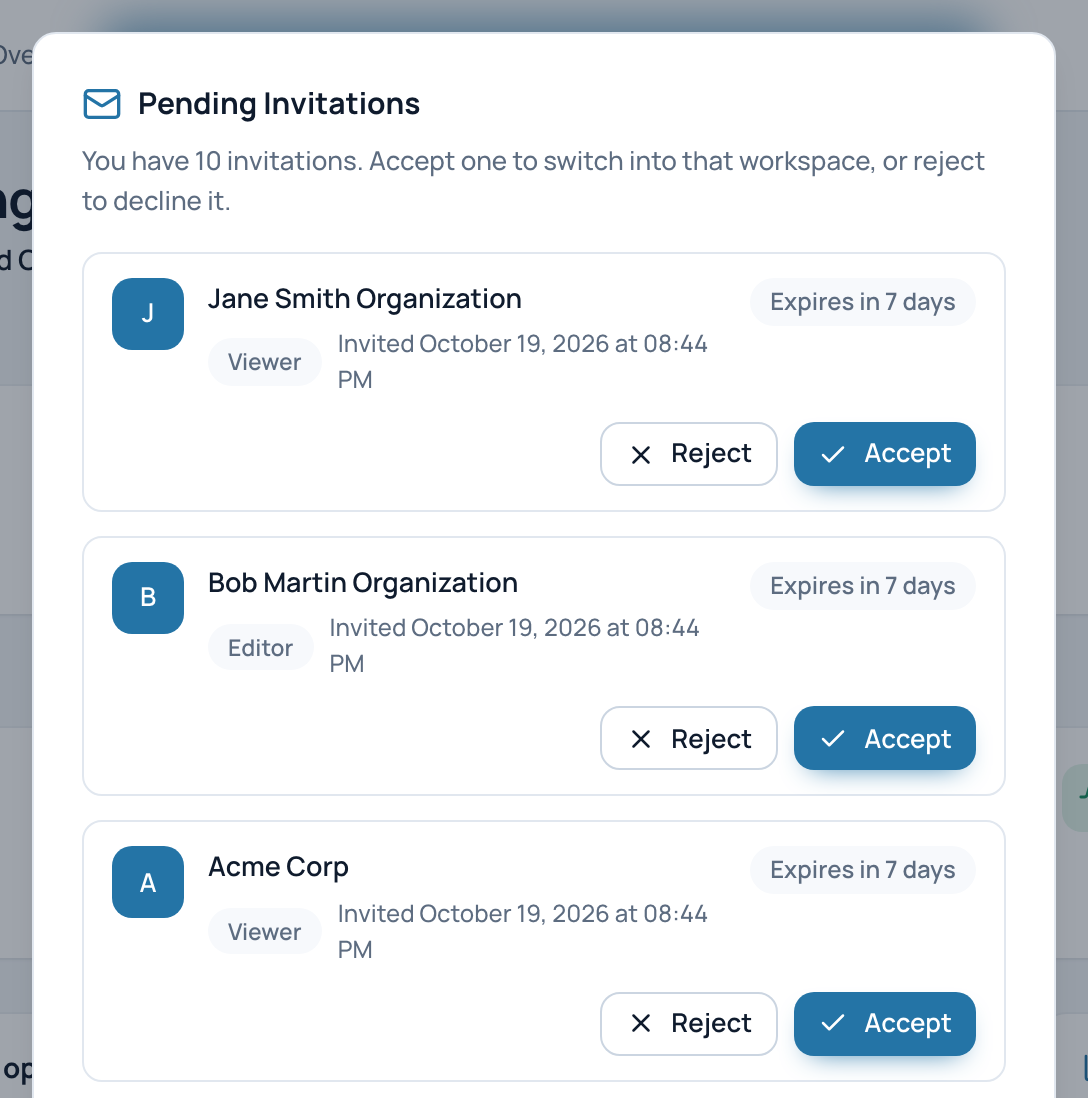
The Pending Invitations window as a demo user with several invitations sees it.
- The organization that invites you
- Accept: switches you to that organization
- Reject
You are told
When the person accepts or rejects your invitation, you receive an e-mail. An invitation that nobody accepts within 7 days expires, and its seat is free again. The full list of e-mails is in Questions and answers.
Related pages
- Manage members and contacts: after they join.
- Roles and permissions: choose the right role.
- Plan and billing: seats per plan.