Getting started
Work with lists and windows
On this page
Programs, Applications, Servers, DAT Reference, Flows, the process Catalog and Capabilities all work the same way. Each is a list with a toolbar. A click on a row opens a details window, and the edit window protects you from losing changes. Learn it once here, and it applies everywhere.
Search, filter and sort
The toolbar above each list holds, from left to right:
- a search field (Search by name... on the IT lists). It also finds text in custom fields;
- filter lists, such as All Programs or All Statuses. You can type in an open filter to find a value quickly;
- the X button (Reset filters), which clears the search and the filters;
- the number of results;
- the button that adds an element, such as Add Application.
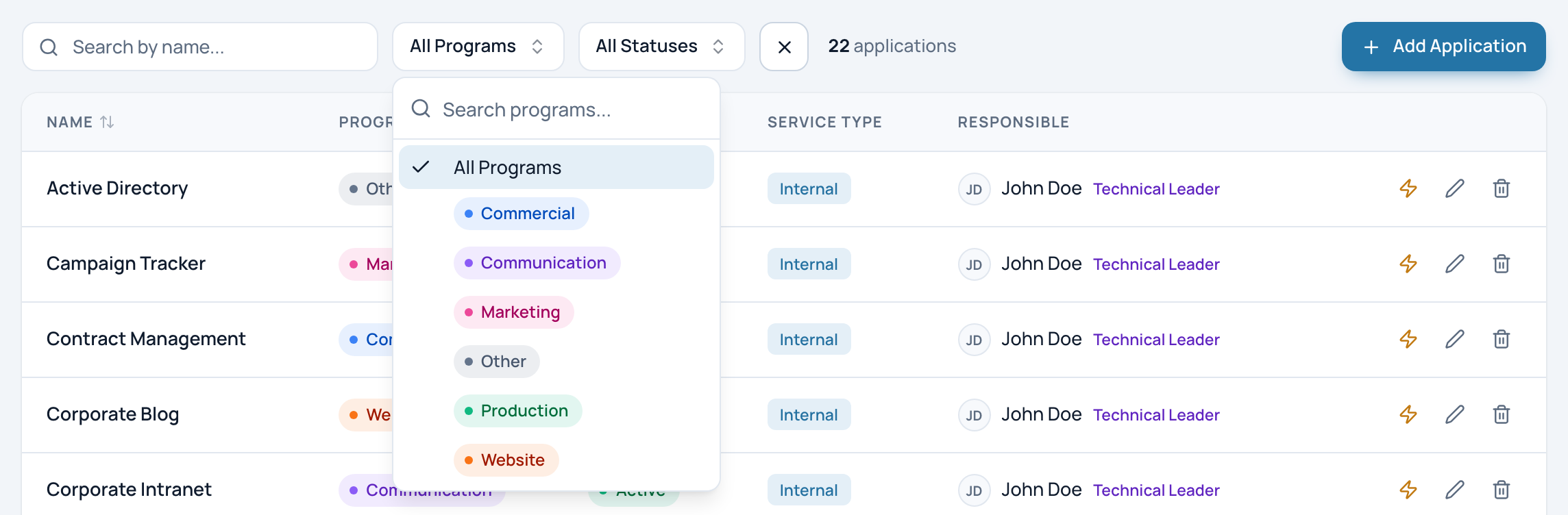
The Applications toolbar with the program filter open.
- Search by name (also searches custom fields)
- Filter, with a searchable list
- Second filter
- Reset filters
- Number of results
- Add an element
The search text and the filters are kept in the page address. Bookmark a filtered list, or send its address to a colleague: it opens with the same filters. The browser's Back button brings back the previous filters.
Click a column header to sort the list by that column. Click it again to reverse the order. The sort order is not kept in the address.
Open an element
Click a row to open the element's details window. It only reads; nothing changes until you click Edit.
- Badges in the header sum the element up, for example an application's program and status.
- Sections follow, each with a small title such as Description or Technical Stack.
- Linked elements are clickable: click an application's server to open that server's window, and so on.
- The Edit tab sits at the bottom edge of the window. It is disabled for Viewers.
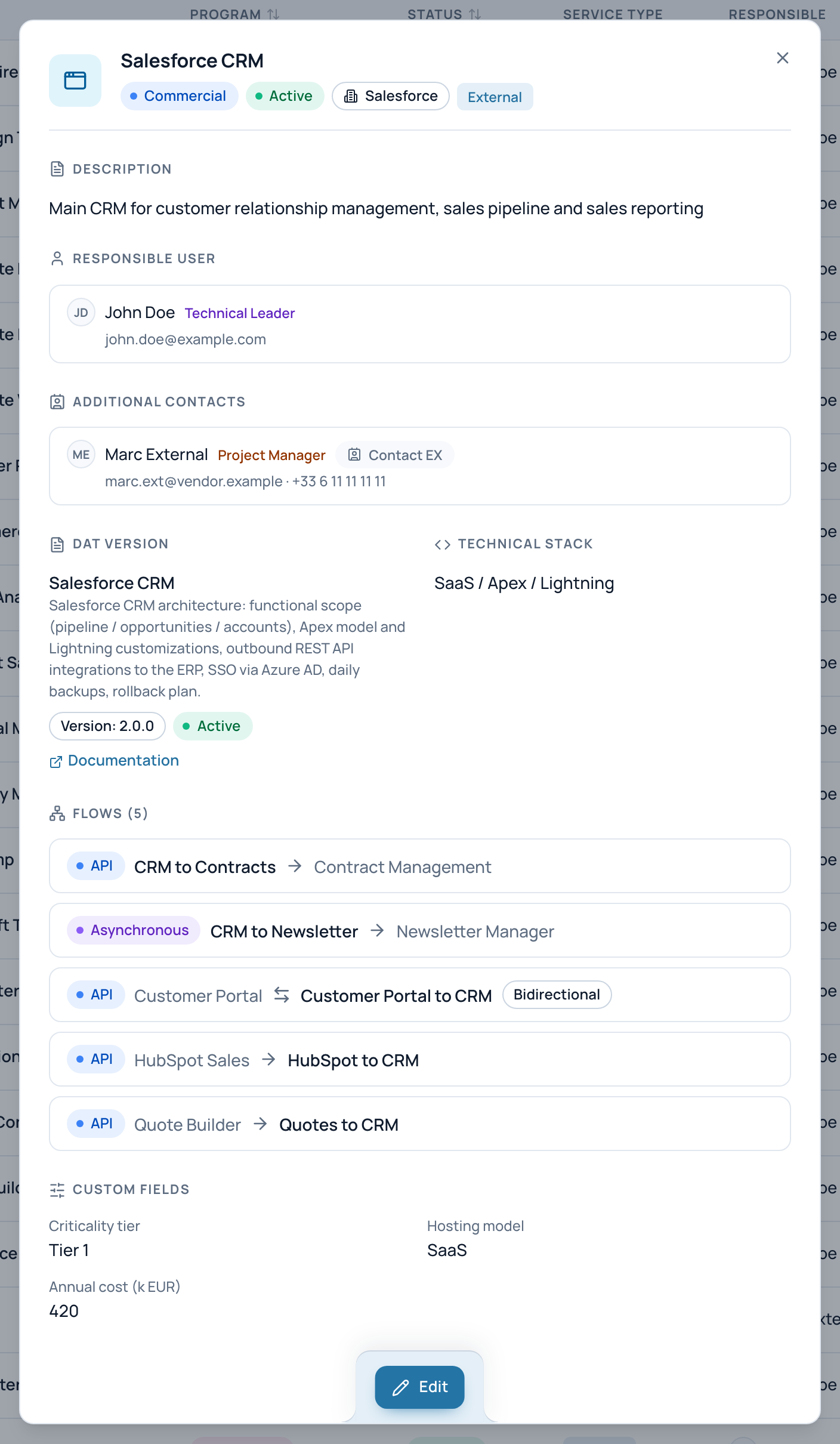
In the example, the details window of the application Salesforce CRM.
- Program, status, vendor, service type
- Responsible user and contacts
- Architecture document, with its Documentation link
- Flows in and out: click one to open it
- Edit
Close the window with its close button, with Esc, or with a click outside it.
Share a direct link
While a details window is open, the page address names that element. Copy the address and send it. A colleague who opens it lands on the same element, already open.
If the element belongs to another of their organizations, UrbaHive switches them to that organization first. They must be a member of it.
Create and edit
- Click the add button of the list, or the pencil icon of a row. The edit window opens.
- Fill in the fields. Required fields carry a red asterisk.
- Click Create for a new element, or Update for an existing one. A message at the bottom of the screen confirms the save.
Create and Update stay disabled until you change something. Their tooltip then says "Nothing has been modified".
If you leave with unsaved changes, by Cancel, Esc, the close button or a click outside, UrbaHive asks "Discard changes?". Click No to keep editing, or Yes to close without saving.
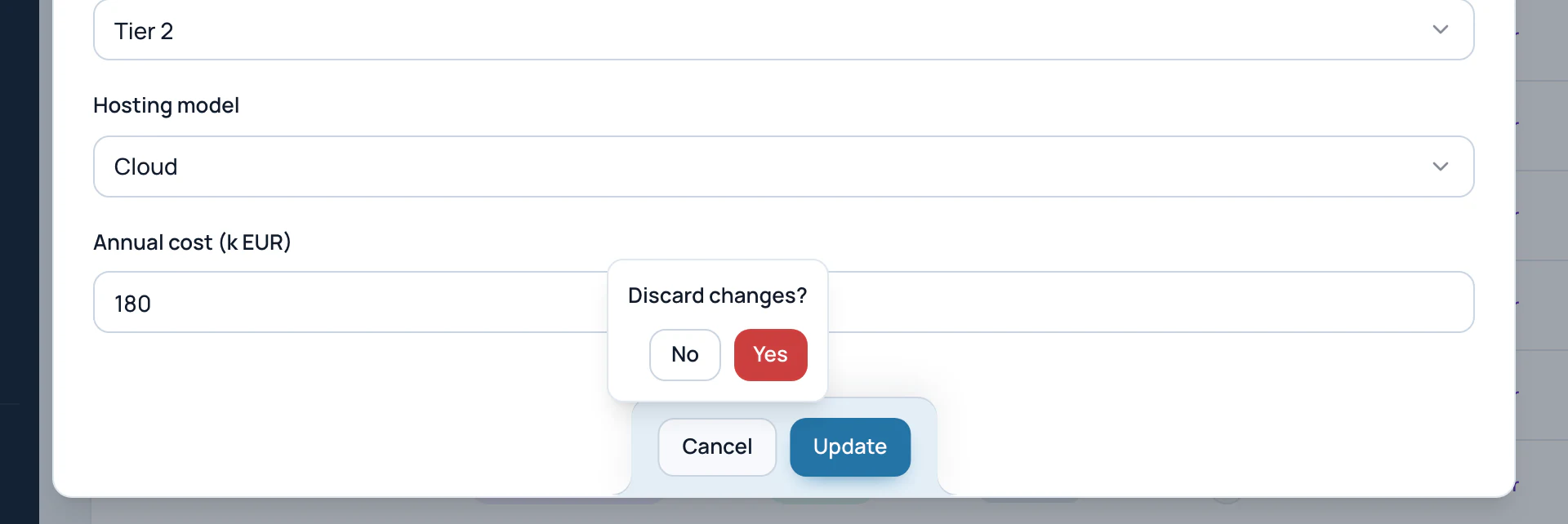
After Cancel, the edit window asks before it throws your changes away.
- Discard changes? No keeps editing, Yes closes without saving
- Update, enabled once something changed
Names are unique within an organization for programs, applications, servers, flows and DAT references. A duplicate name is refused with "This record already exists. Please use a different value."
Delete
Click the trash icon of a row. A confirmation window asks you to confirm; a deletion cannot be undone. Only Owners and Editors can delete.
UrbaHive refuses to delete something that is still in use, such as a program that still holds applications. The message is "Cannot perform this action: related record does not exist or is in use." See Deleting: what blocks what.
Buttons you cannot use
A button your role does not allow stays visible but greyed out. Its tooltip says "You do not have permission to perform this action". See Roles and permissions for what each role can do.
Note
The process editor is the exception to these rules: it saves every change on its own, with no Update button. See Auto-save.
Related pages
- How the building blocks fit together: the links between elements.
- Add your own fields: the custom fields that lists search too.
- Roles and permissions: who can create, edit and delete.