Optimize and align
The coverage matrix
On this page
The coverage matrix crosses your capabilities with your applications: "Capability × Application — what realizes what". It shows at a glance which abilities rest on which tools, which ones have no tool at all, and where several tools overlap. Open it from the sidebar: Alignment › Coverage Matrix. Everyone in the organization can read it.
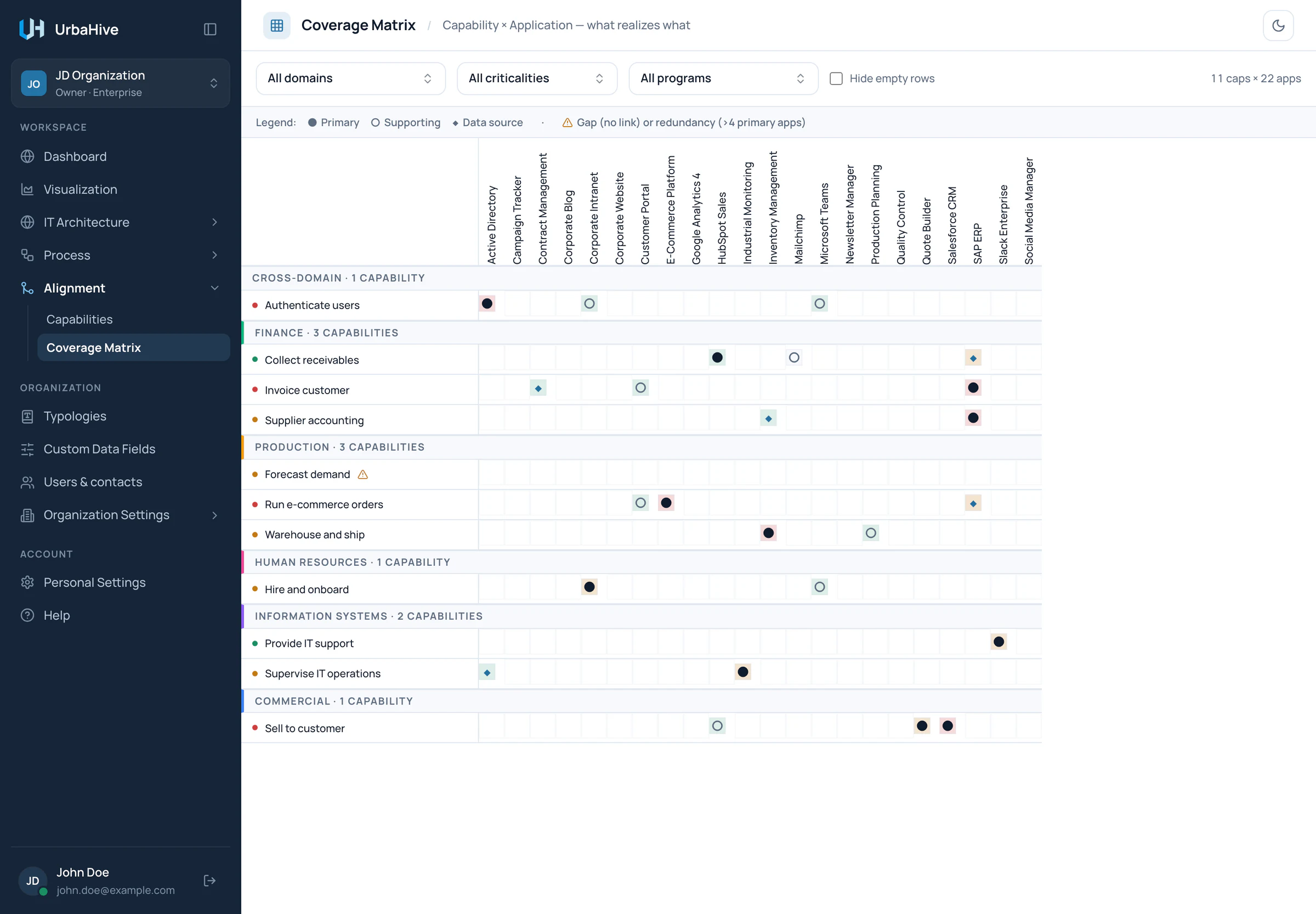
The coverage matrix of the example organization, with a gap flagged on Forecast demand.
- Filters: domain, criticality, program
- Hide empty rows
- Legend
- Capabilities grouped by domain
- A gap: no application
- A link: symbol = relation, tint = criticality
Read the grid
- Rows are capabilities, grouped in bands by domain, each band headed by the domain and its number of capabilities. Capabilities without a domain are grouped under "Cross-domain". A coloured dot at the start of each row gives the capability's criticality; hover it to read it.
- Columns are applications.
- A filled cell means the application is linked to the capability. Its symbol is the strongest relation: ● Primary, then ○ Supporting, then ◆ Data source. Its tint is the highest criticality of its links: red for critical, amber for high, green for medium, grey for low.
Hover a cell to see each link with its relation and criticality.
Gaps and overlaps
A warning sign (⚠) after a capability's name flags one of two problems:
- a gap: no application is linked to the capability at all;
- a redundancy: more than four applications are linked as Primary, which suggests tools that overlap.
The legend bar above the grid recalls the symbols and this rule.
Filter
- Filter by domain keeps one domain, or Cross-domain.
- Filter by criticality keeps the capabilities of one criticality.
- Filter by program keeps the application columns of one program.
- Hide empty rows hides the capabilities that have no application at all, the gaps.
The size of the grid shows on the right, for example "11 caps × 22 apps". The filters are kept in the page address, so you can share a filtered matrix as a link.
Cell details
Click a filled cell to open the "Cell details" panel on the right:
- Capability and Application: click either name to open its impact analysis.
- Links: each relation between the two, with its criticality.
- Process consumers: the processes that realize the capability. Click one to open it in the editor. If there is none, the panel says "No process documented yet."
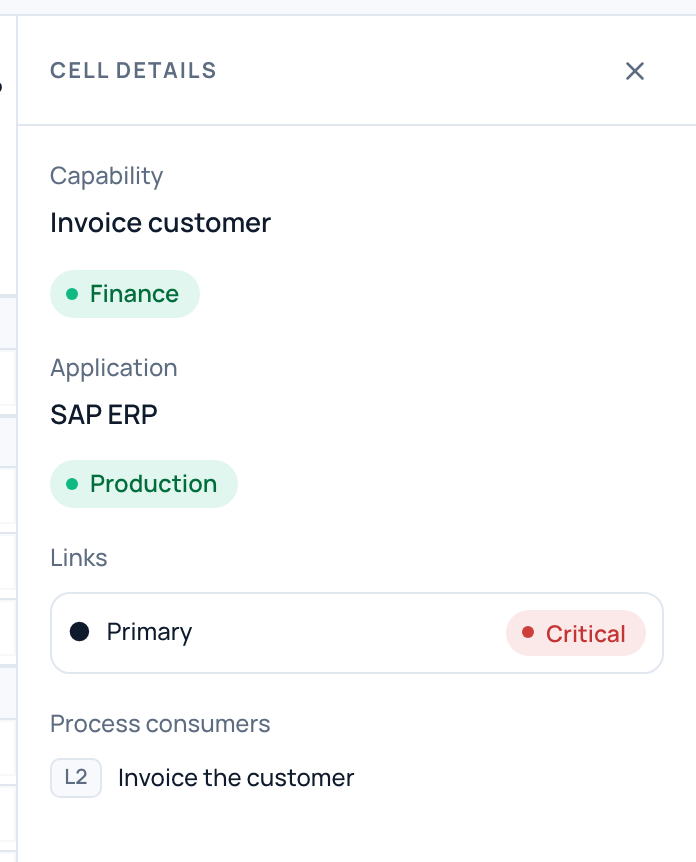
In the example, SAP ERP is the primary, critical application of the capability Invoice customer, which the process Invoice the customer realizes.
- Capability: opens its impact analysis
- Application: opens its impact analysis
- Relation and criticality
- Processes that realize the capability
Change a link
The matrix only reads. To add, remove or change a link, edit the capability: its Applications field holds the links and their relations. See Business capabilities.
Note
The criticality of a link (the tint of a cell) cannot be changed in the app: new links are Medium. The AI assistant can set it. See What the AI assistant does.
Related pages
- Business capabilities: create capabilities and link applications.
- Impact analysis: one capability or application and all its neighbours.
- Group applications into programs: the program filter.