Getting started
Your first steps
On this page
This page gives you the order in which to build a first useful map, and the helpers UrbaHive offers inside the app: the Quick Start page, the welcome tour and Help. A few programs, applications and flows are enough to see your map drawn.
The recommended path
Some elements need others first: an application needs a program, and a flow needs two applications and a flow type. Follow this order and nothing gets refused.
Eight steps to a first map. The tags show what the Quick Start page tracks.
- Check your typologies, especially that at least one flow type exists. See Typologies: your reference lists.
- Create programs to group your applications. See Group applications into programs.
- Add the servers your applications run on, with their infrastructures. See Servers and infrastructures.
- Register your applications. See Register your applications.
- Describe the flows between them. See Describe data flows.
- Look at the map, arrange it and export it. See Explore the map.
- Document a first process. See Create or edit a process.
- Invite your team. See Invite people.
Two more steps are optional: link business capabilities to your applications (Business capabilities) and connect Claude (Connect Claude to UrbaHive).
Start from the demo or from scratch
On the hosted service, your first organization, DefaultOrganization, already holds default typologies and a fictional demo company. Explore it to see how a finished map looks. You can change it, or delete its records and enter your own.
An organization you create later with Create starts completely empty, with no typologies at all. Before your first flow, add at least one value in Typologies › Flow Type. Only Owners and Editors can do that.
Note
On an on-premise installation, your administrator prepares the organization you are invited into.
The Quick Start page
The Quick Start page follows your progress through the first steps. You open it in two ways:
- from Help in the sidebar, with Go to Quick Start;
- from the Get Started banner, with Go to Quick Start. The banner shows at the top of the dashboard and of most lists (Programs, Applications, Servers, DAT Reference, Flows, Capabilities, Typologies, Users & contacts and Configuration) while your organization has no flow.
The page has three steps, and their progress updates as you work:
- Configure Minimal Typologies and Entities: at least 1 program, 2 applications, 1 flow type and 1 flow. Each line links to its page.
- Visualize your architecture: Show opens the map.
- Invite your organization collaborators: Invite opens the invitation window. Only Owners can invite.
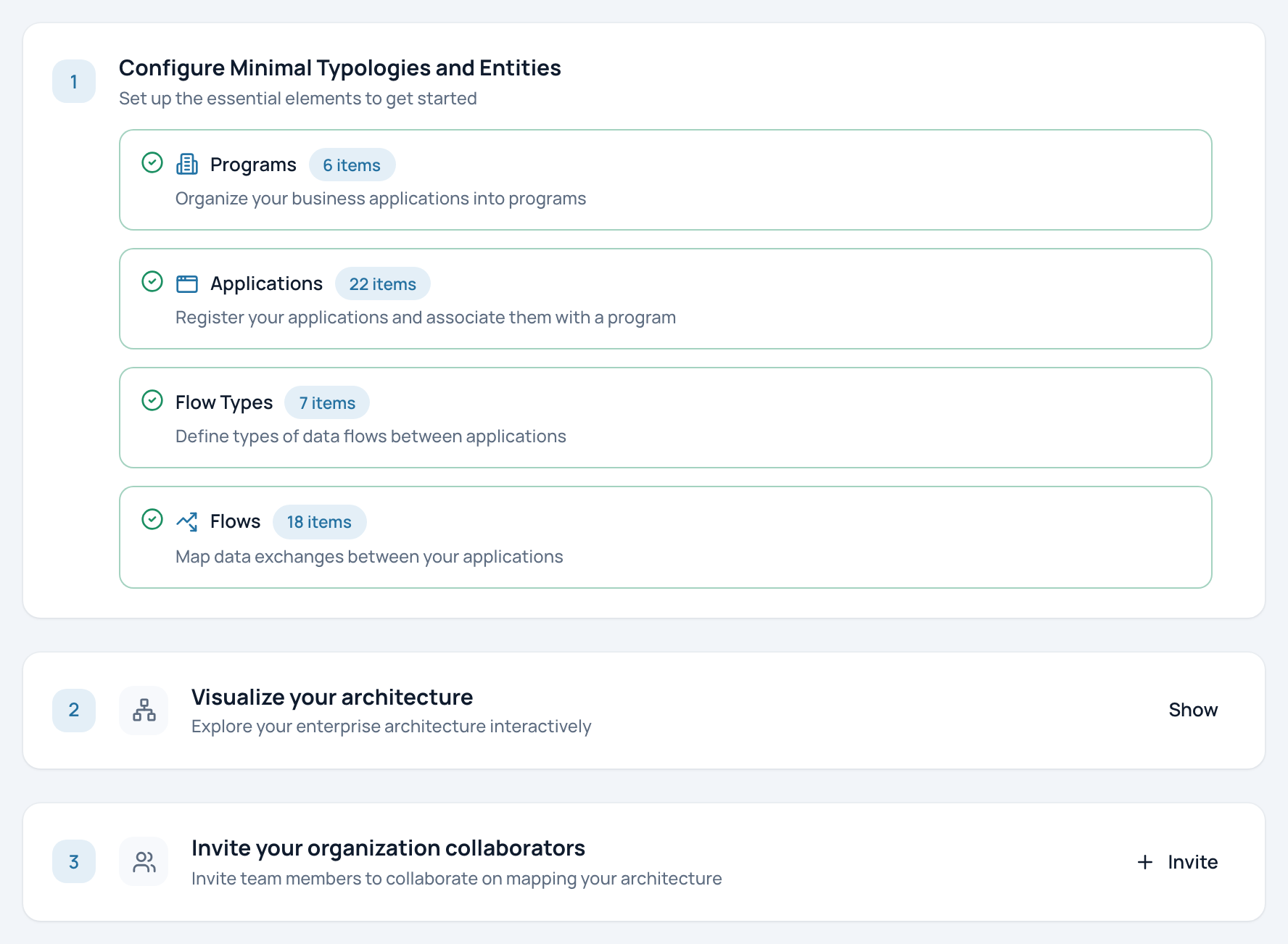
The three Quick Start steps. In the example, every item of step 1 is done and carries a green check.
- Step 1: programs, applications, flow types and flows
- Step 2: look at the map
- Step 3: invite your colleagues
Once a flow exists, two more cards appear: View Complete Guide opens a longer starting guide, and View Documentation opens Help.
The welcome tour
The welcome tour starts by itself at your first sign-in. It moves from page to page and highlights the main parts of the app. Use Previous and Next, and Finish on the last step. The close button (Skip the tour) ends it at any time.
To see it again, open Help, then click Restart Welcome Guide on the Welcome Guide card.
Help inside the app
Help, at the bottom of the sidebar, opens the User Guide page. It has three cards, Welcome Guide, Quick Start and Complete Guide, and a table of contents of reference topics.
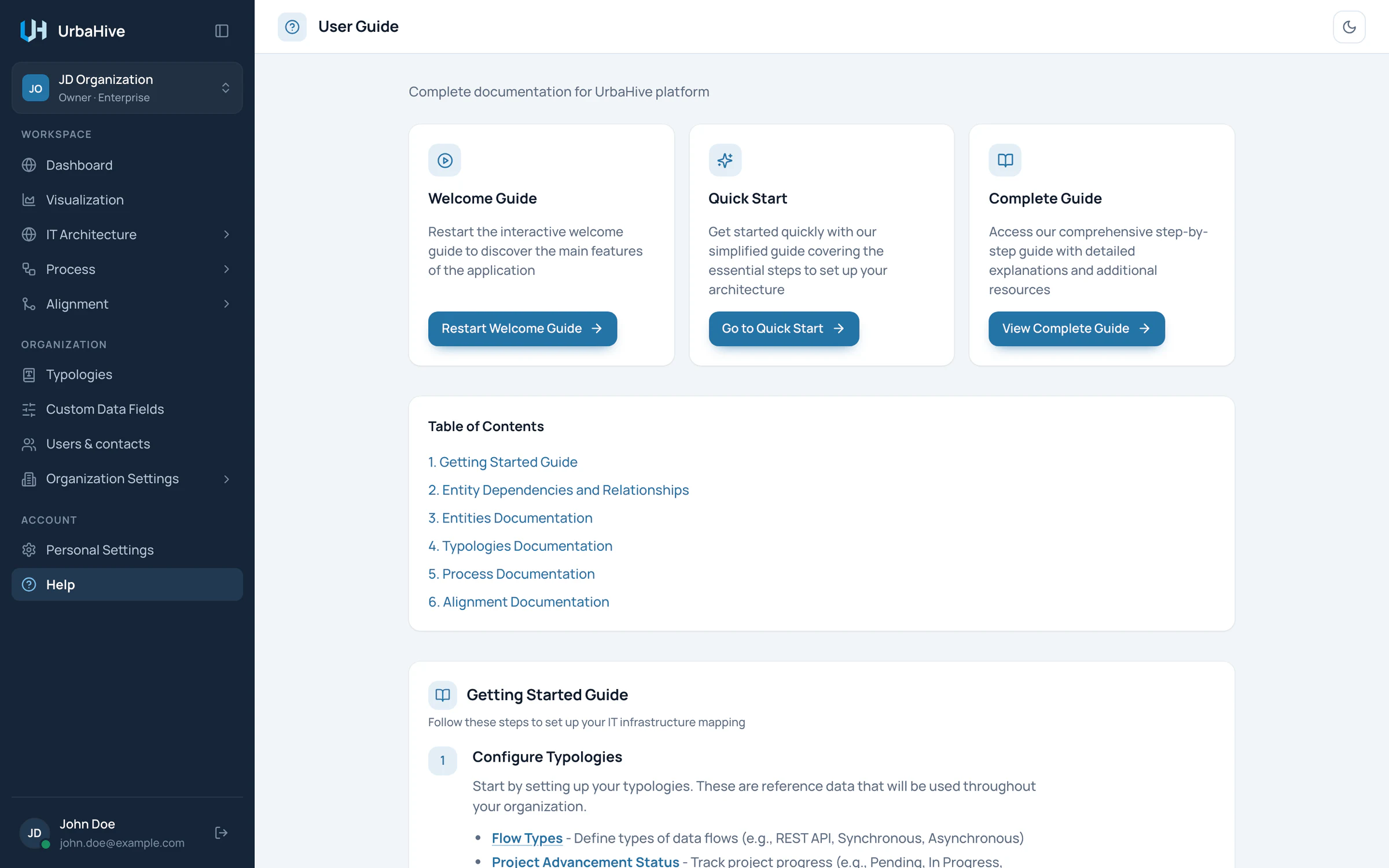
The Help page: restart the tour, open Quick Start or the complete guide.
- Welcome Guide: restart the tour
- Quick Start
- Complete Guide
- Table of contents
At the bottom of the Help page you find the support address. On the hosted service it is contact@urbahive.com. On an on-premise installation it is the address your administrator set, if any.
Note
Some topics of the in-app Help are older than the app. Where they differ, this guide follows what the app does today.
Related pages
- How the building blocks fit together: the rules behind the order above.
- Find your way around: the sidebar and the page header.
- Work with lists and windows: search, create, edit and delete.