Business processes
Create or edit a process
On this page
The process window holds what describes a process as a whole: its name, level, domains, owner, capability, status and monthly volume. The steps themselves are drawn in the editor. Owners, Editors and Members can create and edit processes; Viewers can only read them.
Create a process
- In the sidebar, open Process › Catalog.
- Click New process. The window "New process" opens.
- Type a Name, for example "Issue a quote".
- Under Domains, pick a domain in + Add a domain. The first domain you add becomes the primary one.
- Fill the other fields you know now. You can come back to them later.
- Click Create. The editor of the new process opens, ready for its first step.
If something is missing, the window tells you: "Name is required", "At least one domain is required" or "Pick one primary domain (star icon)".
The fields
The fields appear in this order. Only Name and Domains are required.
| Field | What to enter |
|---|---|
| Name | A short name, ideally a verb and an object: "Issue a quote". |
| Level | L1 · Value chain or L2 · Process map. A new process starts as L2. |
| Parent L1 process | For an L2 only: "Group this L2 map under an L1 value chain." The catalog then shows it indented under its parent. |
| Domains | One or more process domains. Click the star of a domain to make it the primary one. The New domain button (+) creates a domain on the spot; only Owners and Editors can do that. |
| Responsible | The person who owns the process: a member or a contact. |
| Additional contacts | Other people to name for this process. |
| Capability | The business capability the process realizes. "A process incarnates a single business capability." The list shows the capabilities of the primary domain plus those without a domain. |
| Status and Version label | Draft (the default), Validated or Deprecated, and a free label such as "v1.0 - 2026 Q2". |
| Volume / month | How many times the process runs in a month. The optimization score and the Optimization page use it. |
| Triggers | "Processes launched once this one finishes." Add them with + Add triggered process. |
| Notes | Context and scope, in free text. |
If an Owner has defined custom fields for processes, they appear at the bottom of the window. See Add your own fields.
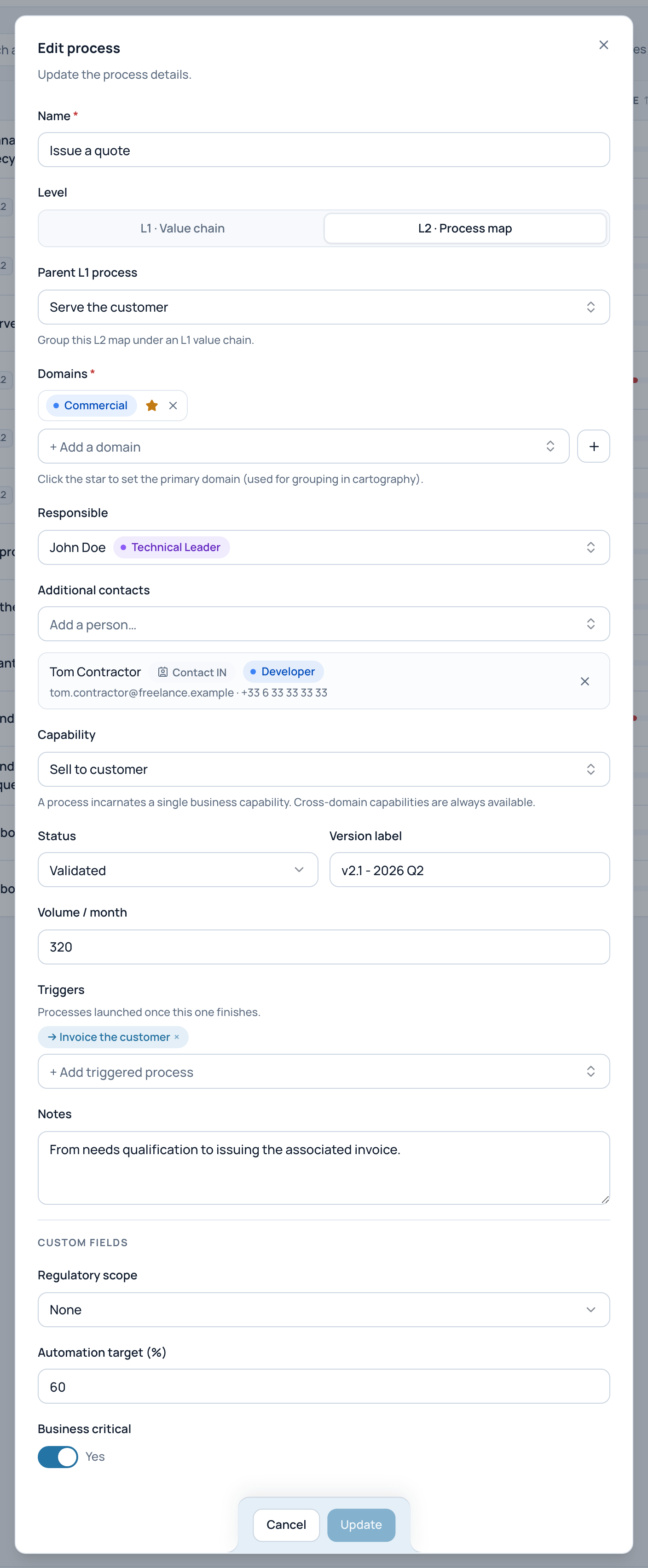
The window of an existing process: in the example, Issue a quote is an L2 map in the Commercial domain that triggers another process.
- Level
- Domains: the star marks the primary one
- Capability it realizes
- Status and version label
- Volume per month (feeds the score)
- Processes it triggers
Tip
Fill Volume / month even with an estimate. Without it, the score and the Optimization page cannot tell a daily process from a yearly one.
Edit a process
- Click Edit process: the pencil on the process's row in the catalog, or the button in the editor's top bar.
- Change what you need. In edit mode, a process that is not validated yet shows a Validate now button: it sets the status to Validated in the window.
- Click Update.
Update stays disabled until you change something. If you click Cancel, press Esc or click outside the window after a change, the window asks "Discard changes?". Click Yes to drop your changes, or No to keep editing.
Links between processes
Processes connect to each other and to the rest of your map in five ways:
| Link | Set in | Shows in |
|---|---|---|
| L2 under a parent L1 | Process window, Parent L1 process | The catalog (indented) and the impact analysis |
| One process triggers another | Process window, Triggers | The impact analysis, in both directions |
| A step delegates to another process | Edit step panel, type Sub-process and Delegates to | The sub-process card and the impact analysis. See Sub-process steps. |
| The process realizes a capability | Process window, Capability | The capability's details, the coverage matrix and the impact analysis |
| A step uses applications | Edit step panel, Applications | The step card, the score, the Optimization page and the impact analysis |
The window shows only the processes this one triggers. To see which processes trigger it, open its impact analysis.
Who can do what
- Owner, Editor and Member create and edit processes.
- Owner and Editor also delete them, and create process domains.
- Viewer reads them.
The full table is in Roles and permissions.
Related pages
- Build a process in the editor: draw the steps.
- The process catalog: find and filter processes.
- Business capabilities: what a process can realize.
- Understand the optimization score: how the volume counts.