Map your IT landscape
Describe data flows
On this page
A flow is an exchange of data from a source application to a target application. On the map it is an arrow. Recording flows shows how your applications depend on each other, and which exchanges break when one of them changes. Owners, Editors and Members create and edit flows.
The Flows list
Open IT Architecture › Flows in the sidebar. Three filters narrow the list: All Sources, All Targets and All Types.
The columns are Name, Source, Target, Type and Bidirectional (Yes or No). Each row ends with edit and delete buttons.
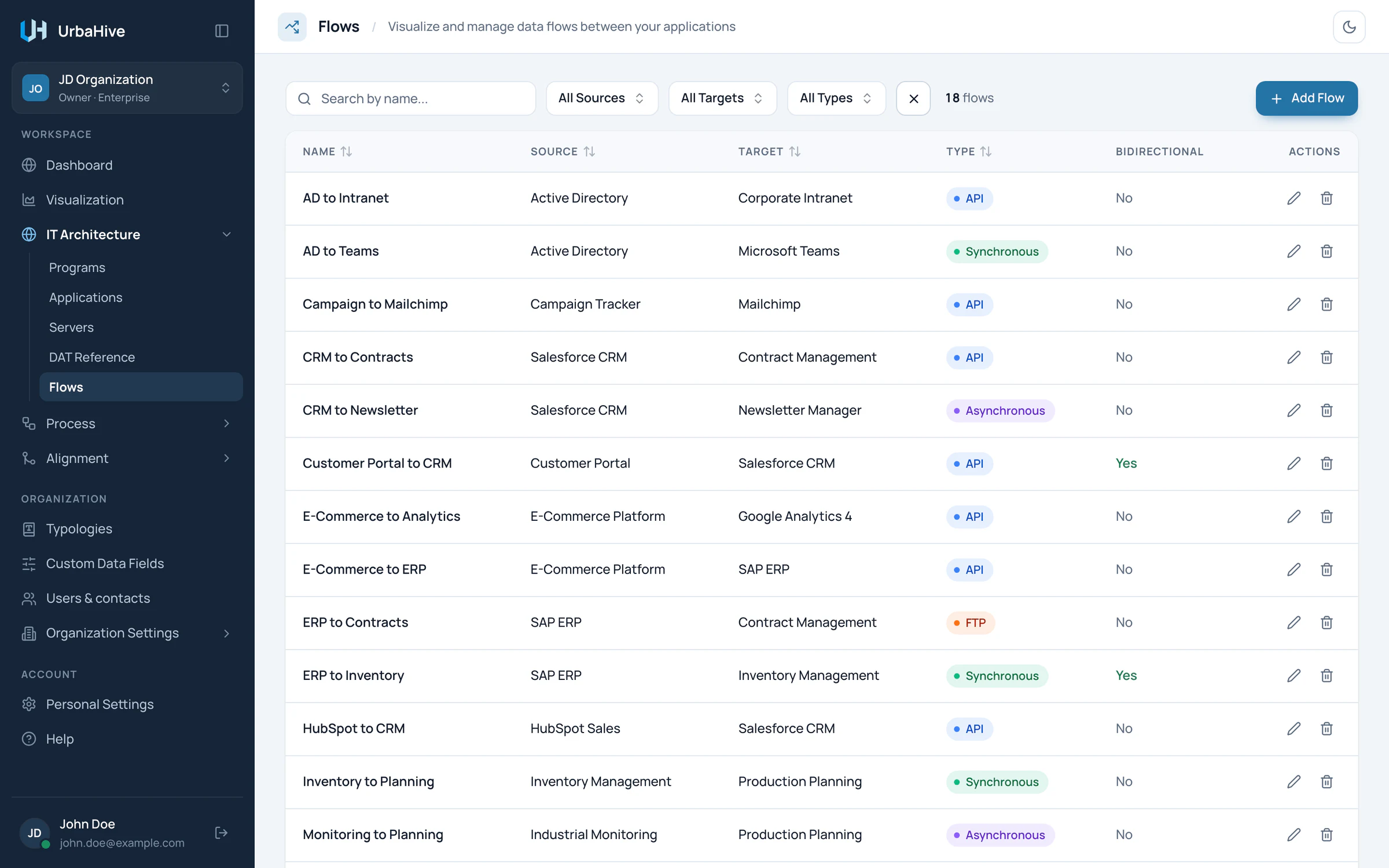
The Flows list of the example organization.
- Filter by source, target or type
- Flow type
- Bidirectional: Yes or No
- Add Flow
Add a flow
You need two applications and at least one flow type first.
- Click Add Flow. The New Flow window opens.
- Type a Name. It is required and unique in the organization.
- In Description, say what the flow carries, for example "Exports billing data for contract reconciliation".
- Choose the Source Application and the Target Application. Both are required, and they must differ.
- Choose the Flow Type. It is required, and its colour colours the arrow on the map.
- Type a Frequency if you know it, in your own words, for example Real-time, Daily or Weekly.
- Turn on Bidirectional flow if data goes both ways. The map then draws a dashed arrow with a head at each end.
- Fill in the custom fields, if your Owner defined some for flows.
- Click Create.
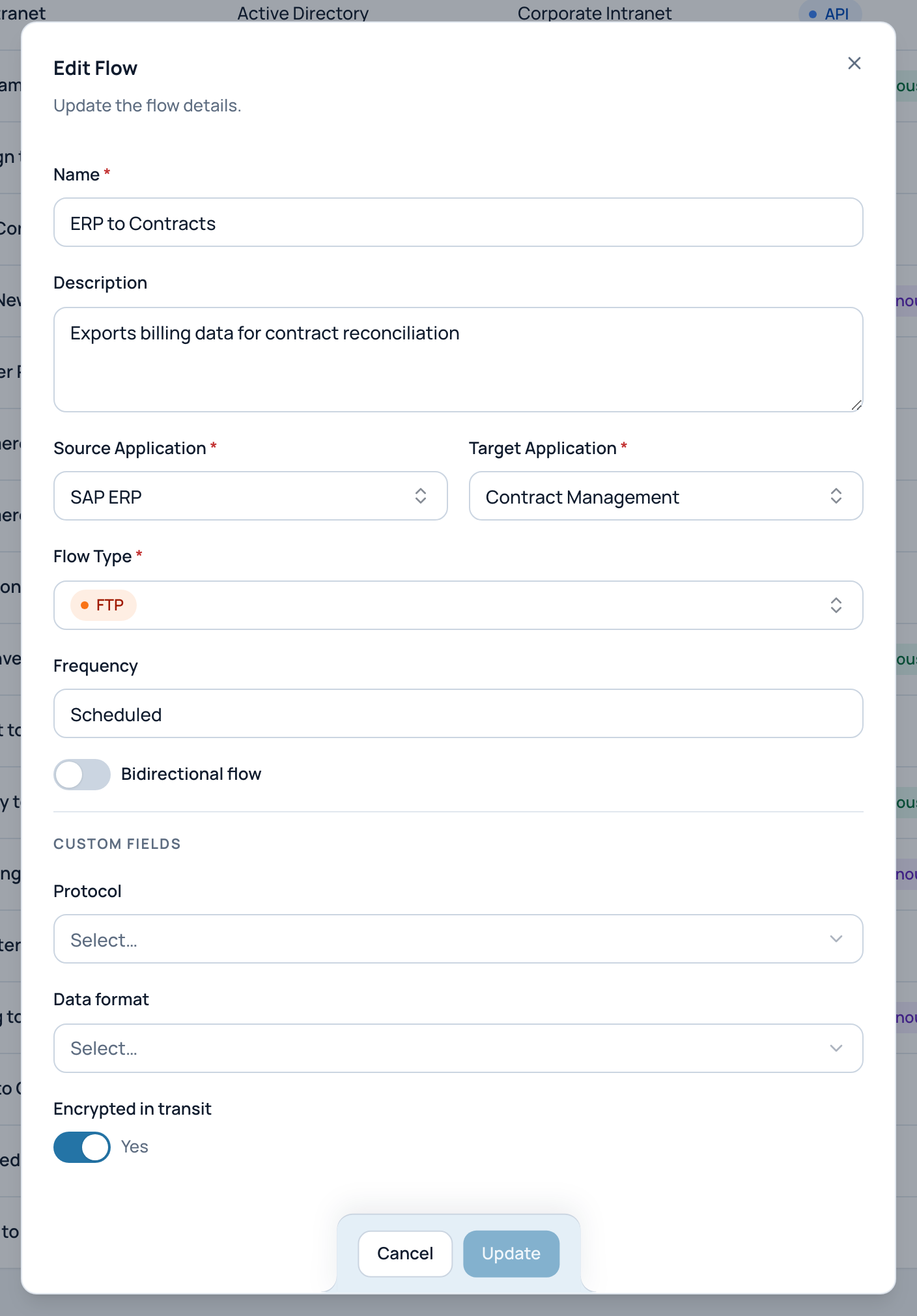
In the example, the edit window of the flow ERP to Contracts.
- Source application (required)
- Target application (required, different)
- Flow type (required)
- Frequency
- Bidirectional flow
- Custom fields (here Protocol, Data format, Encrypted in transit)
If the two applications are the same, the save is refused with "Source and target applications must be different".
Protocol, format and other details
A flow has no built-in field for a protocol or a data format. Your Owner can add custom fields to flows for that. In the example, the organization added Protocol, Data format and Encrypted in transit. See Add your own fields.
Read a flow
Open a flow from the list, or click its arrow on the map. Its details window shows:
- its flow type, as a badge;
- Description;
- Applications: the source and the target, or both ways for a bidirectional flow. Click an application to open it;
- Technical Details, with the frequency, when it is filled in;
- Custom fields.
Flow types
Flow types are a typology. Open Typologies and click the Flow Type tile; Owners and Editors add values with Add Flow Type. Give each type a colour: it is the colour of its arrows on the map.
On the hosted service, a new account's DefaultOrganization starts with API, Synchronous, Asynchronous, FTP, Email, SMS and Other. An organization you create later starts with none: add one before your first flow. A flow type that flows use cannot be deleted. See Typologies: your reference lists.
Flows and deletions
A flow blocks the deletion of its two applications. To delete an application, delete its flows first. Only Owners and Editors delete flows.
Related pages
- Explore the map: how flows are drawn.
- Register your applications: each application lists its flows.
- Deleting: what blocks what: the full table.