Map your IT landscape
Servers and infrastructures
On this page
A server is a machine or an instance that runs applications. An infrastructure is where servers run: a cloud provider, a data centre or a site. Record both to see where each application lives and what a server outage would touch. Owners, Editors and Members manage servers; only Owners and Editors manage infrastructures.
The Servers list
Open IT Architecture › Servers in the sidebar. The filter All Infrastructures narrows the list; None finds the servers without an infrastructure. The columns are Name, Infrastructure and Responsible. Each row ends with Impact analysis, edit and delete.
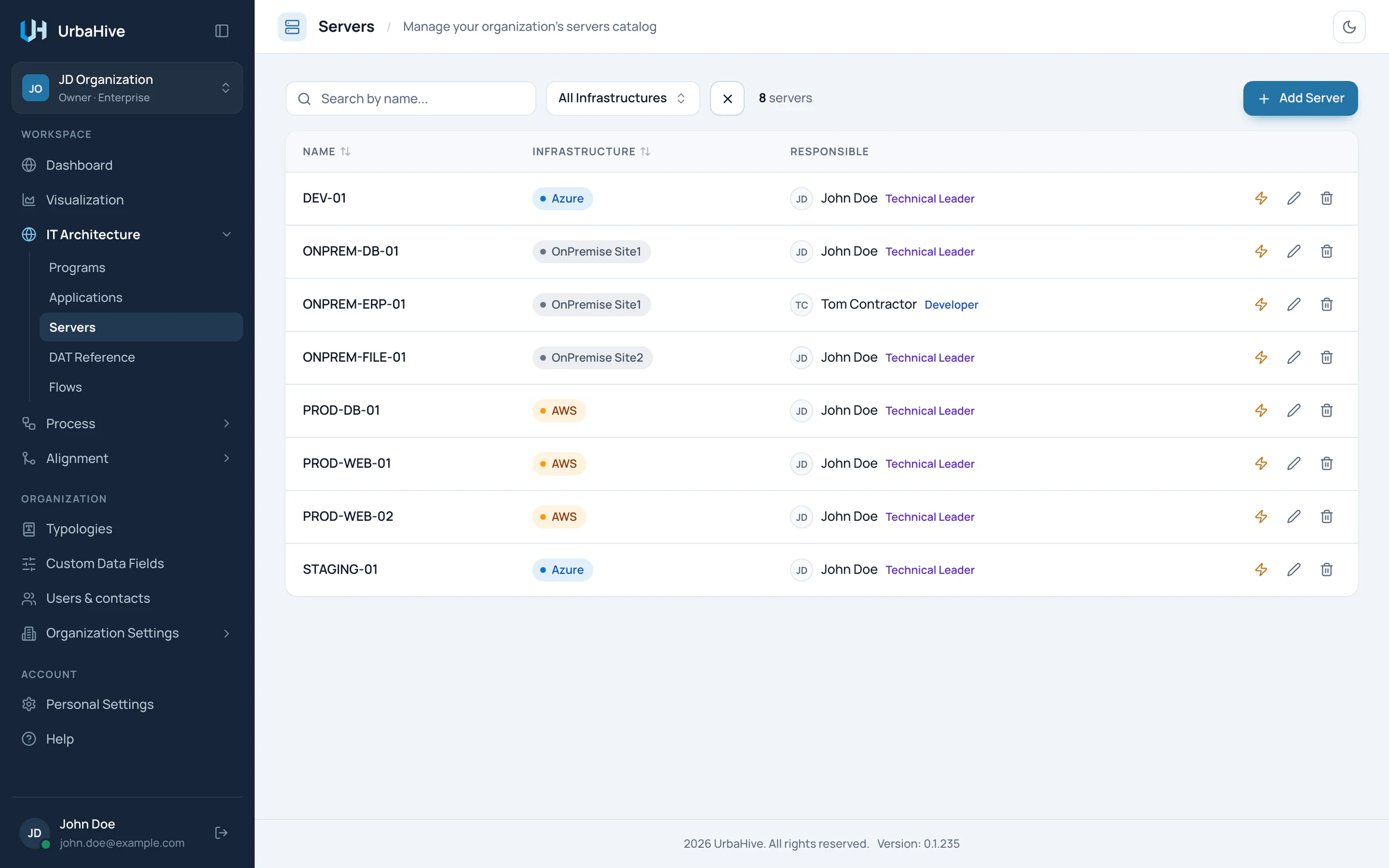
The Servers list of the example organization, with each server's infrastructure.
- Filter by infrastructure
- Infrastructure of each server
- Add Server
- Impact analysis
Add a server
- Click Add Server. The New Server window opens.
- Type a Name. It is required and unique in the organization.
- Add a Description and choose its Infrastructure.
- Pick a Color, the Responsible User and any Additional contacts.
- Fill in the custom fields, if your Owner defined some for servers.
- Click Create.
Put an application on a server
You link an application to its server from the application, not from the server. Open the application's edit window and choose its Server. An application runs on one server at most. See Register your applications.
Read a server
Click a row to open the server's details window. It shows:
- Infrastructure, with its location and a link to its website when set;
- Responsible User and Additional contacts;
- Applications: the applications that run on it. Click one to open it;
- Custom fields.
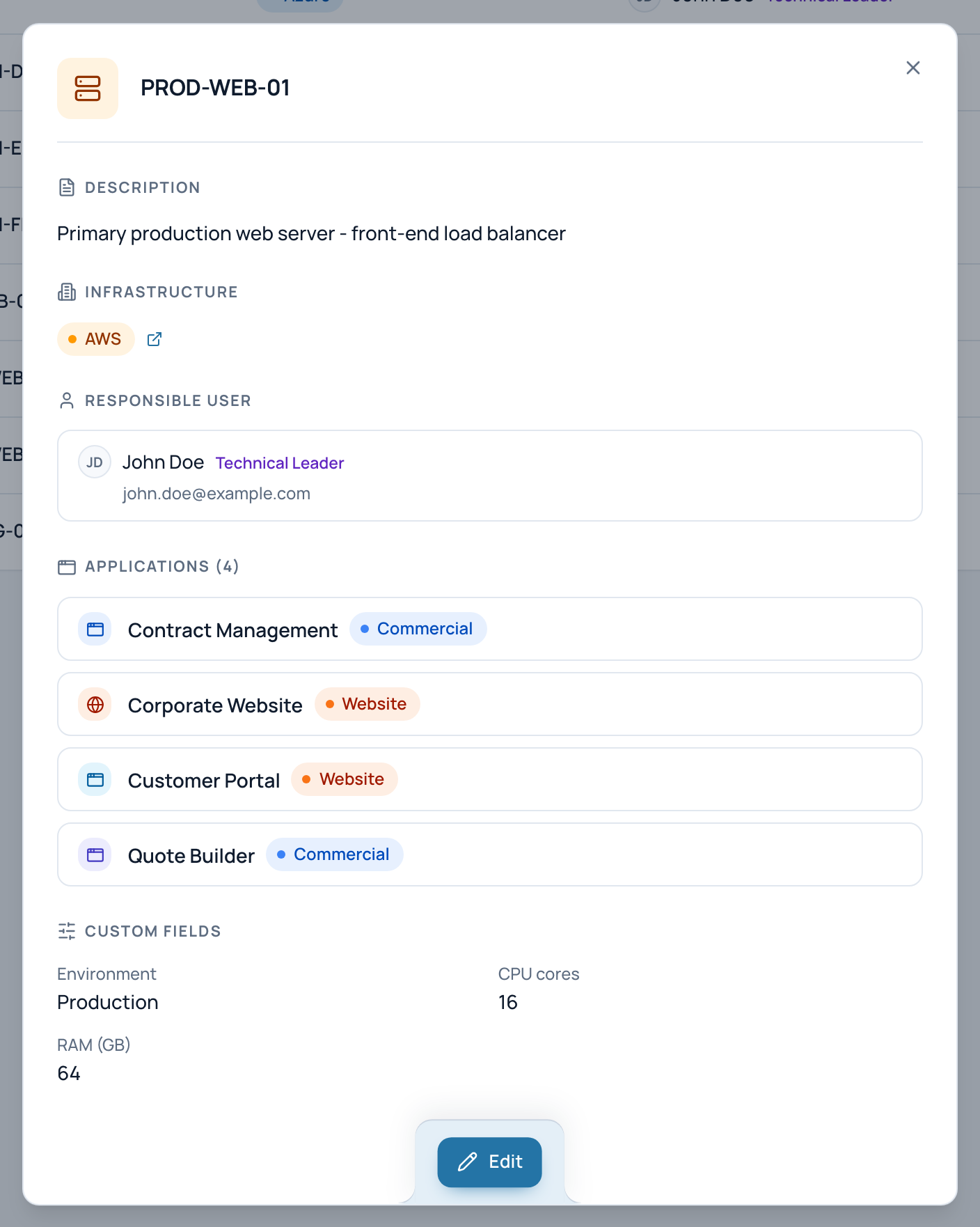
In the example, the server PROD-WEB-01 on AWS, with the four applications it runs.
- Infrastructure, location and website
- Applications that run on it
- Custom fields
Infrastructures
Infrastructures are a typology. Open Typologies and click the Infrastructure tile. Owners and Editors add one with Add Infrastructure:
| Field | What to enter |
|---|---|
| Name | Required, for example a cloud provider or a site. |
| Location | Optional, for example a region or a city. |
| URL | Optional. It must start with http:// or https://. |
| Color | Optional. |
The list shows each infrastructure's Location, Website URL and Usage, the number of servers in it. Each row also has an Impact analysis button.
On the hosted service, a new account's DefaultOrganization starts with AWS, Azure, Google Cloud, OnPremise Site1 and OnPremise Site2. See Typologies: your reference lists.
Delete
- A server cannot be deleted while an application runs on it. Set those applications' Server to another one or to None first.
- An infrastructure cannot be deleted while servers use it. Change those servers' Infrastructure first.
Only Owners and Editors delete.
See them on the map
The map has a view for servers, grouped by infrastructure. See The infrastructure view.
Related pages
- Register your applications: choose each application's server.
- Impact analysis: what a server or an infrastructure carries.
- Deleting: what blocks what: the full table.