Work together
Organizations: switch, create, configure
On this page
An organization holds all its data (applications, flows, processes, capabilities and the rest) and its people. Nothing is shared between organizations. You can belong to several, with a different role in each. The window that lists them calls them "workspaces": it is the same thing.
Switch organization
- Click the organization card at the top of the sidebar. It shows the organization's name and your role.
- The "Switch workspace" window lists your organizations, each with your role and, on the hosted service, its plan. The one you are in is marked Current.
- Click Switch on the row of the organization you want. The app says "You're now on" and the organization's name.
UrbaHive remembers your choice: the next time you sign in, you land in that organization.
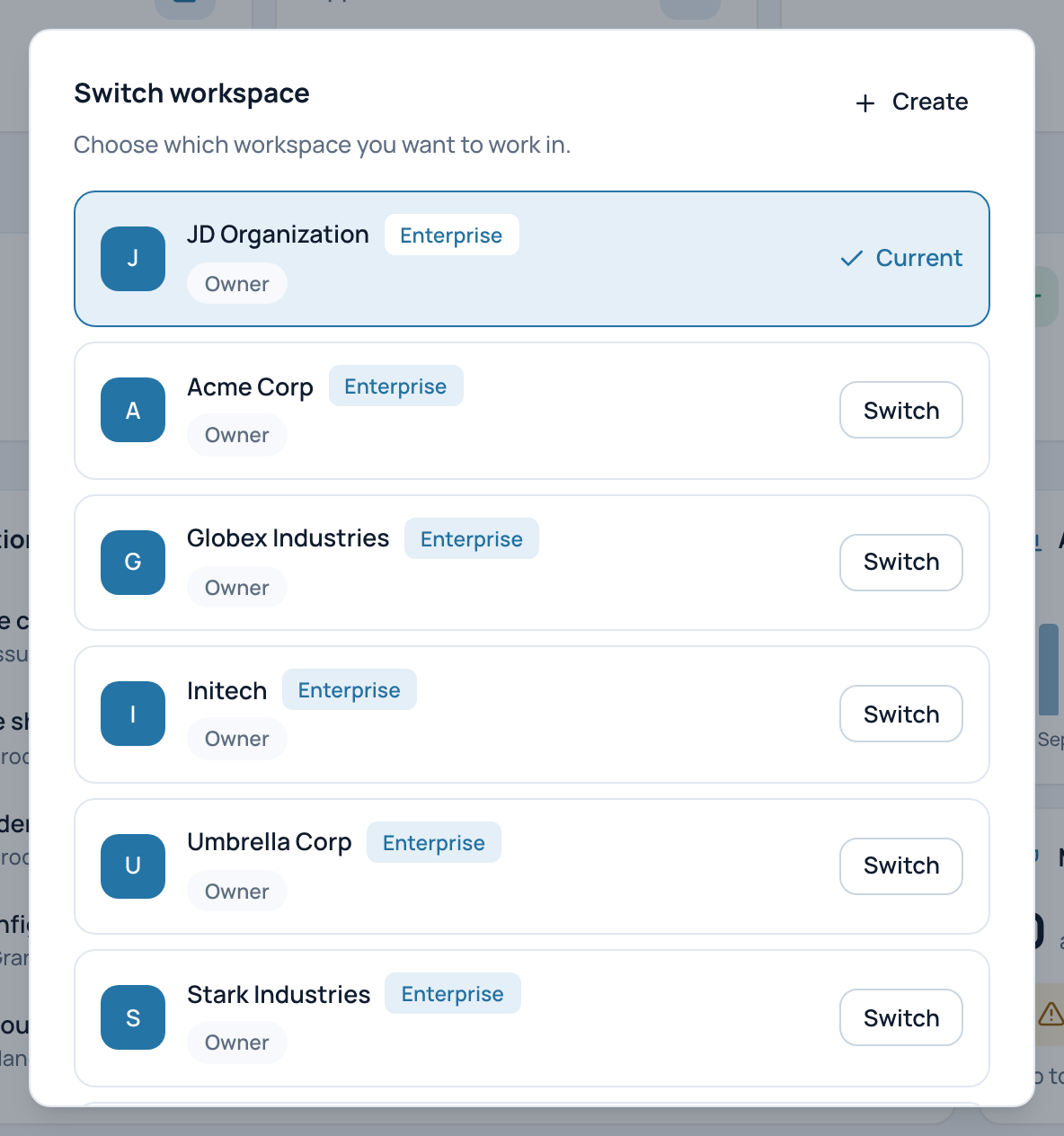
The Switch workspace window of the example account, which belongs to several demo organizations.
- The organization you are in
- Plan and your role
- Switch
- Create an organization
Create an organization
- In the "Switch workspace" window, click Create.
- Type the Organization name.
- Click Create. The app says "Organization created successfully".
- The new organization appears in the list, but you stay where you are. Click Switch on its row to go there.
You are the Owner of the new organization. On the hosted service, it starts on the Free plan. It starts empty: no data and no typologies, so add the typologies you need (flow types, statuses, process domains…) before your first elements. See Typologies: your reference lists.
Note
On an on-premise installation, the Create button appears only if your administrator allows it.
Name and logo
Open Organization Settings › Configuration in the sidebar. Every member sees this page; only Owners can change it.
- Change the Organization Name (required).
- In Logo URL, paste the web address of an image, such as a link to your logo on your company website. There is no file upload.
- A bar appears: "You have unsaved changes". Click Save changes, or Discard to go back.
The logo shows on the organization card of the sidebar and in the "Switch workspace" window. If the image cannot be loaded, the initials of the organization show instead.
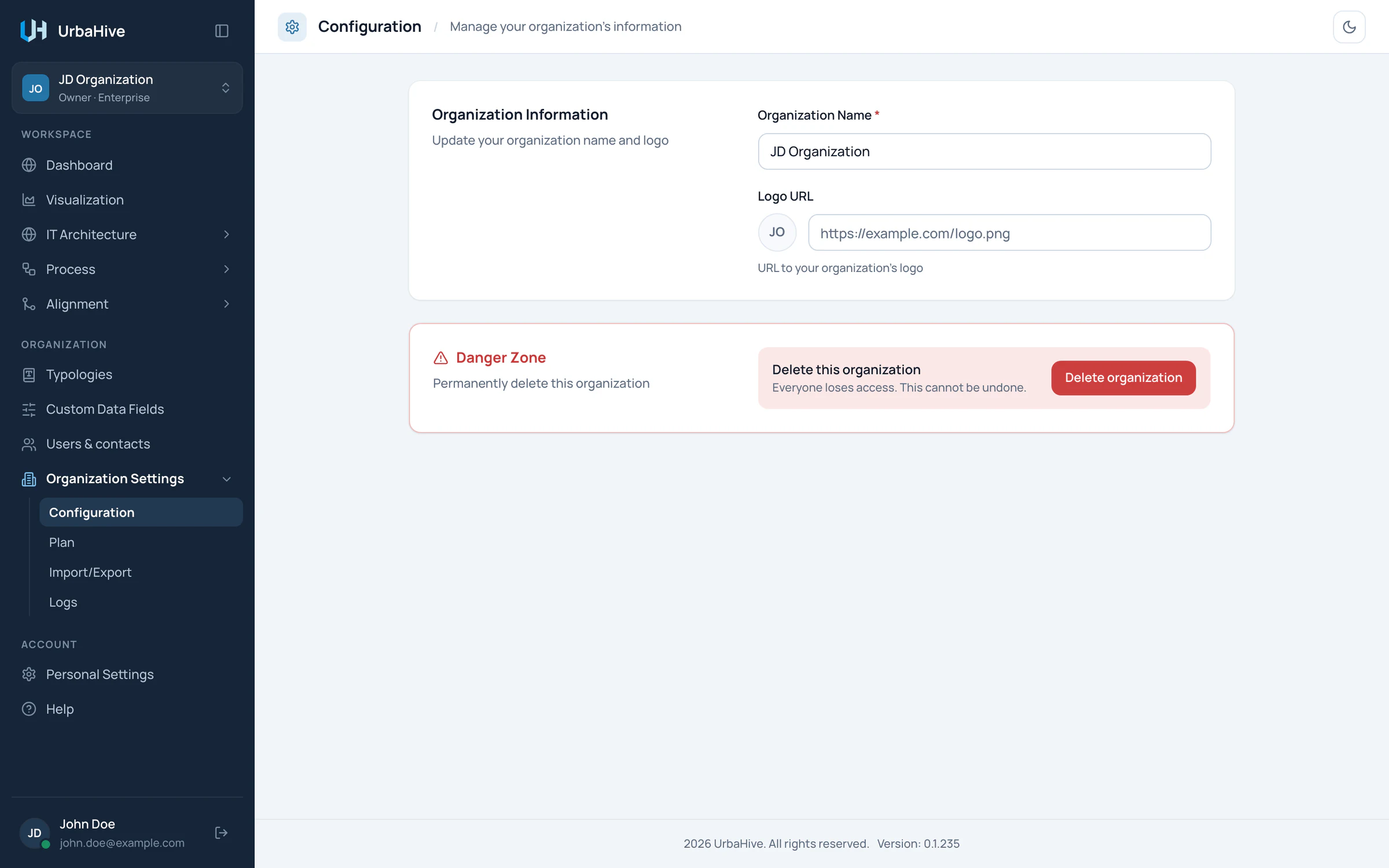
The Configuration page as an Owner sees it on the hosted service, with the Danger Zone at the bottom.
- Organization Name
- Logo URL: the address of an image
- Danger Zone: delete the organization (hosted)
Leave an organization
- Open Users & contacts and find your own row, marked "You".
- Click Leave this organization.
- Read what follows you, then type the organization's name or the word "confirm".
- Click Leave organization.
You become an external contact of that organization. Nothing you own or are responsible for is lost, but you can no longer sign in to it. Your AI assistant tokens for that organization stop working.
- The only Owner cannot leave: "You're the only owner — promote someone else before you can leave". Make another member Owner first. See Change the role of a member.
- If you are the only member, the button becomes Close the organization and takes you to its Configuration page.
Delete an organization
On the hosted service, an Owner can delete an organization from Configuration › Danger Zone › Delete organization. A window guides you through three steps:
- Members. "Everyone else must be converted to an external contact before the organization can be deleted." Click Convert all to external contact, confirm, then Next step.
- Plan. "The organization must be on the Free plan before it can be deleted." If it is on another plan, Go to Plan settings takes you to the Plan page.
- Confirm. Type the organization's name or "confirm", then click Delete organization.
Warning
Deleting an organization cannot be undone. Everyone loses access to it. Export its data first if you may need it: see Export your data.
On an on-premise installation, there is no Danger Zone: ask your administrator.
Related pages
- Roles and permissions: what each role can do in an organization.
- Invite people: bring colleagues into an organization.
- Plan and billing: the plan of an organization.
- Hosted and on-premise: what differs.