AI assistant
Connect Claude to UrbaHive
On this page
Connecting Claude takes two parts: a personal access token that you create in UrbaHive, then the UrbaHive connector that you add in Claude. Everything starts in Personal Settings › Connectors. Any member can do it, whatever their role; what Claude may then change depends on that role.
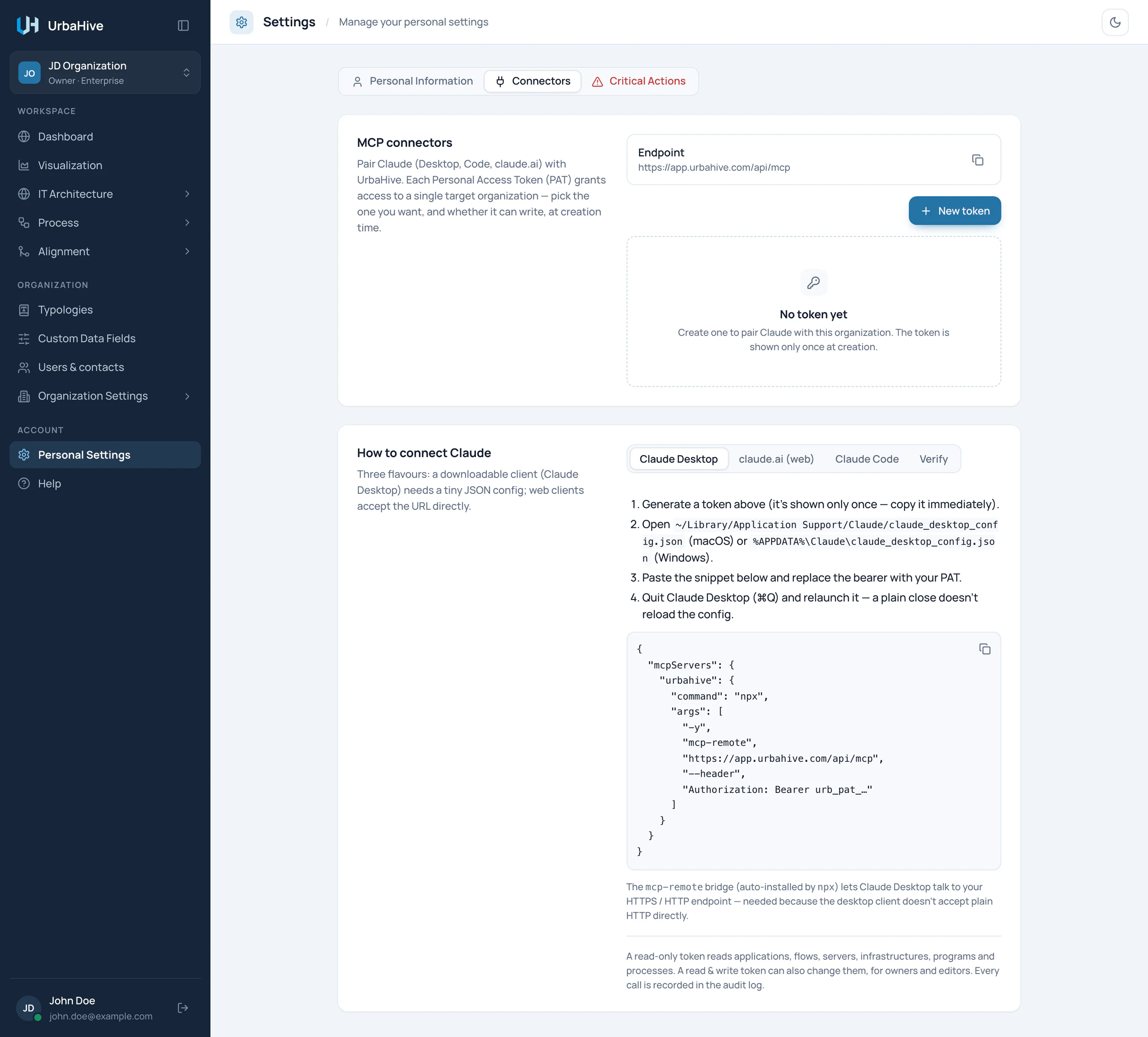
The Connectors tab: the endpoint, your tokens, and the instructions for each Claude application.
- Endpoint: the address Claude calls
- New token
- Your tokens
- How to connect Claude
Create a token
- Open Personal Settings in the sidebar, then the Connectors tab.
- Click New token. The window "New MCP token" opens.
- Give the token a Name that says where you will use it, for example "My Mac (Claude Desktop)".
- Check the Target organization. "The token grants access to this organization only, even if you are a member of several." The current organization is selected.
- Set Expires in (days): 90 by default, up to 365.
- Leave Allow write access off for a read-only token ("the client can only read data (recommended)"). Turn it on only if you want Claude to create and change data.
- Click Generate. The window becomes "Copy your token now".
- Copy the token and store it in your password manager, or paste it straight into Claude. "This token will never be shown again."
- Click Done.
If something is missing, the window says "Please give the token a name" or "Pick a target organization".
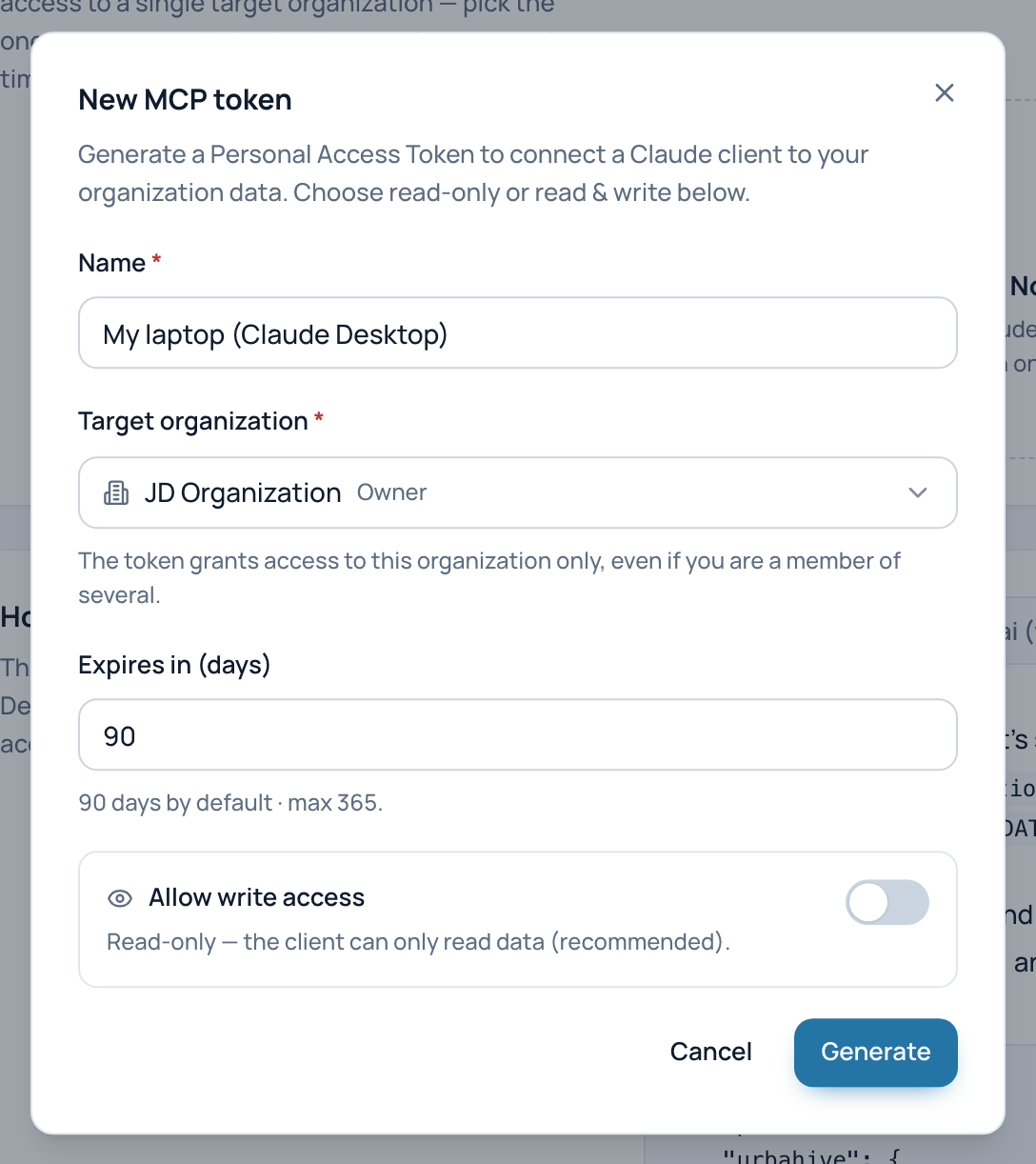
The New MCP token window with a sample name, read-only by default.
- Name
- Target organization: one per token
- Expires in (days): 90 by default, up to 365
- Allow write access: off means read-only
- Generate
Warning
Treat a token like a password. Anyone who has it can act in UrbaHive as you, within the token's limits. Never paste it in a shared document, a ticket or a chat with other people. If it leaks, revoke it at once: see Permissions, tokens and safety.
The endpoint
The Endpoint row at the top of the tab gives the address Claude must call. Click Copy endpoint to copy it.
- On the hosted service, it is
https://app.urbahive.com/api/mcp. - On an on-premise installation, it is your UrbaHive address followed by
/api/mcp.
The section "How to connect Claude", lower in the tab, has one tab per Claude application, with the endpoint already filled in.
Claude Desktop
- Open the Claude Desktop configuration file,
claude_desktop_config.json. On macOS, it is in~/Library/Application Support/Claude/. On Windows, it is in%APPDATA%\Claude\. - Copy the snippet from the Claude Desktop tab in UrbaHive, paste it in the file, and replace the placeholder after "Bearer" with your token.
- Save the file.
- Quit Claude Desktop completely (⌘Q on a Mac) and start it again. Closing the window is not enough: "a plain close doesn't reload the config".
The snippet starts a small bridge, mcp-remote, with npx. Node.js must therefore be installed on the computer. Ask your IT team if it is not.
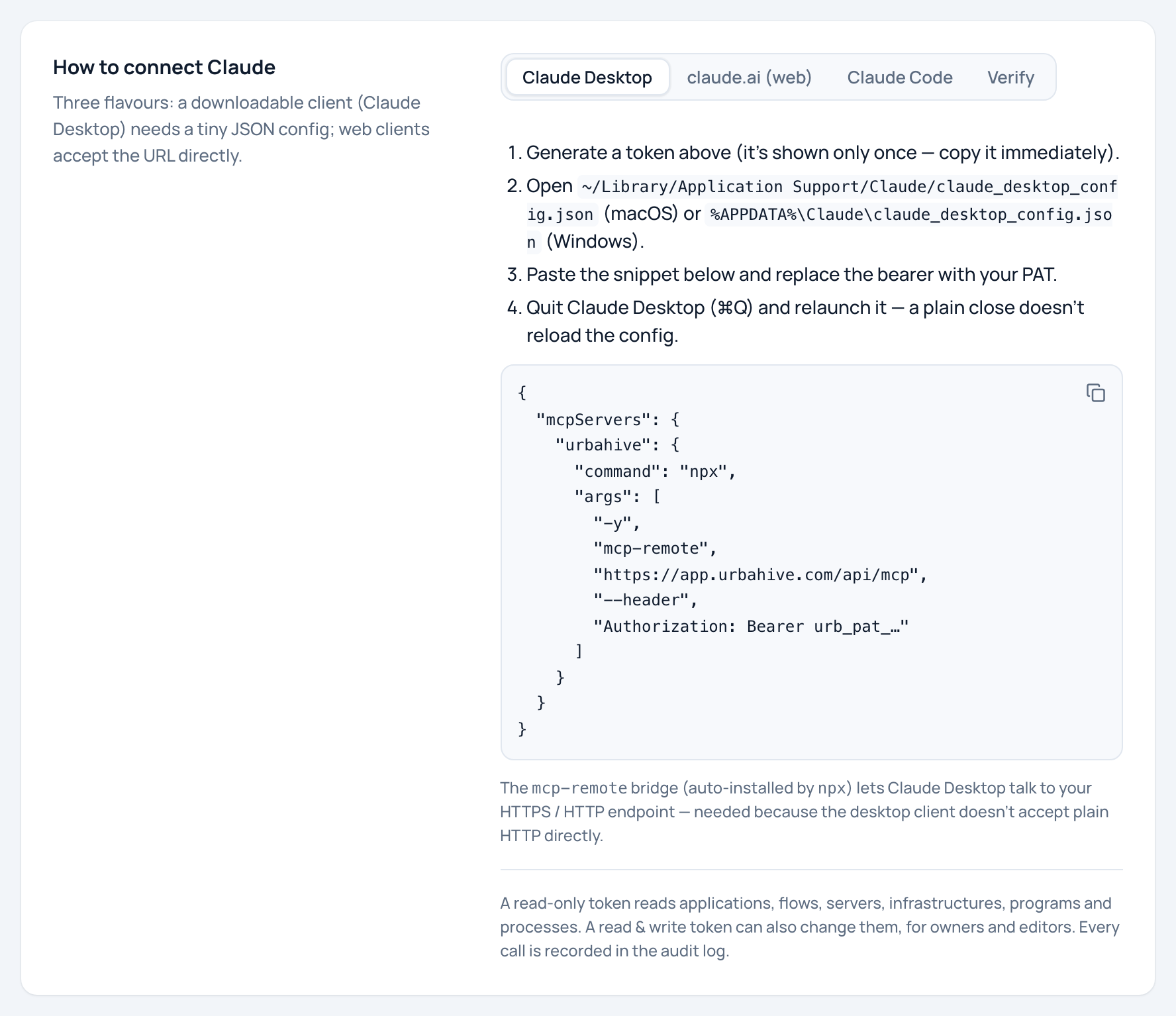
The Claude Desktop tab: where the configuration file is, and the snippet to paste.
- Claude Desktop, claude.ai (web), Claude Code, Verify
- The configuration file to open
- Snippet to paste, then put your token
claude.ai
- In claude.ai, open Settings, then Connectors.
- Click Add custom connector.
- For the URL, paste the endpoint.
- For the authentication header, use
Authorization: Bearerfollowed by your token.
claude.ai only accepts HTTPS addresses. The claude.ai (web) tab in UrbaHive shows the exact values to use.
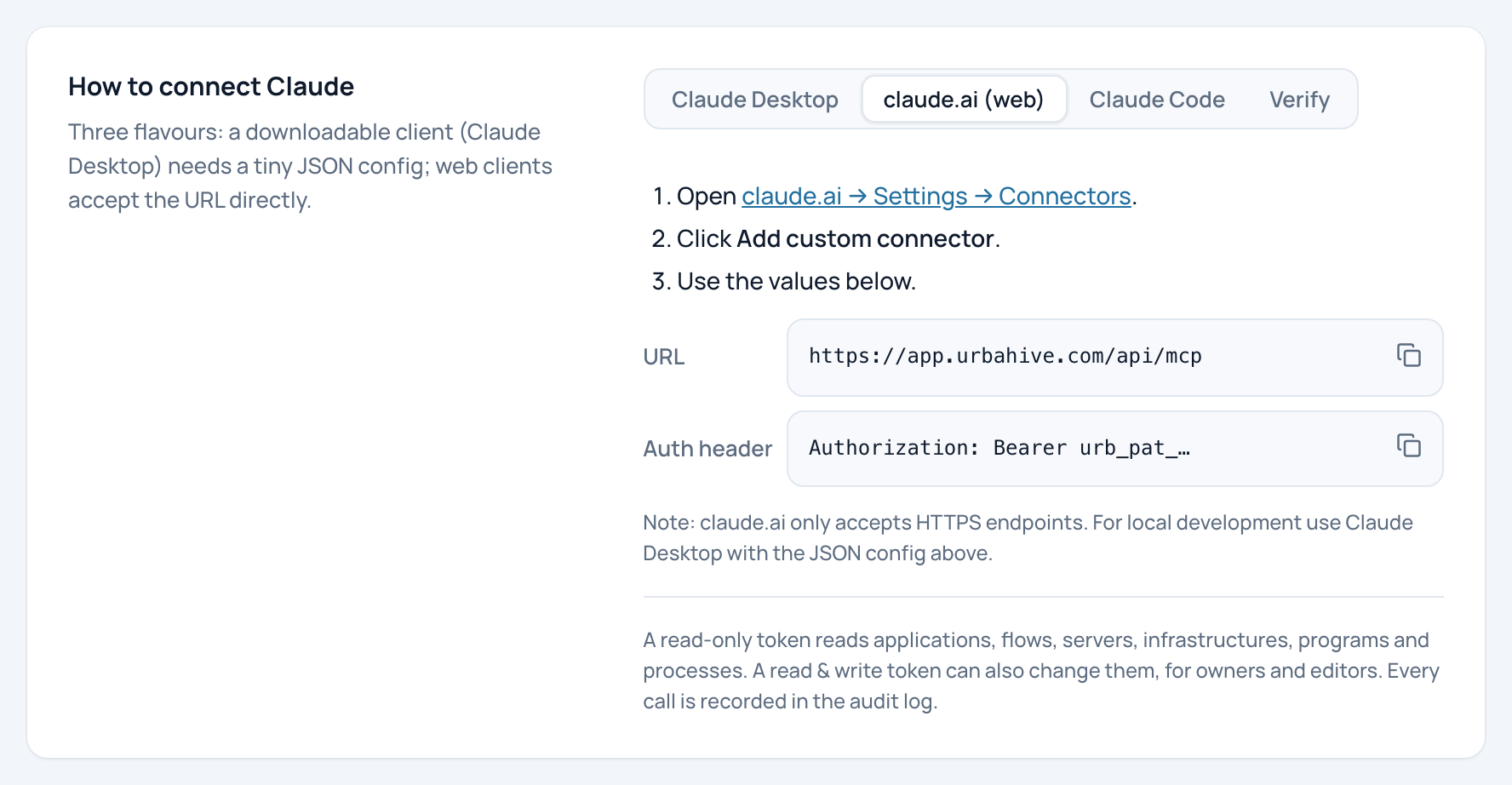
The claude.ai (web) tab: add a custom connector with the endpoint and an Authorization header.
- claude.ai (web)
- Settings, Connectors, Add custom connector
- HTTPS addresses only
Note
On an on-premise installation, the claude.ai (web) tab appears only when the installation can be reached from the Internet over HTTPS.
Claude Code
The Claude Code tab gives one command to run in a terminal, with the endpoint filled in:
claude mcp add --transport http urbahive <endpoint> --header "Authorization: Bearer <your token>"
Replace the token placeholder with your token. Then run claude mcp list to check that UrbaHive is loaded.
Check the connection
Ask Claude: "Which organization are you connected to?" It should name the organization of your token, your role, and whether the token can write.
The Verify tab explains a more technical test with the MCP Inspector, for IT teams who want to check the endpoint before connecting Claude.
Once Claude has made its first call, your token shows when it was last used, and the dashboard's MCP connectors card shows the last call.
Next
- Permissions, tokens and safety: revoke, delete and good habits.
- What the AI assistant does: what to ask.