AI assistant
What the AI assistant does
On this page
With the AI connector, Claude (in Claude Desktop, on claude.ai or in Claude Code) can answer questions about your organization's map and make the changes you ask for. It works through MCP (Model Context Protocol), a standard way for an AI assistant to use the tools of an application. You allow it with a personal access token that you create in UrbaHive. Any member can create one, whatever their role.
See it at work
In 80 seconds: a token with write access, then Claude reads architecture documents and creates the programs, applications, flows and servers they describe, before you review the result in the map and the audit log.
The screens of the app are real, with demo data. Claude at work is an illustration: the tools it calls are the real ones. English captions are part of the picture.
How it works
Each request from Claude goes through the same checks before it reaches your organization's data.
- One token, one organization. A token gives access to a single organization, chosen when you create it.
- Reading is always allowed. Every token can read.
- Changing needs two things. The token must allow writing, and your role must allow that change.
- Everything is recorded. Each call is a row in the organization's Logs.
The details are in Permissions, tokens and safety.
What you can ask
You talk to Claude in your own words. For example:
- "Which organization are you connected to?"
- "List the manual steps of the process Issue a quote with their durations."
- "Which applications support the capability Invoice customer?"
- "Create a draft process Onboard a supplier in the Finance domain." (This needs a token with write access.)
Claude chooses which UrbaHive tools to use and tells you what it found or changed. Check its answers as you would check a colleague's work.
What it can read and change
The assistant can read all of the following, and create or update them with a token that allows writing:
- Context and search: the organization you are connected to and your role, a search across applications, flows, servers, infrastructures, programs, processes and steps, and a summary of counts (read only).
- Applications and flows.
- Programs, editors, servers and infrastructures.
- Processes and their domains, steps, RACI, step applications, outputs (branches) and triggers.
- Capabilities and their applications, including the criticality of each link, which the app itself cannot change.
- Architecture documents (DAT), their versions and version statuses.
- People: members and contacts, the people named on an element, and organization roles.
- Reference values: flow types and advancement statuses.
- Custom fields: their definitions (Owners only, for changes).
It cannot delete anything, with one exception: an Owner can have it delete a custom field definition, after a preview and a confirmation.
Tip
Before it creates a new value in a reference list, such as a new process domain or flow type, the assistant is told to reuse the existing values and to ask you first.
Where to find it
The connector lives in your personal settings: Personal Settings › Connectors. There you create tokens and find the instructions for each Claude application. See Connect Claude to UrbaHive.
The dashboard's MCP connectors card shows how many active tokens you have, whether one exists for the current organization, and when the last call happened. Its Manage link opens the Connectors tab.
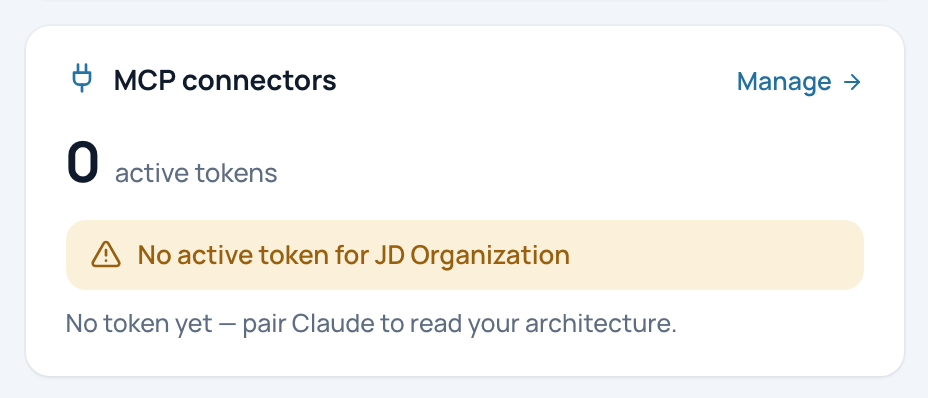
The MCP connectors card of the dashboard, before any token is created.
- Your active tokens
- Manage: opens the Connectors tab
The AI connector is not limited by the plan: tokens and calls are the same on every plan.
On-premise
On an on-premise installation, the Connectors tab and the dashboard card appear only if your administrator has turned the AI connector on. The claude.ai (web) option appears only when the installation can be reached from the Internet over HTTPS. Ask your administrator.
Next
- Connect Claude to UrbaHive: create a token and add the connector.
- Permissions, tokens and safety: what the assistant may do, and how to stop a token.
- AI assistant calls: how the calls appear in Logs.