Map your IT landscape
Explore the map
On this page
The map (Visualization in the sidebar) draws your programs, applications and flows from the data you entered. You can read it, open any element from it, arrange it and export it as a picture. Nothing you do on the map changes your data, and every member can use it.
Two views
The switch at the top left of the map offers two views: Applications (programs, applications and flows) and Infrastructure (infrastructures and servers). The map opens on the applications view, zoomed to show everything.
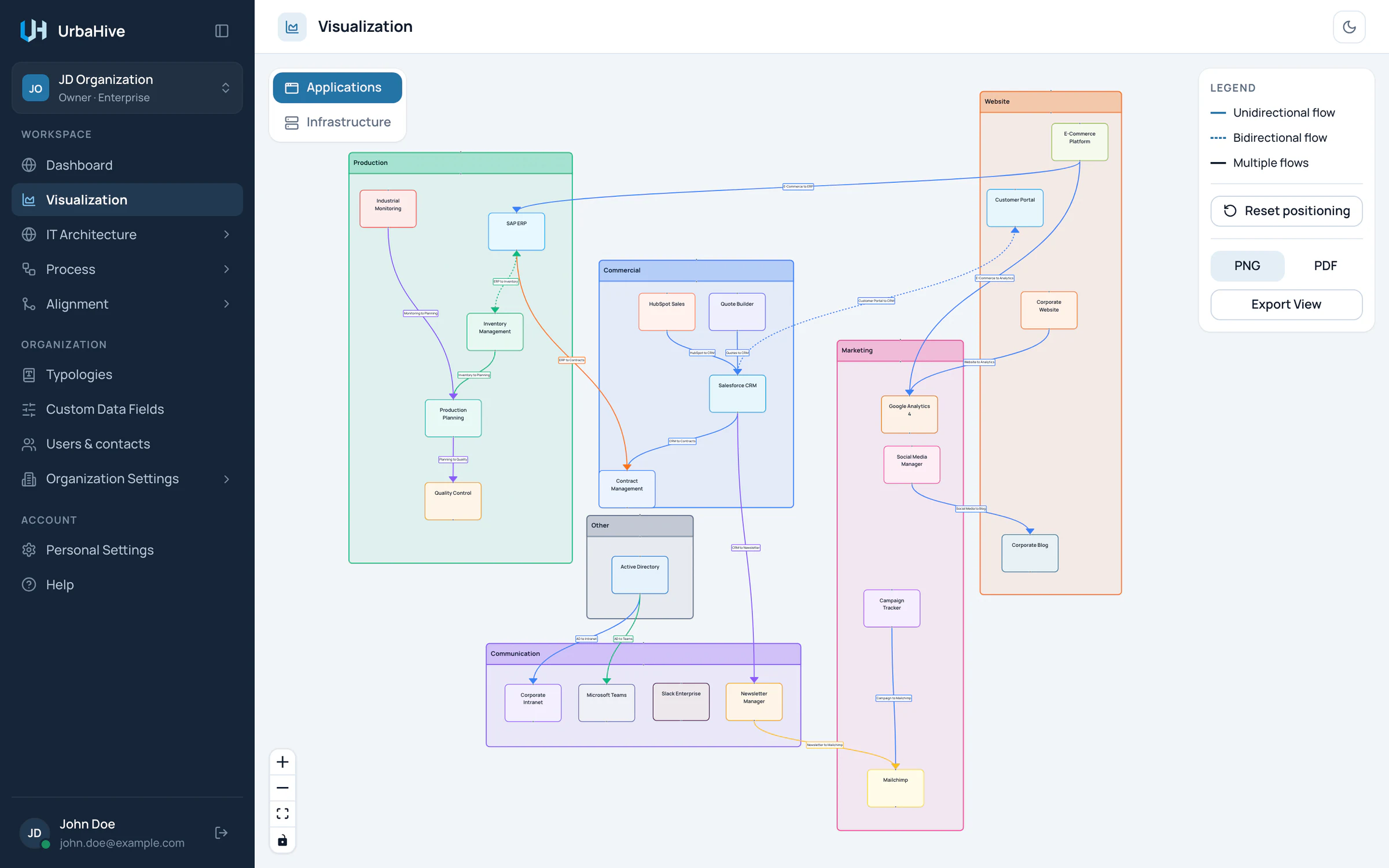
The applications view of the example organization.
- Applications or Infrastructure view
- An application
- A flow, coloured by its type
- Legend, Reset positioning and Export View
- Zoom in, zoom out, fit view, lock
Read the applications view
- Each program is a frame, in the program's colour, with its name in the title bar. A program without applications is not drawn.
- Each application is a box inside its program's frame, in the application's colour.
- Each flow is an arrow from the source application to the target, labelled with the flow's name. Its colour is the colour of its flow type.
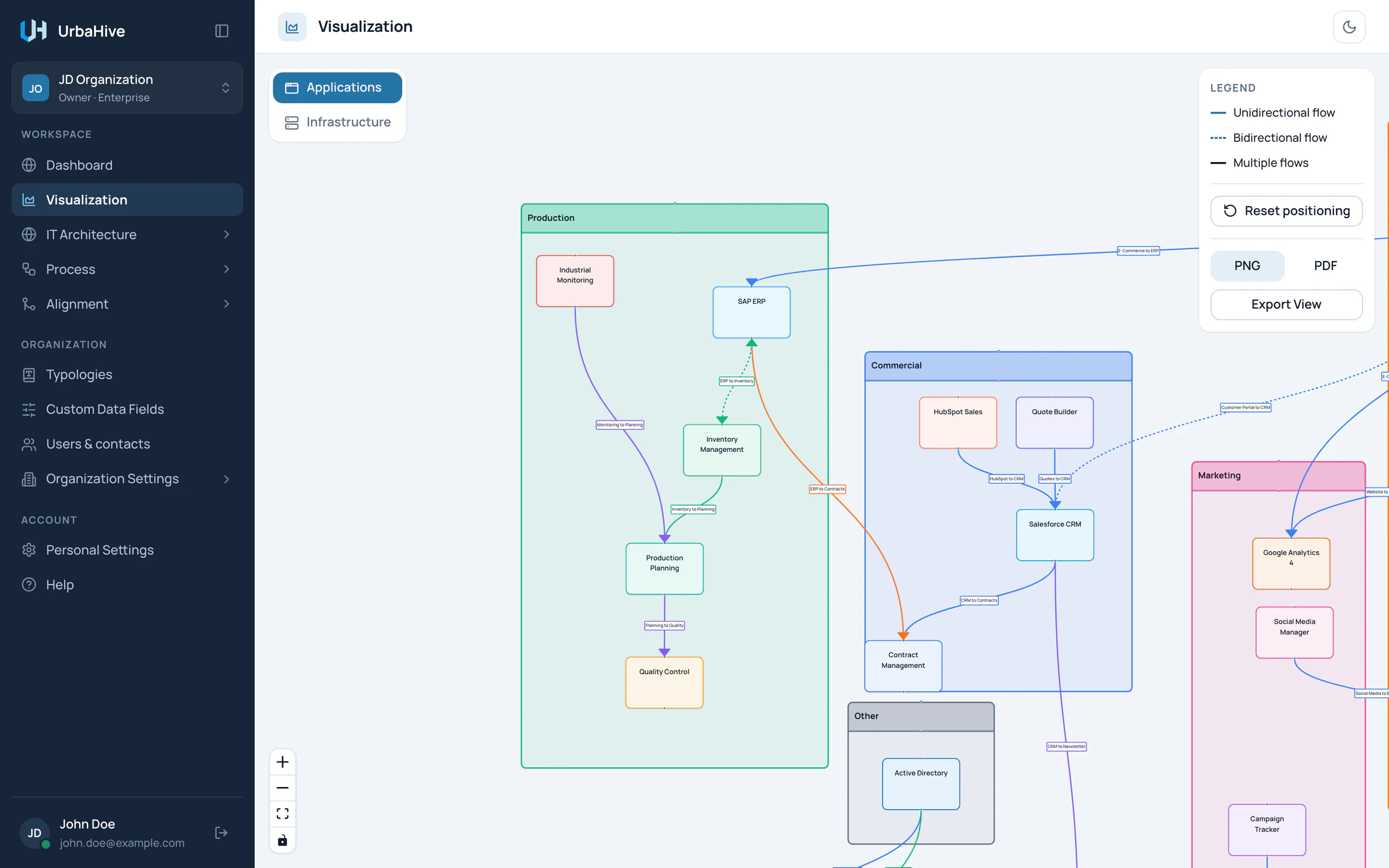
Zoomed in on the Production and Commercial programs: a one-way flow is a solid arrow, a two-way flow a dashed one.
- Program: click its name for details
- Application: click for details
- One-way flow with its name
- Two-way flow (dashed)
Arrows come in three styles.
Frames, boxes and the three arrow styles of the map.
- Unidirectional flow: a solid arrow with one head.
- Bidirectional flow: a dashed arrow with a head at each end. The flow's Bidirectional flow switch is on.
- Multiple flows: a dark dashed arrow with a badge that gives a count. It stands for two or more flows from the same source to the same target. Flows from A to B and from B to A stay two separate arrows.
The legend panel at the top right recalls these styles. It also holds Reset positioning and the export buttons.
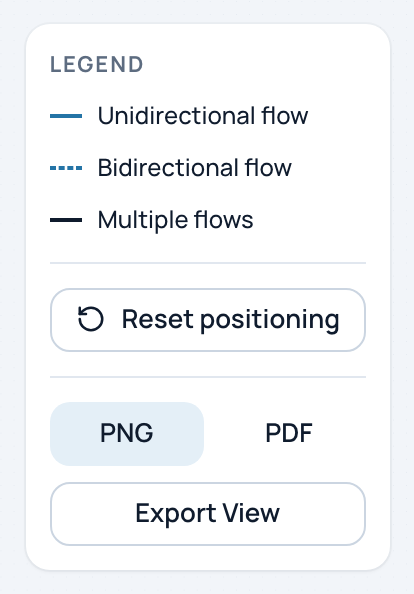
The legend panel, with the reset and export buttons under it.
- Unidirectional flow
- Bidirectional flow
- Multiple flows
- Reset positioning
- Choose PNG or PDF, then Export View
Open details from the map
Click an element to open its details window:
- an application box opens the application;
- a program's name, in its title bar, opens the program;
- an arrow or its label opens the flow. A Multiple flows arrow opens the Multiple Flows window: click one of the flows it lists.
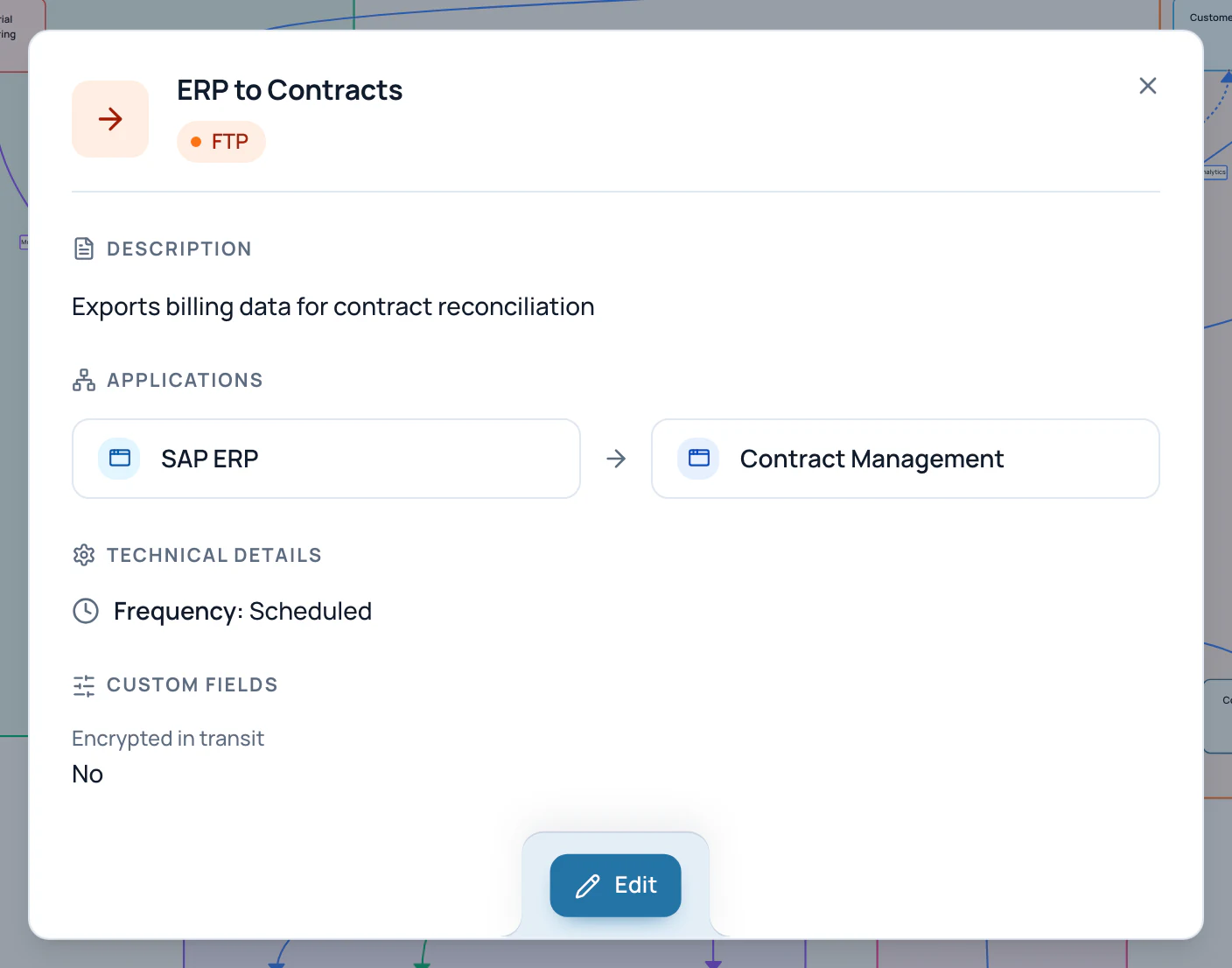
In the example, the flow ERP to Contracts opened from its arrow.
- Flow type
- Source and target: click to open
- Frequency
- Custom fields
- Edit
From the window, Edit opens the edit window, as from a list. See Work with lists and windows.
Zoom and move around
- Turn the mouse wheel to zoom, from 10% to 120%.
- Drag the empty background to move the map.
- The controls at the bottom left zoom in, zoom out and fit the whole map in the window.
- The padlock locks the boxes so you cannot move them by accident. Zoom and moving the map still work.
Arrange the map
- Drag an application box to move it. It stays inside its program's frame.
- Drag a program by its title bar or by an empty area inside the frame. Its applications move with it.
- Click an empty area of a program to select it, then drag its handles to resize it.
Your arrangement is saved by itself when you release the mouse.
Note
The arrangement is kept in this browser only, for you and this organization. A colleague, another browser or cleared browser data shows the automatic layout. A new application appears at the top left of its program's frame: drag it where you want it.
Reset the arrangement
- In the applications view, click Reset positioning. UrbaHive asks "Reset diagram positioning?".
- Click Reset positioning to confirm, or Cancel to keep your arrangement.
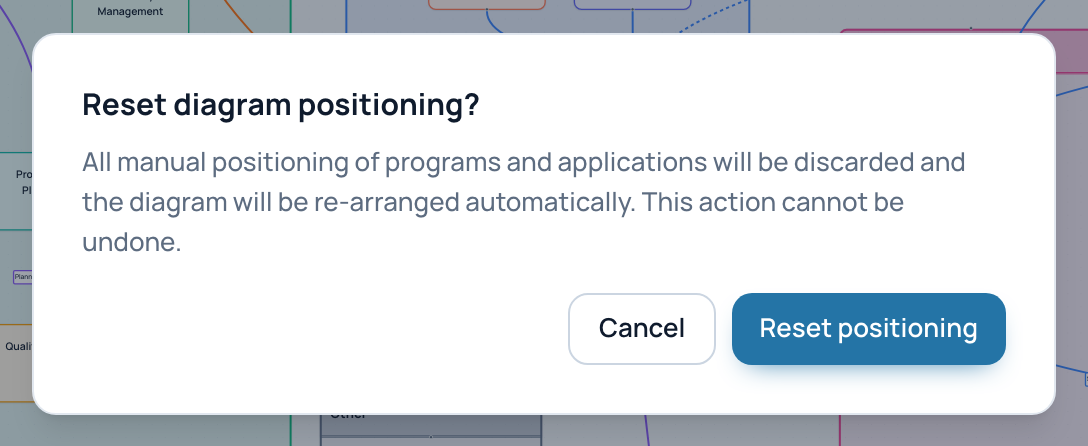
The confirmation before UrbaHive re-arranges the map automatically.
- Cancel keeps your arrangement
- Reset positioning
The reset clears only your own saved arrangement. Your colleagues keep theirs.
Export a picture
- Zoom and move the map until it shows what you want. To export the whole map, click fit view first.
- In the panel at the top right, choose PNG or PDF.
- Click Export View. The file downloads.
The picture is exactly what is on screen. The legend stays; the buttons and the zoom controls do not. The background follows the current theme. A PDF is one A4 page in landscape. Files are named diagram-export-date, or infrastructure-export-date for the infrastructure view.
The infrastructure view
Click Infrastructure in the switch. Each infrastructure is a frame with its name and, when set, its location. Each server is a box inside its infrastructure. Servers without an infrastructure gather in a frame named Unassigned. An infrastructure without servers is not drawn.
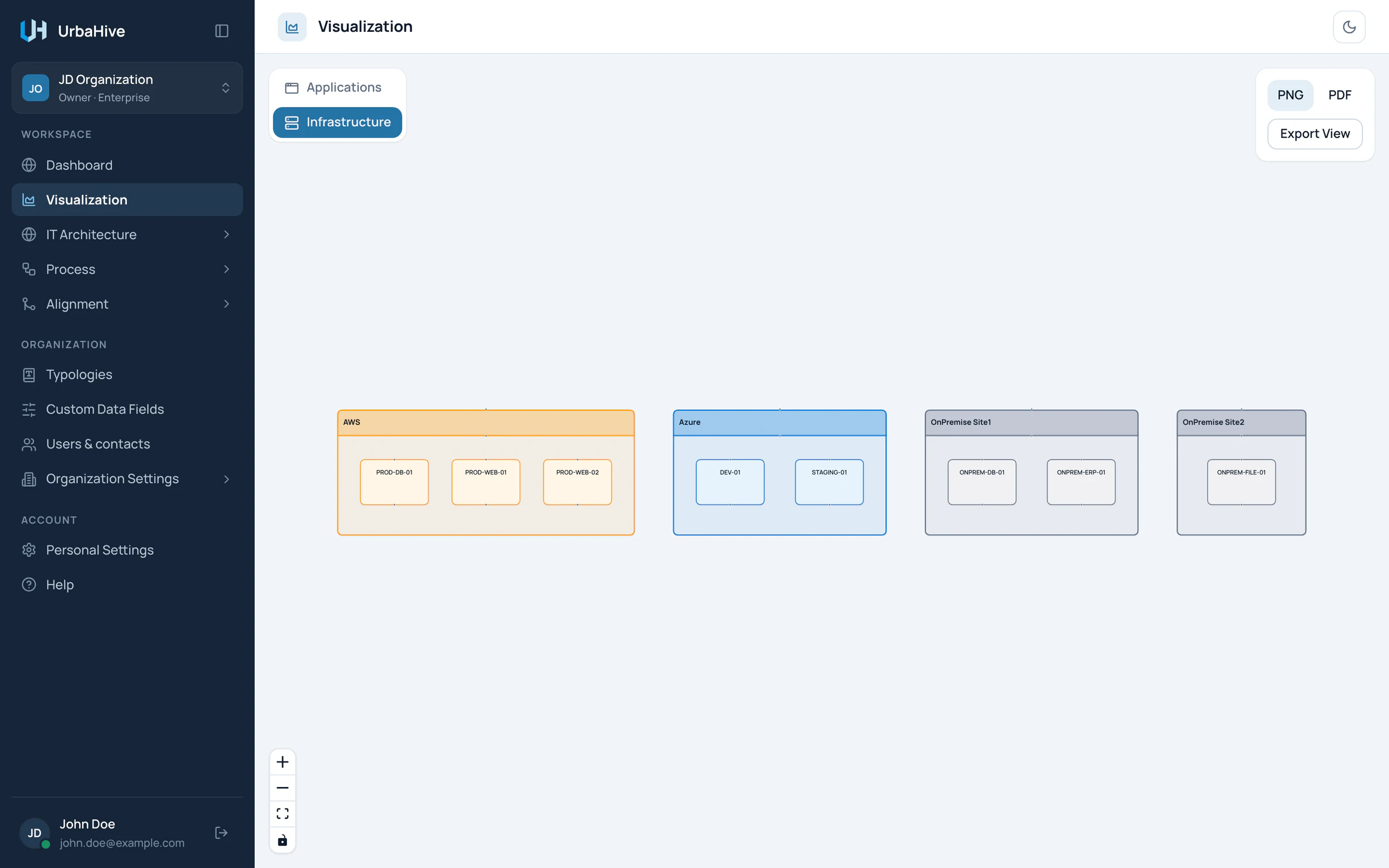
The infrastructure view: one frame per infrastructure, one box per server.
- Infrastructure view selected
- An infrastructure and its location
- A server: click to see its applications
- PNG or PDF, Export View
This view draws no applications and no arrows. Click a server to open its window, which lists the applications that run on it. You can drag and resize here as well, and export with PNG or PDF and Export View. This view has no reset button.
Warning
Dragging from the small dot on the edge of a box to another box draws a line, but it creates no flow. The line is not saved and disappears when you reload. Create flows in Flows with Add Flow: see Describe data flows. The map has no filters, layers or search.
Related pages
- Describe data flows: what the arrows come from.
- Group applications into programs: the frames of the map.
- Servers and infrastructures: the infrastructure view's data.
- Light or dark: the theme your exports follow.