Account and plan
Plan and billing
On this page
A plan belongs to an organization, not to you: it sets how many team members and applications that organization can have. On the hosted service, Owners manage it in Organization Settings › Plan. Other roles do not see this entry. On an on-premise installation there is no Plan page: your administrator sets the limits.
Your current plan
The Your Current Plan card shows the plan's name, its price and an Active badge. Two bars show what the organization uses:
- Team members: used out of allowed;
- Applications: used out of allowed.
A full bar turns red and says "Limit reached — you cannot add any more." The plan's features are listed under the bars.
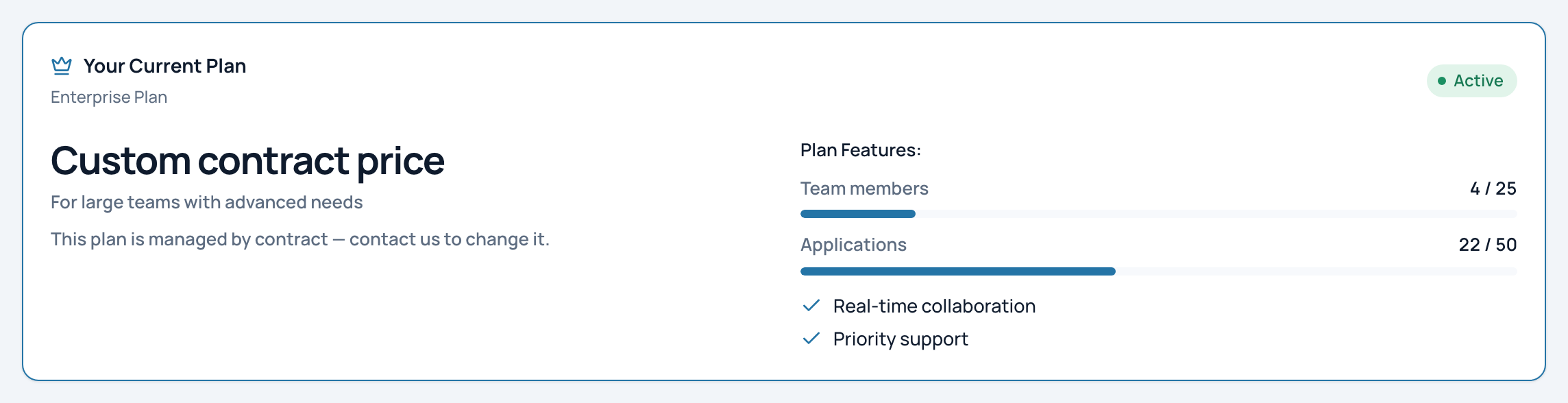
In the example, an Enterprise organization managed by contract, with its usage.
- Team members used / allowed
- Applications used / allowed
- Plan managed by contract
A plan managed by contract says "This plan is managed by contract — contact us to change it." It shows no list of plans.
The plans
The Available Plans section ("Choose the plan that best fits your needs") shows on the Free plan and on a paid plan bought online. It is hidden for Enterprise and for plans managed by contract.
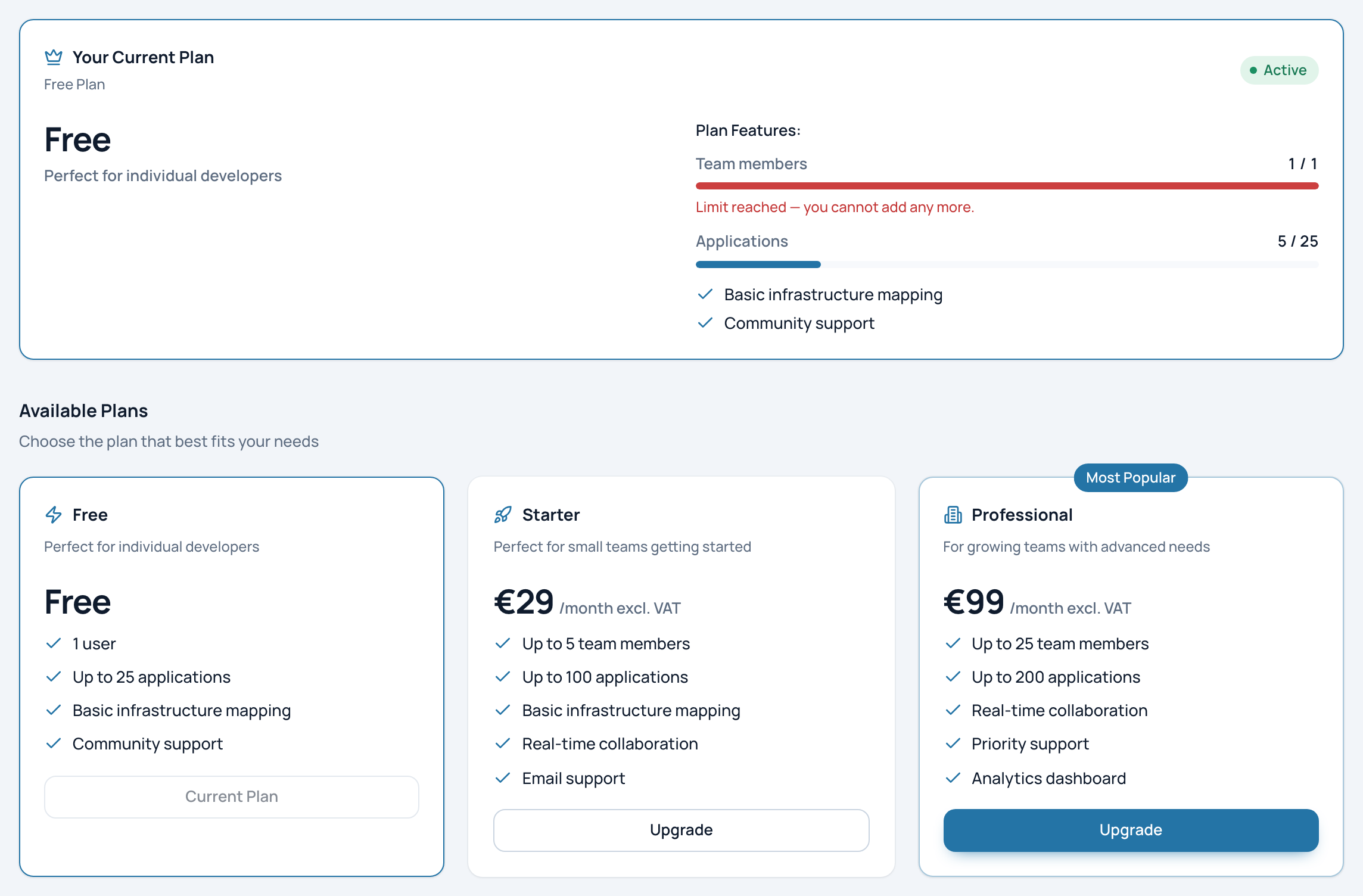
A Free organization: its one seat is used, and the Free, Starter and Professional plans are offered.
- Free plan: one seat, already used
- Free, Starter, Professional
- Upgrade (Stripe checkout)
| Plan | Team members | Applications | Price shown on the Plan page |
|---|---|---|---|
| Free | 1 | Up to 25 | Free |
| Starter | Up to 5 | Up to 100 | €29 per month, excluding VAT |
| Professional | Up to 25 | Up to 200 | €99 per month, excluding VAT |
| Enterprise | By contract | By contract | By contract; not listed on the page |
Prices can change: the Plan page always shows the current ones.
What counts against the limits
- Team members: the members with an account, plus the invitations still pending. Contacts, the people without a login, are free.
- Applications: every application of the organization.
Note
The Free plan has one seat, and the Owner already fills it. A Free organization cannot invite anyone until it moves to a paid plan.
Past a limit, inviting is refused with "User quota exceeded (active users and pending invitations). Maximum allowed: N, current: N", and adding an application with "Application quota exceeded. Maximum allowed: N, current: N".
Upgrade or change plan
- From Free to a paid plan: click Upgrade on the plan you want. A secure Stripe payment page opens. When you come back, UrbaHive says "Payment successful! Your subscription has been activated."
- Between paid plans: click Upgrade, or Downgrade from Professional to Starter. A window explains that the price changes at once and that the difference is invoiced pro rata. Click Confirm Change.
- Back to Free: UrbaHive answers "Please contact support to downgrade to the free plan". Write to contact@urbahive.com.
Invoices and payment method
With a plan bought online, the Billing Information card shows the state of your subscription and the button Access Billing Portal (Stripe). The portal opens at Stripe: your invoices and your payment method live there, not in UrbaHive.
Related pages
- Invite people: invitations use seats.
- Register your applications: the application limit.
- Hosted and on-premise: limits on your own servers.