Map your IT landscape
Typologies: your reference lists
On this page
Typologies are your organization's shared lists of values: statuses, software vendors, flow types, infrastructures and more. They keep everyone's records consistent and give the map its colours. Open Typologies in the Organization group of the sidebar. Every member can read them; only Owners and Editors can change them.
The seven typologies
The page shows one tile per typology. The small word under each title says where it is used. Click a tile to see and manage its values.
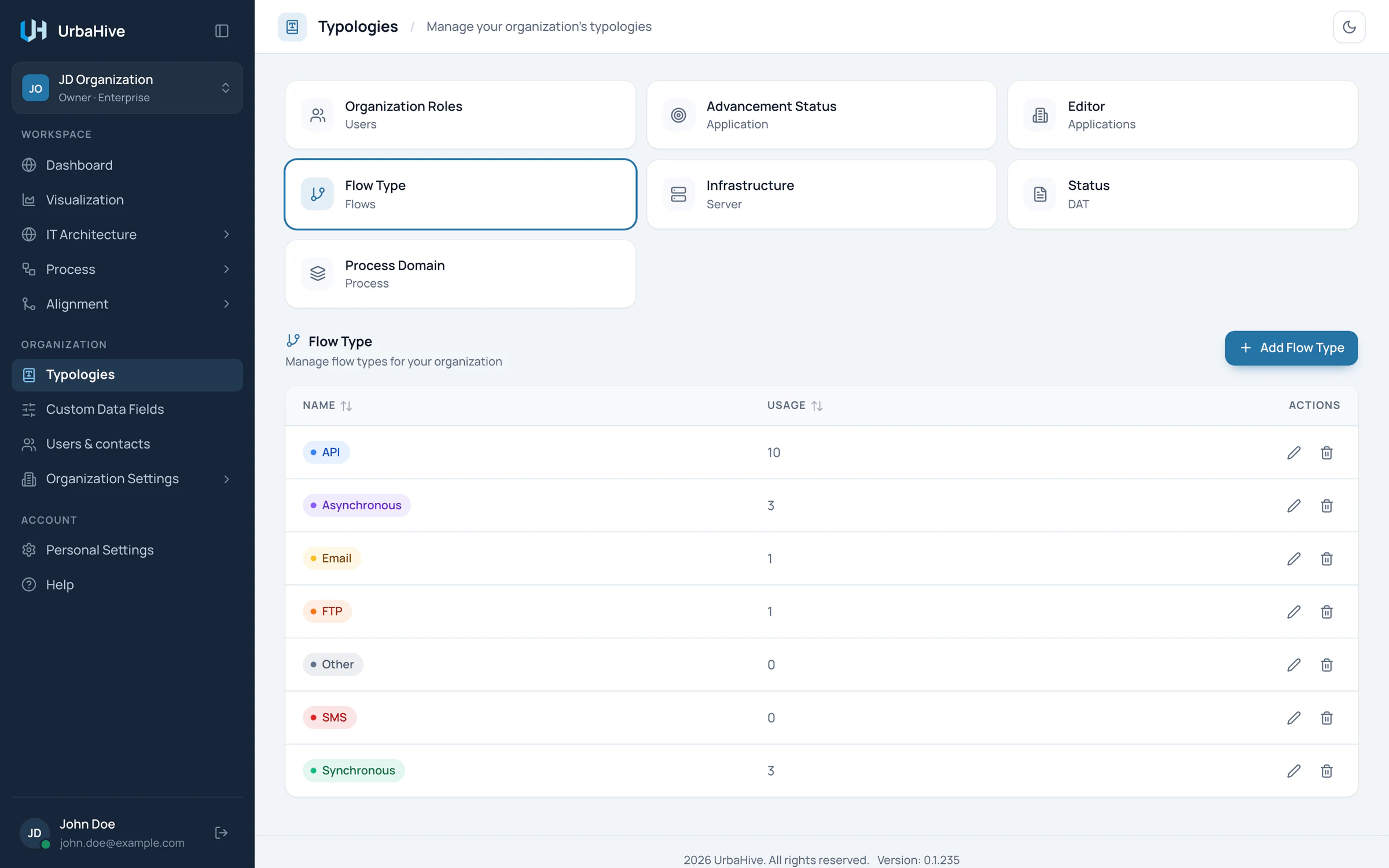
The Typologies page with the Flow Type tile selected.
- Selected typology
- Add a value (Owners and Editors)
- How many elements use each value
| Tile | What it is for | Fields | Starting values in a DefaultOrganization |
|---|---|---|---|
| Organization Roles (Users) | Job titles shown next to people | Name, Description, Color | Project Manager, Technical Leader, Technical Expert, Product Owner, Business Analyst, UX/UI Designer, Developer |
| Advancement Status (Application) | Where an application stands in its life | Name, Color | Active, Inactive, Pending, Deleted, Other |
| Editor (Applications) | The software vendor of an application | Name, URL, Color | In-house, Microsoft, Apple, Google, Oracle, IBM, SAP, Salesforce, Zendesk, Shopify, Adobe, Other |
| Flow Type (Flows) | The required type of every flow; its colour colours the map's arrows | Name, Color | API, Synchronous, Asynchronous, FTP, Email, SMS, Other |
| Infrastructure (Server) | Where servers run; the frames of the infrastructure view | Name, Location, URL, Color | AWS, Azure, Google Cloud, OnPremise Site1, OnPremise Site2 |
| Status (DAT) | The status of each version of an architecture document | Name, Color | Active, Inactive, Pending, Deleted, Other |
| Process Domain (Process) | The business domains of your processes | Name, Color | None. The demo company adds Commercial, Marketing and Customer Support. |
Name is the only required field. A URL must start with http:// or https://.
Add or change a value
- Click the tile of the typology.
- Click its add button, for example Add Flow Type or Add Status.
- Type a Name and fill in the other fields of the tile.
- Pick a Color. It shows wherever the value appears, as a badge or on the map.
- Click Create.
To change a value, click its pencil icon, then Update. The change shows at once on every element that uses the value.
The Usage column tells how many elements use each value.
Organization roles are job titles
Organization roles, such as Project Manager or Developer, describe what people do. They show next to people: as responsible, as contacts, in RACI and in swimlanes by role. You set a member's organization role in Users & contacts.
Organization roles grant no permission. What someone can do comes from their role in the organization: Owner, Editor, Member or Viewer. See Roles and permissions.
Delete a value
A value that elements still use cannot be deleted. Change those elements first: their Usage count tells you how many there are. For process domains, the delete icon stays disabled while a process uses the domain, with the tooltip "Used by one or more processes — remove the link first".
Note
On the hosted service, the DefaultOrganization of a new account starts with the values above. An organization you create later with Create starts with no typologies at all: add what you need before you create elements, at least one flow type before your first flow. On an on-premise installation, the organization your administrator sets up starts with the default values, without the demo company.
Related pages
- How the building blocks fit together: which typology classifies which element.
- Add your own fields: when a list of values is not enough.
- Manage members and contacts: give people an organization role.