Map your IT landscape
Architecture documents (DAT)
On this page
In UrbaHive, a DAT (Technical Application Document) is a reference to an application's technical documentation. It holds a link to the document, a description and numbered versions, each with a status. Applications then say which version they follow. A DAT is not a data model or a schema. Open IT Architecture › DAT Reference in the sidebar. Owners, Editors and Members create and edit references and versions.
The DAT Reference list
The filter All Statuses narrows the list by the status of each document's latest version; No Status finds the documents without one. The columns are:
- Name;
- Documentation: a View documentation link, or No URL;
- Latest Version: its number, its status and its date when set, or No version;
- Versions: how many versions the document has;
- Actions: Edit Versions, edit and delete.
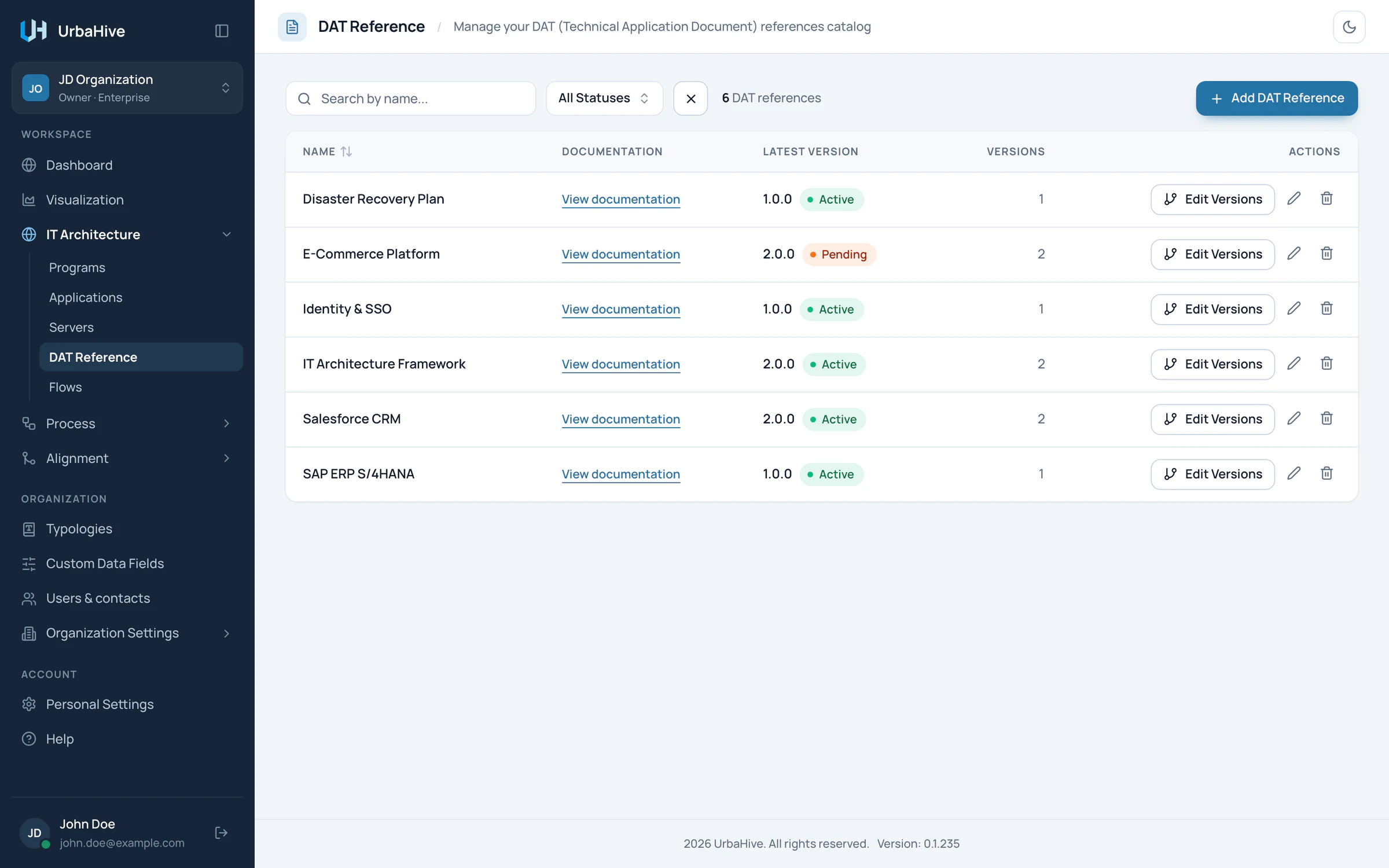
The DAT Reference list of the example organization.
- Link to the documentation
- Latest version (by date): not always the one in force
- Number of versions
- Edit Versions
- Add DAT Reference
Add a reference
- Click Add DAT Reference. The New DAT Object window opens.
- Type a Name. It is required and unique in the organization.
- Add a Description and the Documentation URL, the address of the document. It must start with http:// or https://.
- Fill in the custom fields, if your Owner defined some.
- Click Create.
Manage versions
- In the row of the document, click Edit Versions. The window DAT Versions: followed by the document's name opens. It shows the document and its Versions table, with each version's number, status and date.
- Click Add Version at the bottom of the window. A form appears.
- Type the Version Number, for example 2.1.0. It is required and unique within this document.
- Choose its Status. It is required; the values come from Typologies › Status.
- Pick a Version Date if you know it.
- Click Save, or Cancel to drop the form.
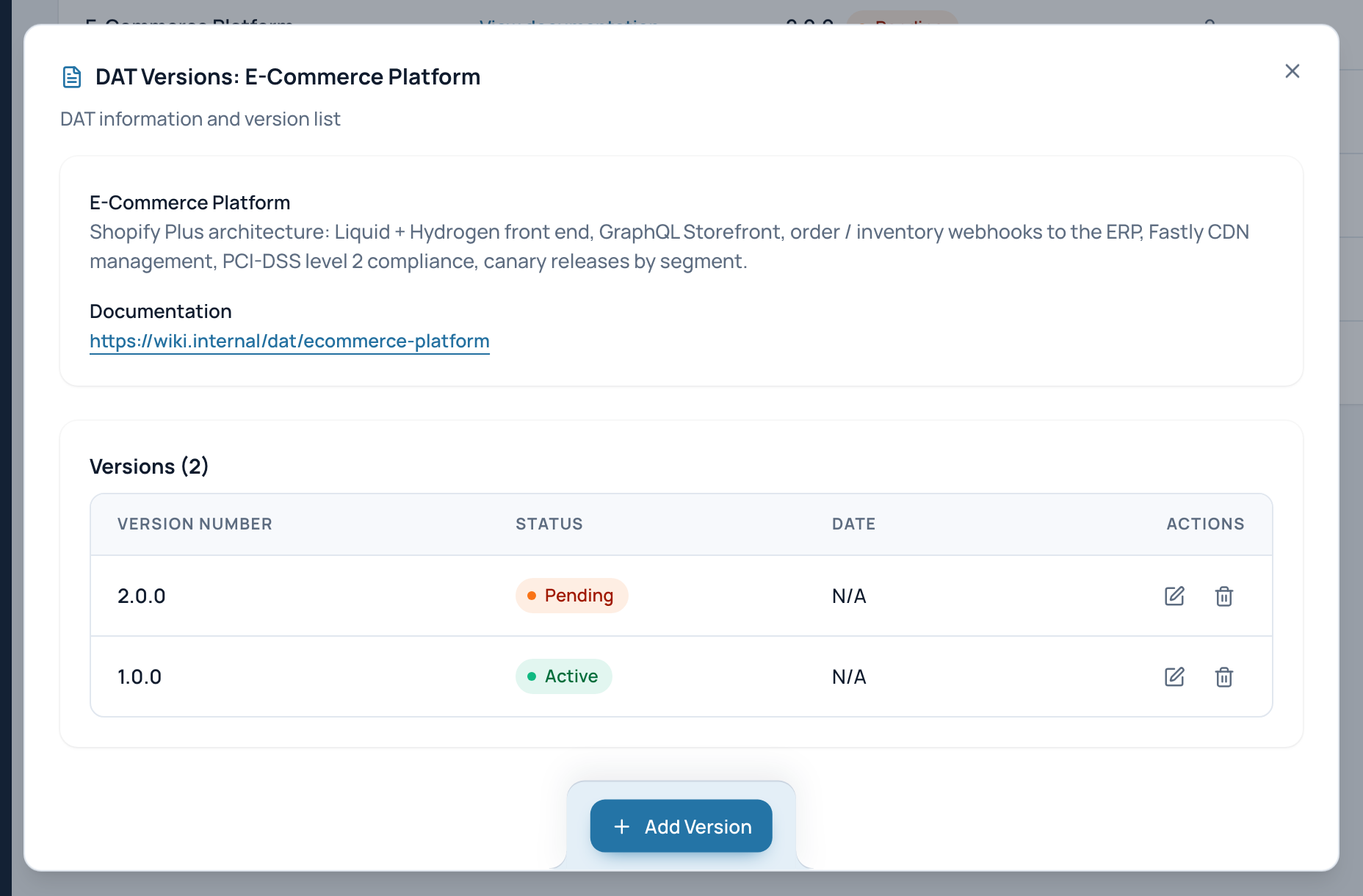
In the example, E-Commerce Platform has version 2.0.0, Pending, and version 1.0.0, Active.
- The document and its link
- Versions with status and date
- Add Version
The pencil and trash icons of a row change or delete that version.
Which version is "latest"
The Latest Version column shows the version with the most recent Version Date. Versions without a date come after dated ones; among those, the last one created wins.
The latest version is not always the one in force. In the example above, 2.0.0 is the latest but still Pending, while applications follow 1.0.0, which is Active. Use statuses to say which version is approved, and point each application to the version it actually follows.
Tip
Give every version a date. The Latest Version column then follows the order of your documents.
Link an application to a version
Open the application's edit window, choose the DAT, then the DAT Version. Once a DAT is chosen, the version is required. The application's details window then shows DAT Version with a Documentation link. See Register your applications.
Click a row of the DAT Reference list to see the document's details: its versions and the applications linked to any of them.
Delete
- A version that an application uses cannot be deleted, and neither can its reference. Link the application to another version, or set its DAT to None, first.
- Deleting a reference deletes all its versions. The Delete DAT Reference window warns: "All associated versions will also be deleted".
Only Owners and Editors delete references and versions.
Related pages
- Register your applications: link each application to its document.
- Typologies: your reference lists: the statuses of versions.
- Export your data: documents in the JSON and ArchiMate exports.