Business processes
The process catalog
On this page
The process catalog lists every process of your organization. Open it from the sidebar: Process › Catalog. Everyone in the organization can read it. Owners, Editors and Members can add and edit processes there; only Owners and Editors can delete them.
Levels, domains and statuses
Three things describe where a process sits in your organization:
- Level. An L1 · Value chain describes a large chain of activity, such as serving the customer. An L2 · Process map describes one process in detail. You can group an L2 under a parent L1.
- Domains. Each process belongs to one or more process domains, such as Commercial or Finance. One of them is the primary domain. Domains are a typology: Owners and Editors manage the list in Typologies › Process Domain.
- Status. Draft, Validated or Deprecated. A small warning triangle next to the status means "Validated but not updated in over 12 months": the description may be out of date.
Find a process
The toolbar above the list narrows it down:
- Search a process... matches the name of a process and the values of its custom fields.
- The domain filter (All domains) keeps the processes that have the chosen domain, primary or not.
- The level filter offers L1 (value chain) and L2 (process map).
- The status filter offers Draft, Validated and Deprecated.
- The Reset filters button (an X) clears the search, the filters and the sorting.
The number of matching processes shows next to the filters. The search and the filters are kept in the page address, so you can bookmark a filtered view or send it to a colleague.
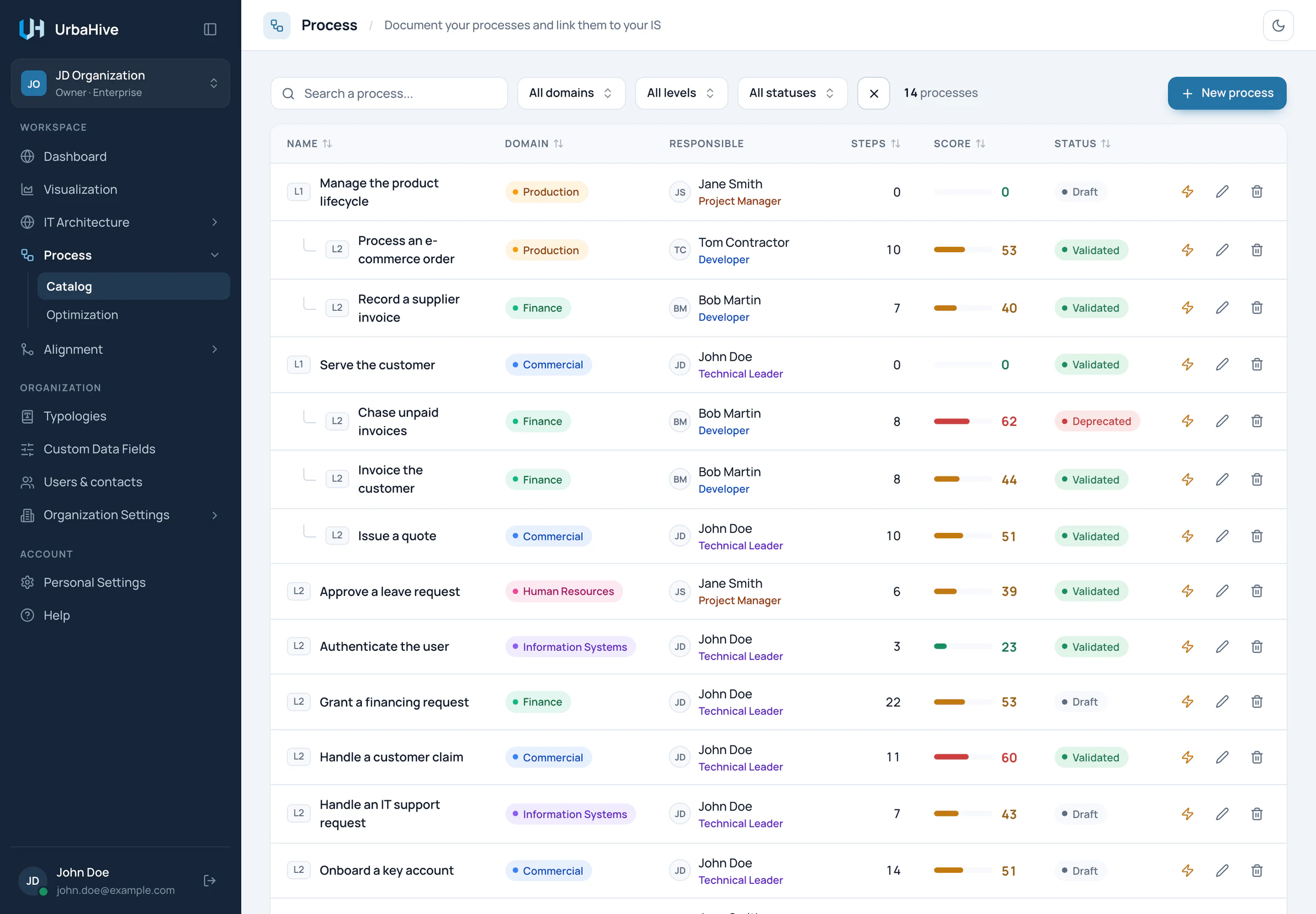
In the example, each L1 value chain is followed by its L2 process maps, indented under it.
- Search a process
- Filter by domain, level and status
- New process
- An L2 process map under its L1 value chain
- Optimization score
- Impact analysis, Edit process, Delete process
Read the list
| Column | What it shows |
|---|---|
| Name | The name, with an L1 or L2 badge. |
| Domain | The primary domain. |
| Responsible | The person responsible for the process, with their organization role. |
| Steps | The number of steps drawn in the editor. |
| Score | The optimization score as a bar. A higher score means more to gain by improving the process. See Understand the optimization score. |
| Status | Draft, Validated or Deprecated, with the warning triangle when a validated process is old. |
Without sorting, the list follows your hierarchy: each L1, then its L2 maps indented under it, then the L2 maps that have no parent. Click a column header (Name, Domain, Steps, Score or Status) to sort by it. Click it again to reverse the order.
Open a process
Click a row, or the name of a process, to open it in the editor. There you draw and describe its steps. See Build a process in the editor.
Row buttons
Each row ends with three buttons:
- Impact analysis (a lightning bolt) shows everything directly connected to the process: its capability, domains, people, applications and related processes. See Impact analysis.
- Edit process (a pencil) opens the process window, where you change its name, level, domains, owner and the rest. See Create or edit a process.
- Delete process (a trash can) asks "Are you sure?" and warns that the process and all its steps will be permanently deleted. Click Delete to confirm. Only Owner and Editor roles can delete a process.
Warning
Deleting a process cannot be undone. Its steps, their RACI and their links to applications go with it. The L2 maps grouped under it lose their parent, and a sub-process step that delegated to it then shows "No linked process".
New process
The New process button sits at the right of the toolbar. It opens the process window. For a Viewer, the button is greyed out with the tooltip "You do not have permission to perform this action". See Create or edit a process.
Related pages
- Create or edit a process: the fields of the process window.
- Build a process in the editor: add and arrange steps.
- Understand the optimization score: what the Score column means.
- Find what to automate: the Optimization page.