Map your IT landscape
Group applications into programs
On this page
A program groups applications: a business domain, a portfolio or a programme of work. Every application belongs to exactly one program, so you create programs first. On the map, each program is a coloured frame around its applications. Owners, Editors and Members create and edit programs.
The Programs list
Open IT Architecture › Programs in the sidebar. The toolbar holds Search by name..., Reset filters, the number of programs and Add Program. The list shows each program's Name and Responsible person.
Each row ends with three buttons: Impact analysis (the lightning), edit and delete.
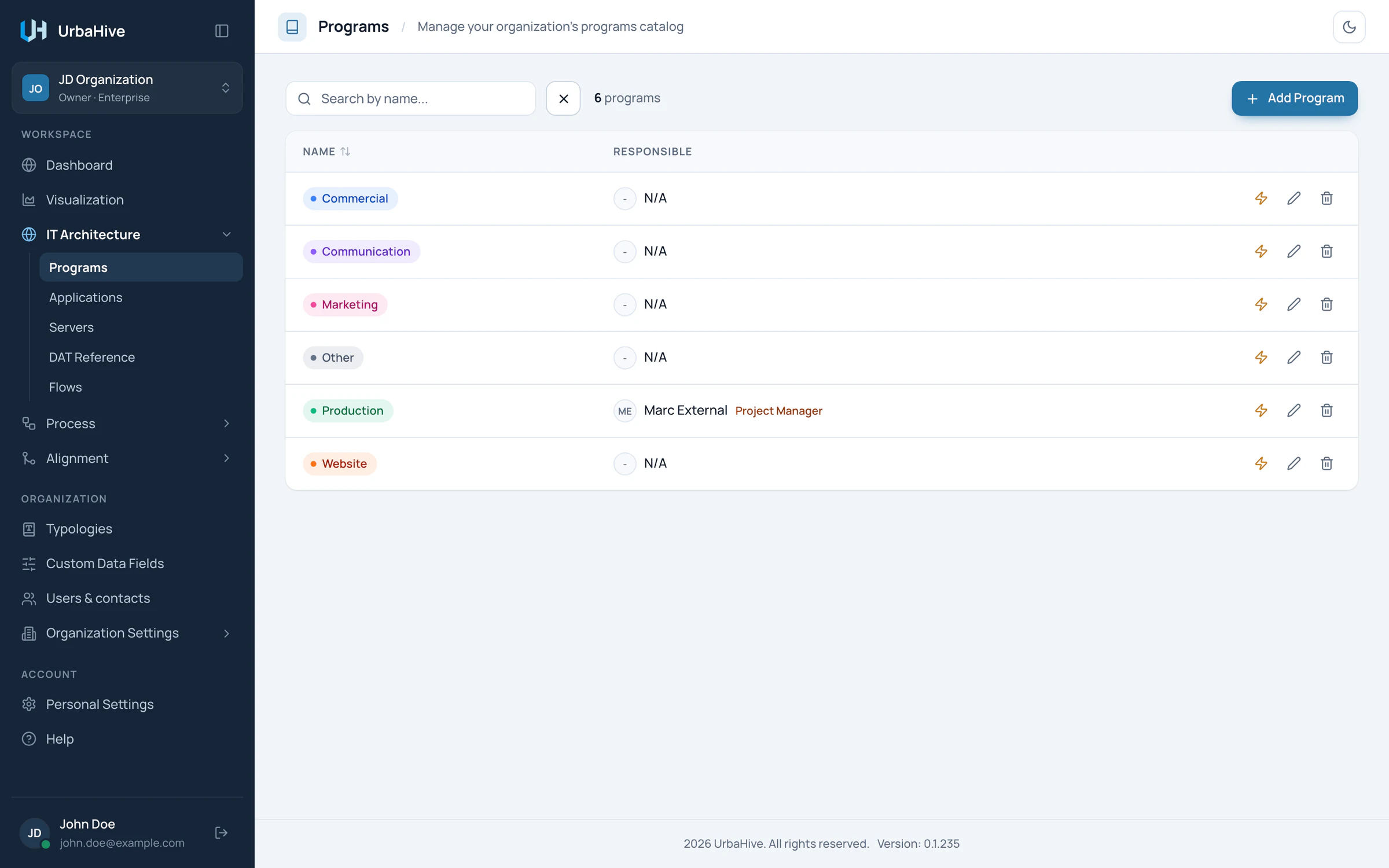
The Programs list of the example organization.
- Search
- Add Program
- Impact analysis
- Edit
- Delete (Owners and Editors)
Create a program
- Click Add Program. The New Program window opens.
- Type a Name. It is required and must be unique in the organization.
- Add a Description if it helps.
- Pick a Color, from Predefined Colors or with Custom Color. It is the colour of the program's frame on the map.
- Choose the Responsible User. The list holds the members of the organization and its contacts.
- Add Additional contacts if other people should be named.
- Fill in the custom fields, if your Owner defined some for programs.
- Click Create.
To change a program, click its pencil icon, or open it and click Edit, then Update.
The program's details
Click a row to open the program's details window. It shows the responsible person and the contacts, then Applications with their number. Each application line shows its server, its editor, its status, its responsible person and its technical stack. Click an application to open it.
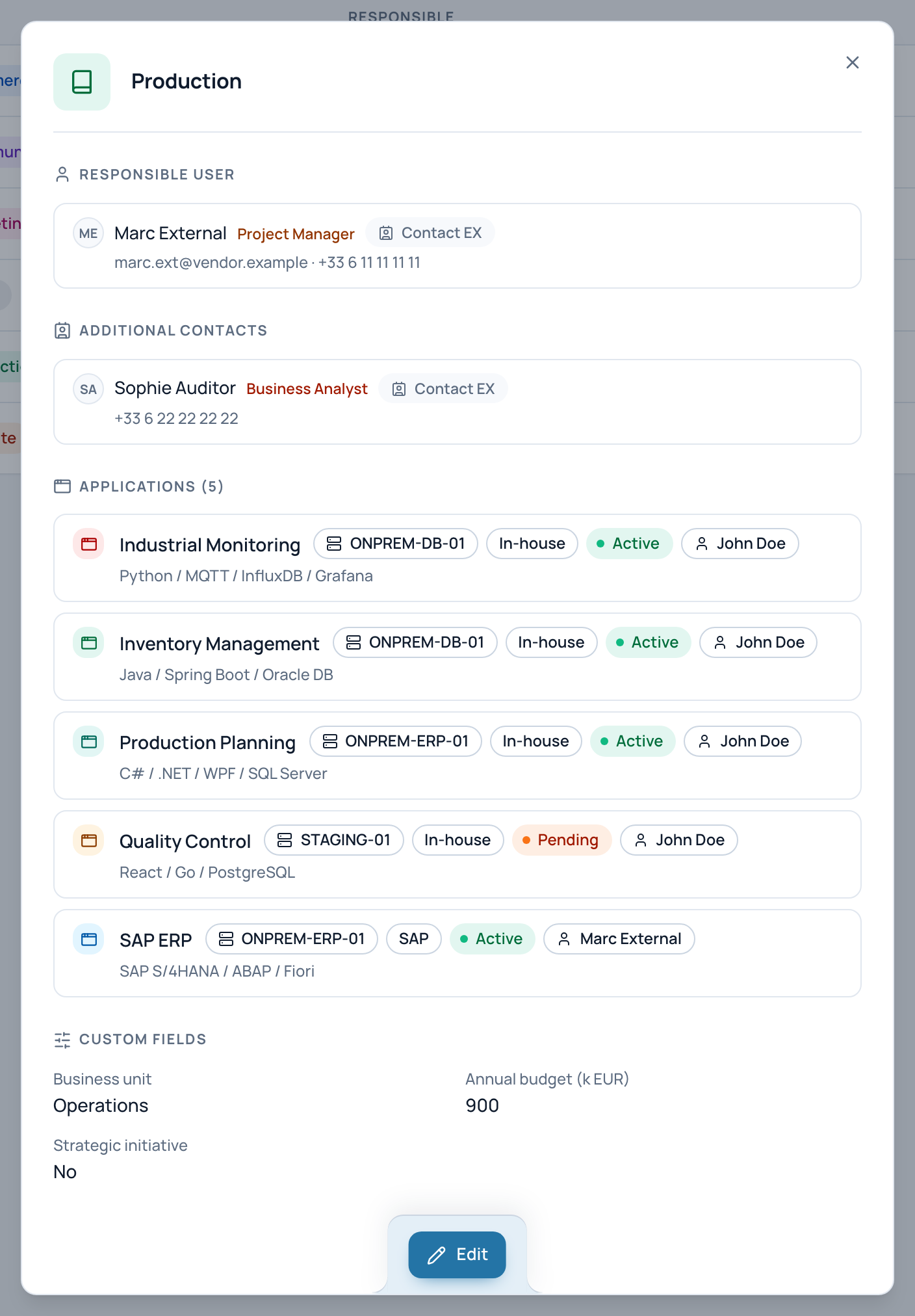
In the example, the program Production and its five applications.
- Responsible user
- Additional contacts
- Its applications: click to open
- Custom fields
- Edit
Delete a program
Click the trash icon of the row and confirm in the Delete Program window. Only Owners and Editors can delete.
A program that still holds applications cannot be deleted. Move its applications to another program first (field Program of each application), or delete them. See Deleting: what blocks what.
Tip
Programs group your IT. To describe what the business can do, use capabilities instead, and link them to applications. See Business capabilities.
Related pages
- Register your applications: the next step.
- Explore the map: programs drawn as frames.
- Impact analysis: what depends on a program.