Business processes
Readings, swimlanes and PDF export
On this page
The same process can be read in several ways: as a flow from left to right, from top to bottom, as a snake, or in swimlanes that show who does what. Changing the view never changes the process. Everyone in the organization, Viewers included, can switch views and export a PDF.
Three readings
Next to the Linear or Graph chip, at the top left of the canvas, three icon buttons switch the reading. Hover one to see its name:
- Horizontal: "Horizontal flow — left to right". This is the default.
- Vertical: "Vertical flow — top to bottom".
- Snake: "Snake flow — rows wrap, alternating direction". Rows of four cards, the first read left to right, the next right to left, and so on. It suits long linear processes.
The Snake reading is not available once a process branches. See Decisions, branches and loops.
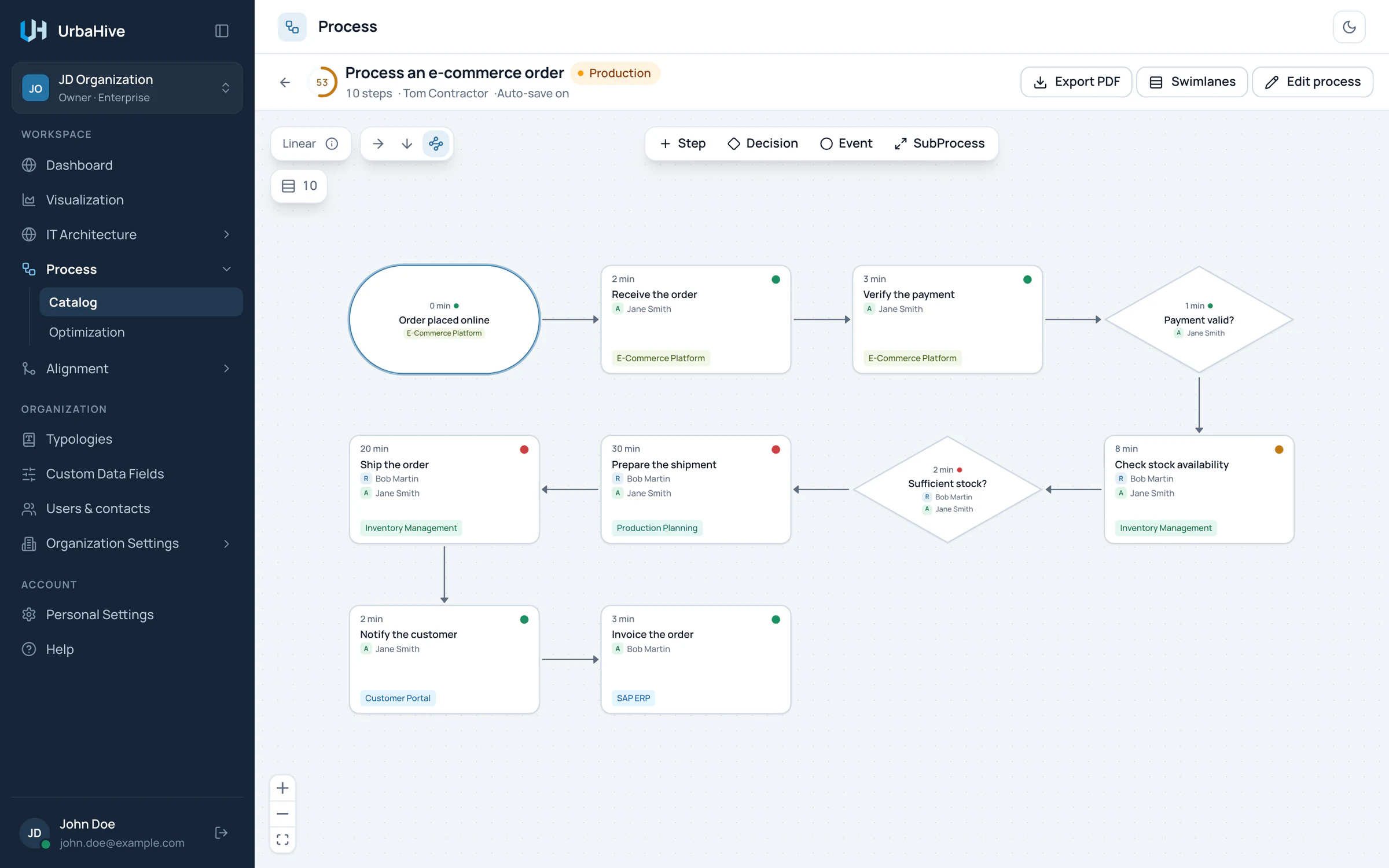
In the example, the ten steps of Process an e-commerce order fit on one screen as a snake.
- Snake reading
- Rows of four, alternating direction
Swimlanes
Click Swimlanes in the top bar to see who does what. The process is redrawn in horizontal lanes, and the button now reads Flow: click it to go back.
- By user (the default) gives one lane per person. The lane label shows the person and their organization role, or "No role".
- By role gives one lane per organization role, such as Project Manager, with the people who hold it.
A step sits in the lane of its R (Responsible). When it has no R, it sits in the lane of its A (Accountable). Steps with neither go to an Unassigned lane. In the By role view, a person without an organization role also lands in Unassigned.
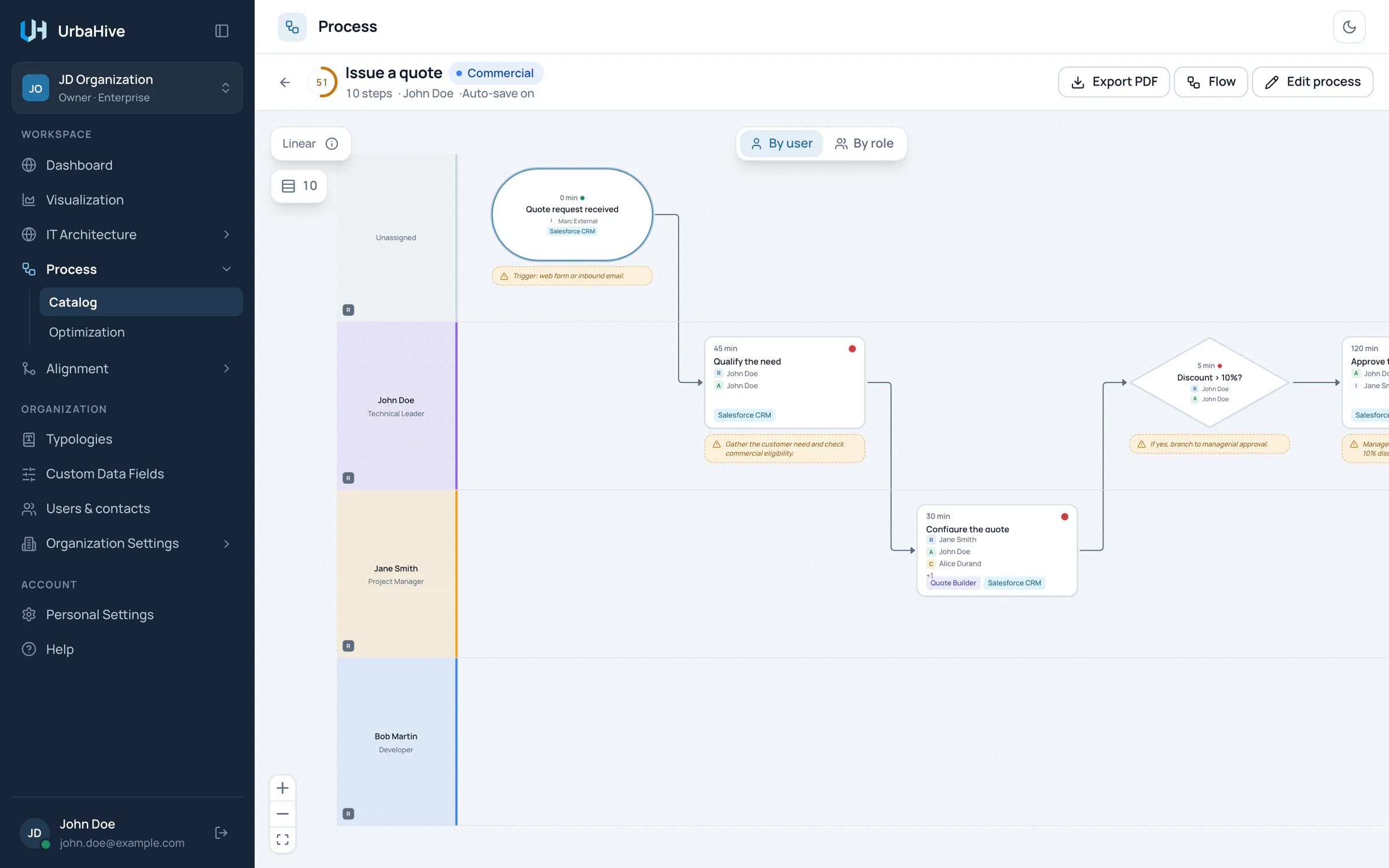
Issue a quote in swimlanes by user: each arrow that crosses lanes is a hand-off between two people.
- Back to the flow view
- By user or By role
- One lane per person
- A hand-off between people
In the swimlanes, the notes of each step appear as bubbles under its card, and arrows show the hand-offs between lanes. Cards cannot be moved in this view.
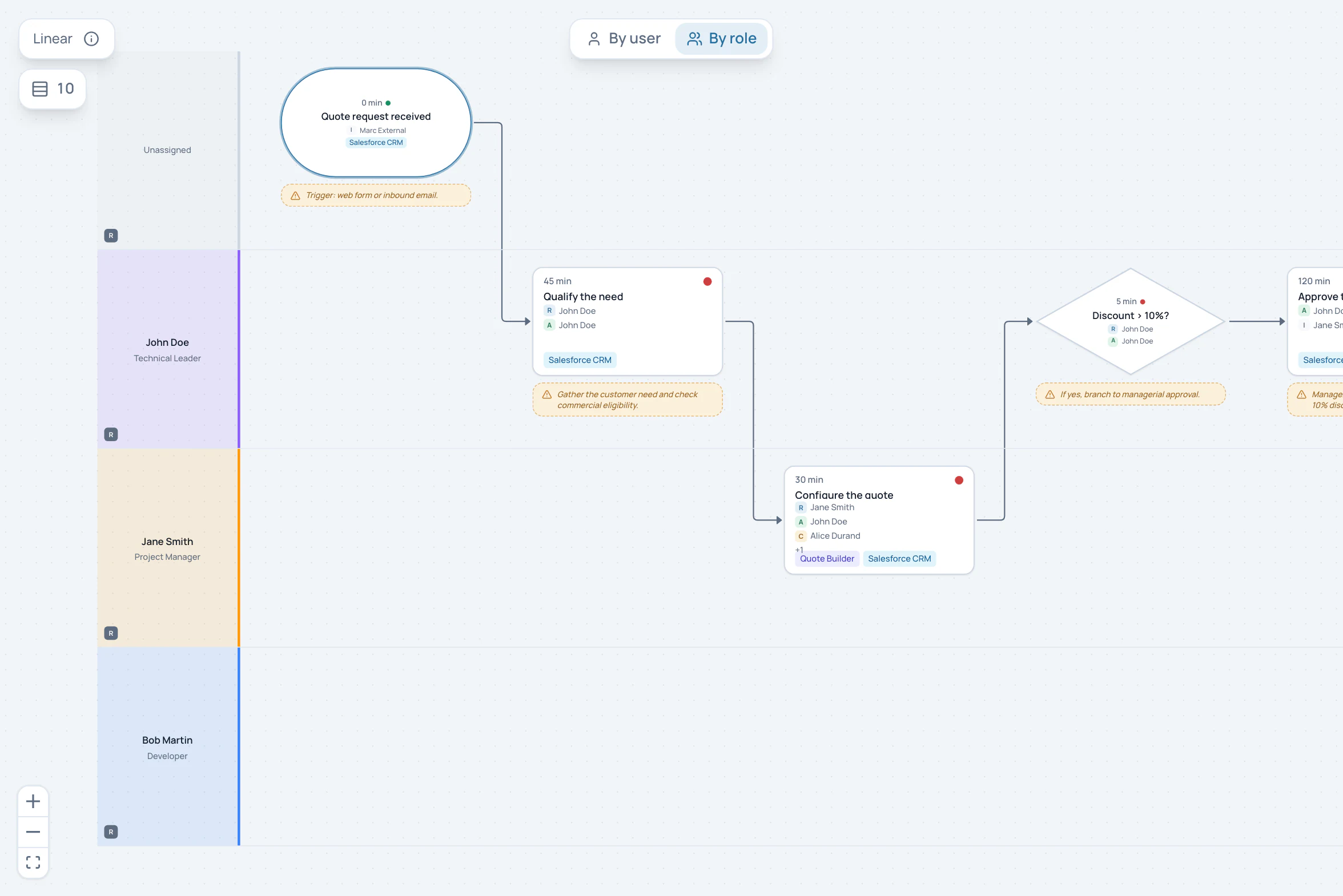
The same process by role. In the example, each person holds a different organization role, so the lanes match those by user; people who share a role would share a lane.
- By role
- One lane per organization role
Tip
Organization roles are set per person in Users & contacts and listed in Typologies › Organization Roles. If many steps show "No role", ask an Owner to set the organization roles of the people involved. See Roles and permissions.
Share a view
The reading and the swimlane choice are kept in the page address. Copy the address and send it: your colleague opens the same process in the same view. Nothing about the view is saved in the process, so each person can read it their own way.
Export as PDF
- Choose the view you want: a reading, or swimlanes by user or by role.
- Click Export PDF in the top bar. On a narrower screen the button shows only its download icon. The file downloads, and the app says "PDF exported".
The PDF is one A4 page in landscape. It holds the current view, cropped to the diagram whatever your zoom, in the current theme (light or dark). The header gives the process name, then its domain, owner and view, for example "View: Swimlanes by user". The footer says who exported it and when, with "UrbaHive" on the right.
The file is named process-flow-YYYY-MM-DD.pdf for a flow and process-lanes-YYYY-MM-DD.pdf for swimlanes. The button is greyed out while the process has no steps.
Note
Processes export as PDF only. There is no image (PNG) export of a process. The map of your applications, in Visualization, exports as PNG or PDF: see Explore the map.
Related pages
- Describe a step: set the R and A that decide the lanes.
- Build a process in the editor: the editor's top bar and canvas.
- Manage members and contacts: people and their organization roles.