Map your IT landscape
Register your applications
On this page
Applications are the heart of the map. Each one belongs to a program, can run on a server and can follow an architecture document. Flows connect them, process steps use them and capabilities rely on them. This page shows how to add an application and read its record. Owners, Editors and Members create and edit applications.
The Applications list
Open IT Architecture › Applications in the sidebar. Two filters narrow the list: All Programs and All Statuses. In the status filter, None finds the applications with no status.
The columns are Name, Program, Status, Service Type (Internal or External) and Responsible. Each row ends with Impact analysis, edit and delete.
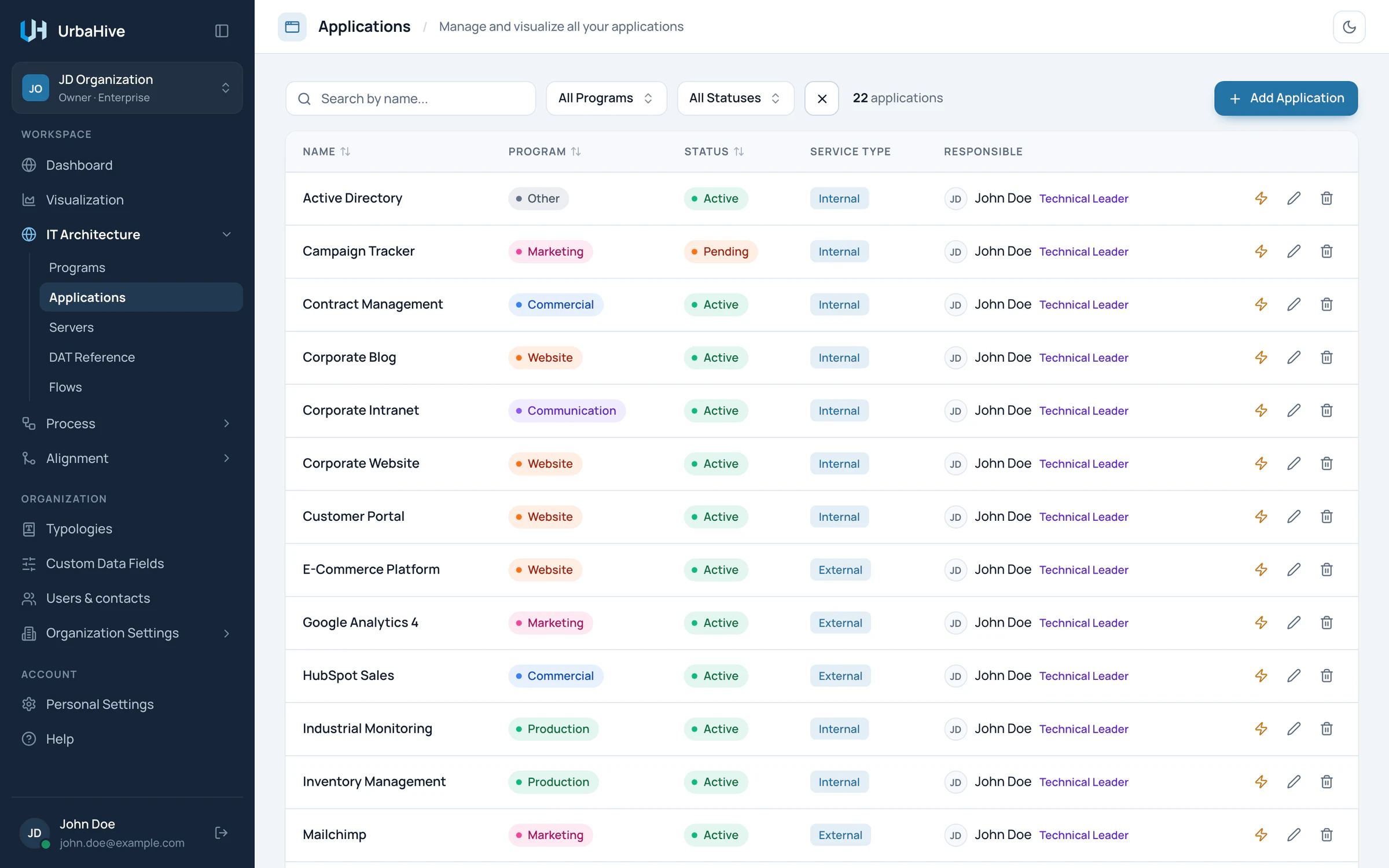
The Applications list of the example organization.
- Filter by program or status
- Add Application
- Advancement status
- Internal or External
Add an application
- Click Add Application. The New Application window opens.
- Type a Name and choose a Program. Both are required.
- Fill in the other fields you know. The table below explains each one.
- Click Create.
| Field | What to enter |
|---|---|
| Name | Required. Unique in the organization. |
| Description | What the application does. |
| Program | Required. The program it belongs to. |
| Server | The server it runs on: one at most, or None. |
| Editor | The software vendor, from the Editor typology. |
| Project Advancement Status | Where the application stands in its life, from the Advancement Status typology. |
| DAT and DAT Version | The architecture document it follows, and which version. Once you choose a DAT, the version is required. |
| Technical Stack | Free text, for example the languages and databases it uses. |
| Color | The colour of its box on the map. |
| Responsible User | The person in charge: a member or a contact. |
| Additional contacts | Other people to name. |
| Service type | Internal (the default) or External. |
| Custom fields | The fields your Owner added for applications, if any. |
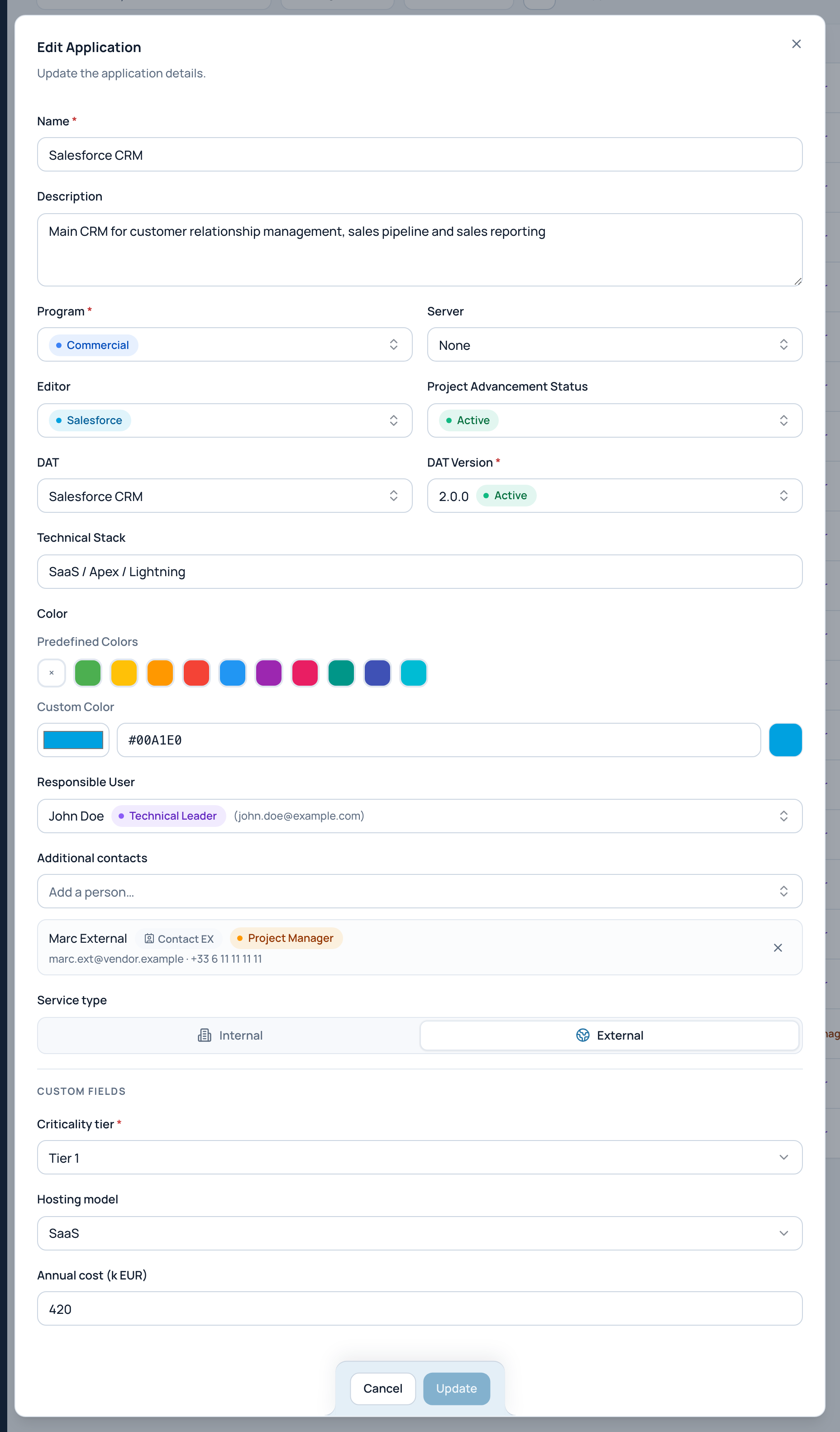
In the example, the edit window of Salesforce CRM, with every field.
- Program (required)
- Server it runs on
- Editor: the software vendor
- Architecture document and its version
- Service type
- Update stays disabled until you change something
Note
There is no separate owner or lifecycle field. Responsible User names the owner, and Project Advancement Status gives the lifecycle stage.
Read an application
Click a row to open the application's details window:
- the header badges give its program, its status, its editor and Internal or External. Click the program badge to open the program;
- Description, Responsible User and Additional contacts;
- DAT Version: the document, its version and status, and a Documentation link;
- Technical Stack and Server;
- Flows: every flow in or out, with its type and direction. Click one to open it;
- Custom fields, and the Edit tab.
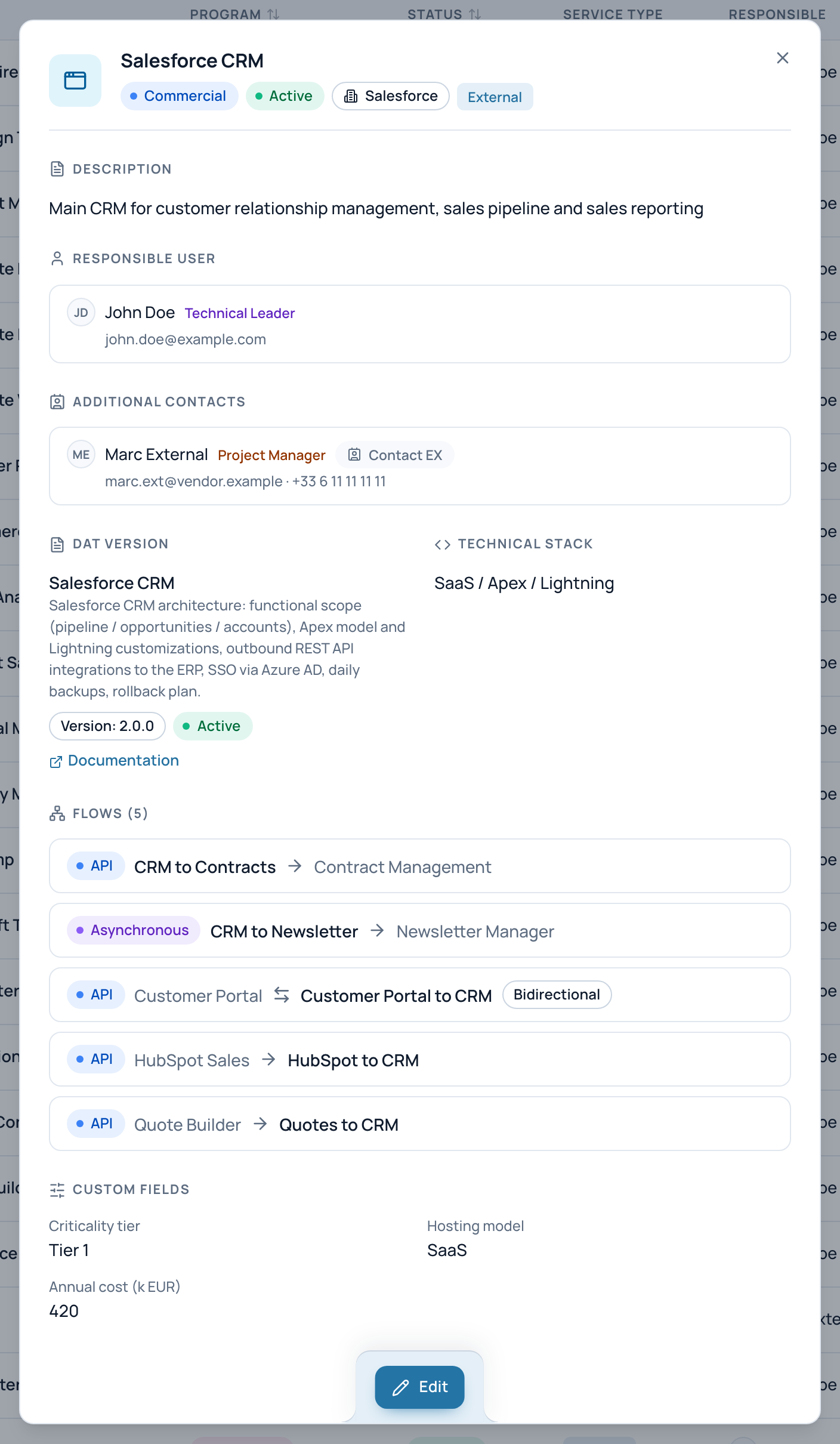
In the example, the details window of Salesforce CRM: a SaaS application with no server, its document version and its five flows.
- Program, status, vendor, service type
- Responsible user and contacts
- Architecture document, with its Documentation link
- Flows in and out: click one to open it
- Custom fields
- Edit
How many applications you can add
On the hosted service, your organization's plan sets how many applications it can hold: 25 on Free, 100 on Starter, 200 on Professional, and the number in the contract on Enterprise. On an on-premise installation, your administrator sets the limit.
Past the limit, creating an application is refused with "Application quota exceeded. Maximum allowed: N, current: N". See Plan and billing.
Delete an application
Click the trash icon of the row and confirm. Only Owners and Editors can delete.
An application that a flow starts or ends on cannot be deleted: delete those flows first. When you delete an application, its links to process steps and capabilities and its additional contacts go with it.
See what depends on it
The lightning button of a row opens the application's impact analysis: its program, its server, the processes that use it and the capabilities it supports. See Impact analysis.
Related pages
- Describe data flows: connect your applications.
- Architecture documents (DAT): the documents applications follow.
- Typologies: your reference lists: editors and statuses.
- Add your own fields: extra fields for applications.