Getting started
Find your way around
On this page
Every page of UrbaHive shares the same frame: a dark sidebar on the left and a page header at the top. This page explains each part, how to switch between the light and the dark theme, and the banners that may appear.
The screen at a glance
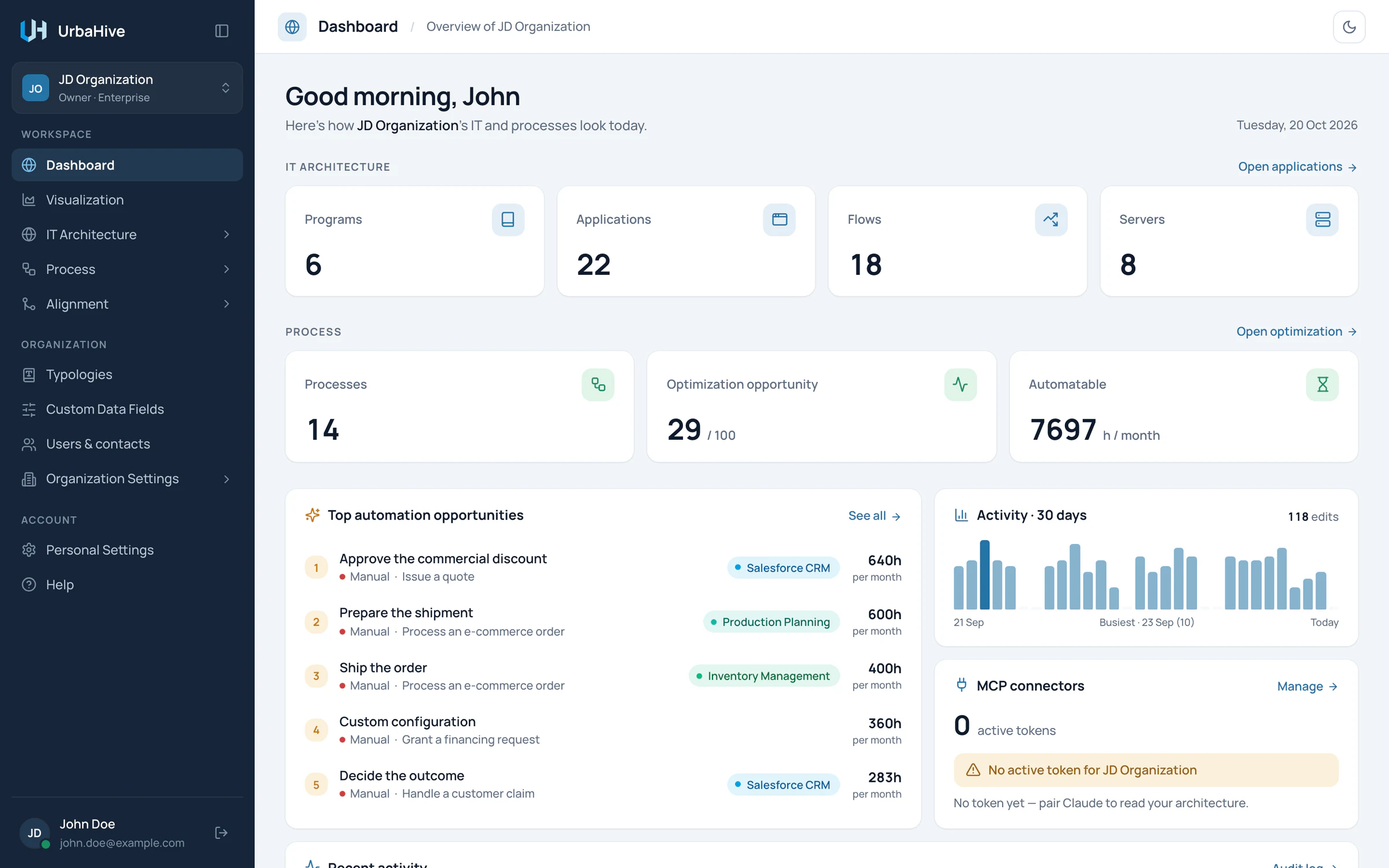
The dashboard inside the common frame: sidebar on the left, page header at the top.
- Your organization: click to switch
- Workspace: your map, processes and alignment
- Organization: typologies, people, settings, logs
- Account: your settings and Help
- Logout
- Light or dark theme
The sidebar
The sidebar holds three groups of entries.
| Group | Entries | What you find there |
|---|---|---|
| Workspace | Dashboard, Visualization, IT Architecture (Programs, Applications, Servers, DAT Reference, Flows), Process (Catalog, Optimization), Alignment (Capabilities, Coverage Matrix) | Your map, your processes and the analyses |
| Organization | Typologies, Custom Data Fields, Users & contacts, Organization Settings (Configuration, Plan, Import/Export, Logs) | Reference lists, people, settings and the audit log |
| Account | Personal Settings, Help | Your own settings and the in-app help |
Some entries depend on your role. Only Owners see Custom Data Fields, Plan and Import/Export. Plan exists on the hosted service only.
Entries with a chevron, such as IT Architecture, open and close their list when you click them.
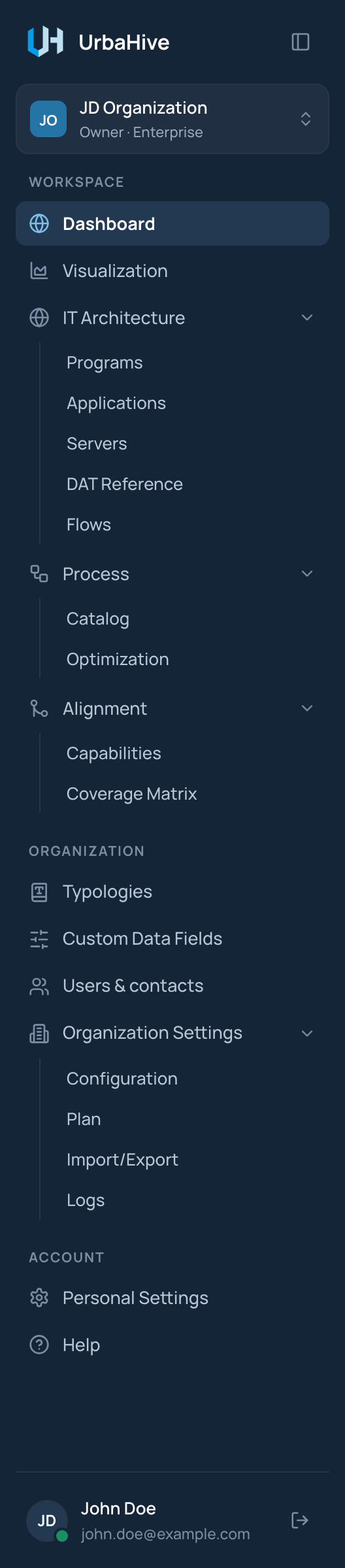
The sidebar as an Owner sees it, with every group open.
- Organization card
- IT Architecture: Programs, Applications, Servers, DAT Reference, Flows
- Process: Catalog, Optimization
- Alignment: Capabilities, Coverage Matrix
- Organization Settings: Configuration, Plan, Import/Export, Logs
The button next to the UrbaHive logo (Collapse sidebar) turns the sidebar into a narrow rail of icons. Click it again (Expand sidebar) to bring the labels back. On a phone, the menu button at the left of the page header opens the sidebar.
Note
Impact Analysis has no entry in the sidebar. Open it with the lightning button of a row in a list. See Impact analysis.
Your organization card
The card at the top of the sidebar shows the current organization: its logo or its initials, its name, and your role followed by its plan, for example "Owner · Enterprise". The plan shows on the hosted service only.
Click the card to switch to another organization or to create one. See Organizations: switch, create, configure.
The page header
The page header shows the title of the page and a short description. On the right are the page's own buttons, then the theme switch.
There is no search box for the whole app. Each list has its own search field. See Work with lists and windows.
Light or dark
The small button at the right of every page header switches the theme. In the light theme it shows a moon (Switch to dark theme); in the dark theme it shows a sun (Switch to light theme).

The page header, with the moon button that switches to the dark theme.
- Page title
- Switch to dark theme
Your choice is kept in this browser, not in your account. Another browser or another computer starts with its own setting. Until you click the button, UrbaHive follows the light or dark setting of your system.
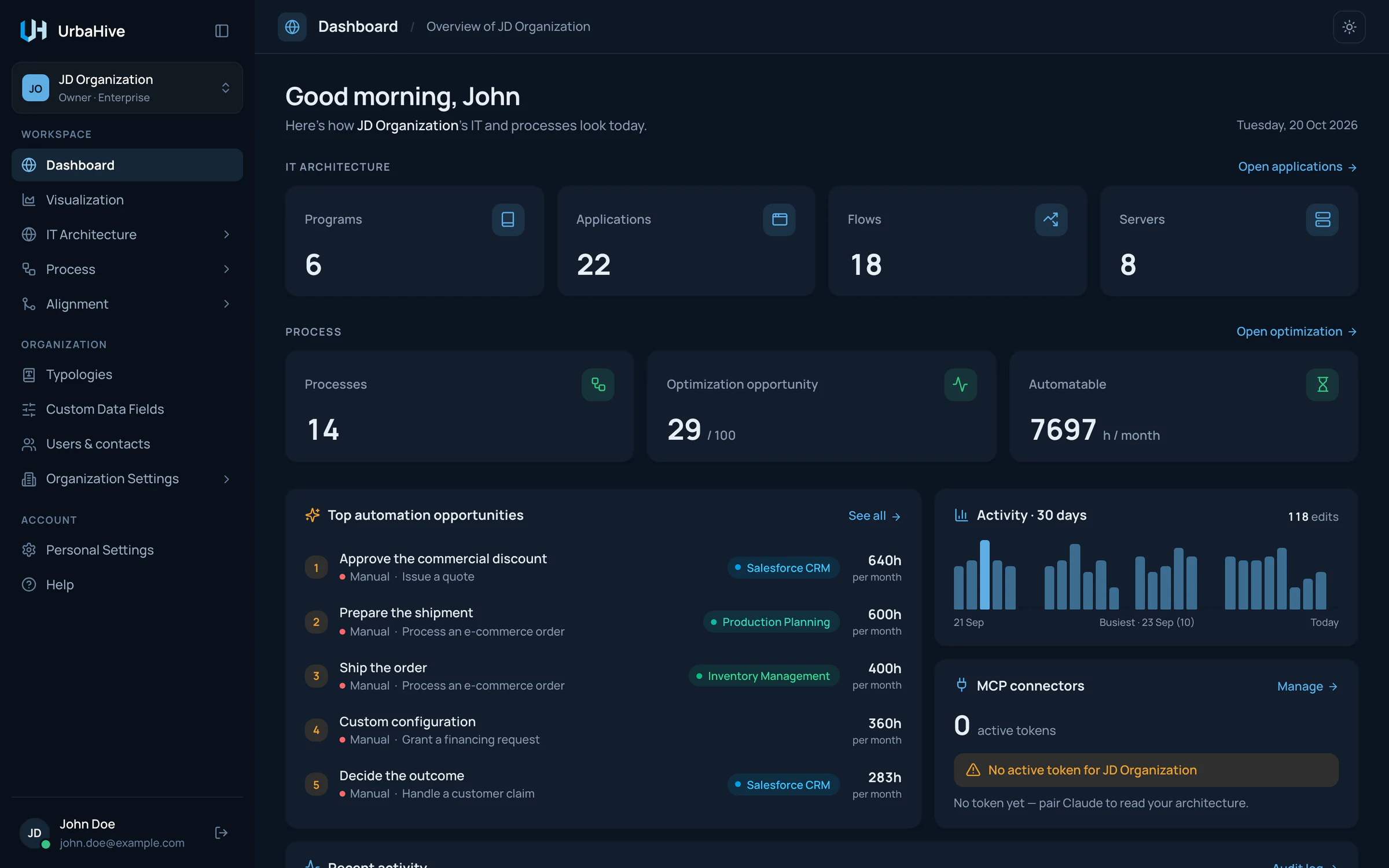
The same dashboard in the dark theme.
- Switch to light theme
Pictures you export from the map keep the theme on screen: a dark map gives a dark picture.
Your name and Logout
The foot of the sidebar shows your initials, your name and your e-mail address. The icon at the right is Logout. See Sign out.
Banners you may see
- You're invited, at the top of the page: an organization invited you. Click it to see the invitation and accept or reject it. See Invite people.
- Get Started, on the dashboard and most lists while your organization has no flow. See Your first steps.
- Service messages, when the app cannot reach the service or was updated while open, for example "This page is out of date: the application was updated while it was open. Reload the page to continue." While the service cannot be reached, the message offers Try again; otherwise it offers Reload the page. Your saved data is not affected.
- A ribbon, on an on-premise installation only, if your administrator set a text for it.
Related pages
- Work with lists and windows: the way every list works.
- Organizations: switch, create, configure: the organization card in detail.
- Your profile, e-mail and password: what Personal Settings holds.