Business processes
Build a process in the editor
On this page
The editor draws the steps of one process and lets you add, describe and reorder them. Open it by clicking a process in the process catalog. Owners, Editors and Members can change the steps; Viewers see the same screen with the editing buttons greyed out.
The editor at a glance
A top bar describes the process. Below it, a canvas shows the steps as cards linked by arrows, with small floating panels around it.
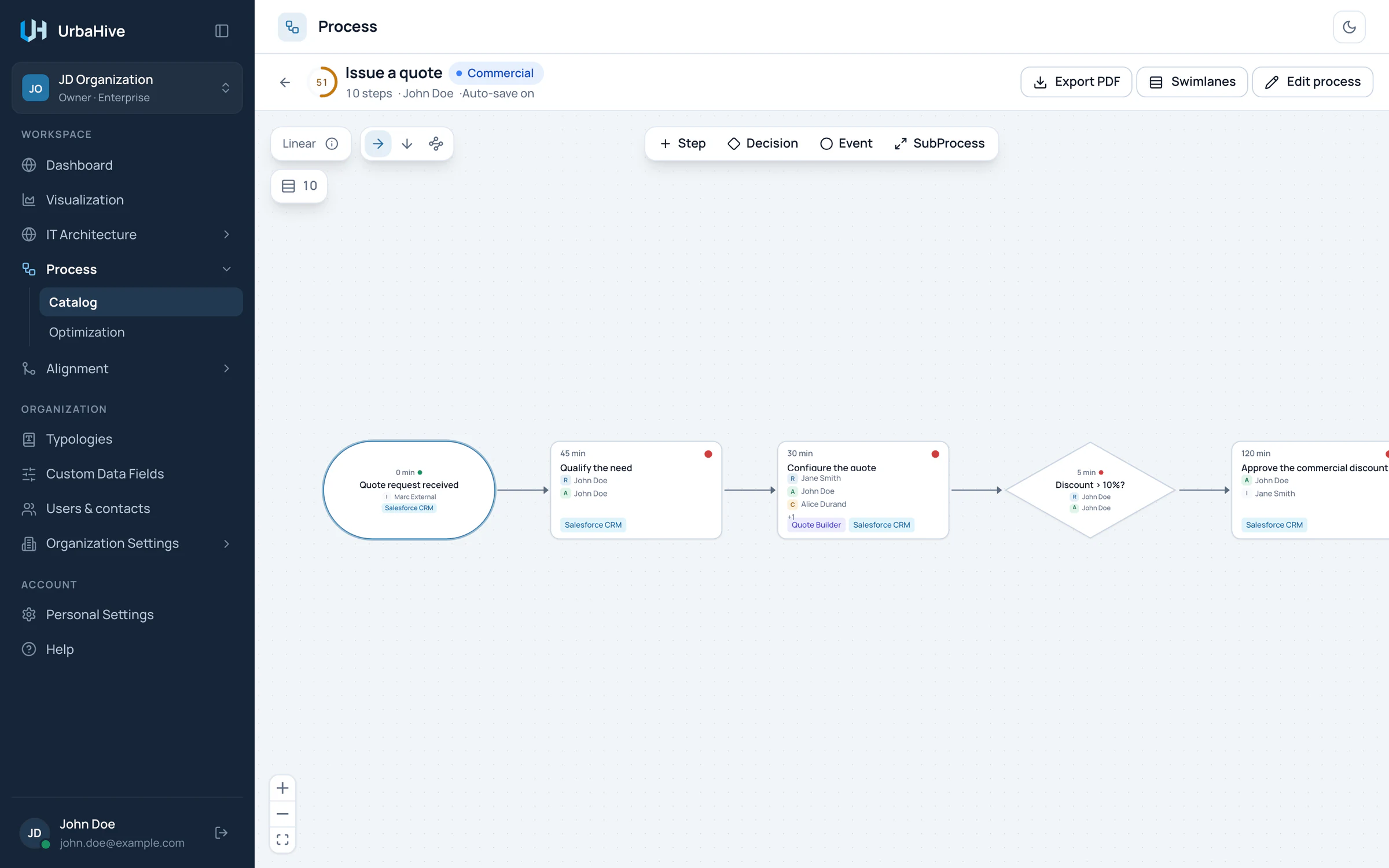
The editor on the process Issue a quote of the example: the top bar, then the steps read from left to right.
- Optimization score
- Saves by itself
- Export PDF
- Swimlanes
- Edit process
- Linear or Graph
- Horizontal, Vertical or Snake
- Add a step, decision, event or sub-process
The top bar shows, from left to right: the Back to catalog arrow, the score gauge, the name and primary domain, and a line "N steps · owner · save state". On the right are Export PDF, Swimlanes and Edit process. On a narrow window, these buttons show as icons only. The gauge is explained in Understand the optimization score; the PDF and swimlanes in Readings, swimlanes and PDF export.
Auto-save
The editor saves every change to the steps by itself, half a second after you make it. There is no Save button for steps. The top bar tells you where things stand: Auto-save on, then Unsaved changes, Saving… and Saved.
Warning
Every change is real and your colleagues see it. To try out an idea, create a separate draft process rather than experimenting on a validated one. Only the process window (Edit process) has Cancel and Update buttons.
The four shapes
A process is made of steps of four types:
- Step (type Activity): a rounded rectangle. Someone or something does the work.
- Decision: a diamond. The flow can go up to three ways from it.
- Event: a pill, for a start or an end, such as "Claim received".
- SubProcess (type Sub-process): a card that hands the work over to another process.
The parts of a drawn process, from the first event to the last.
A sub-process card shows "↳" and the name of the process it delegates to, or "No linked process". Double-click the card to open that process.
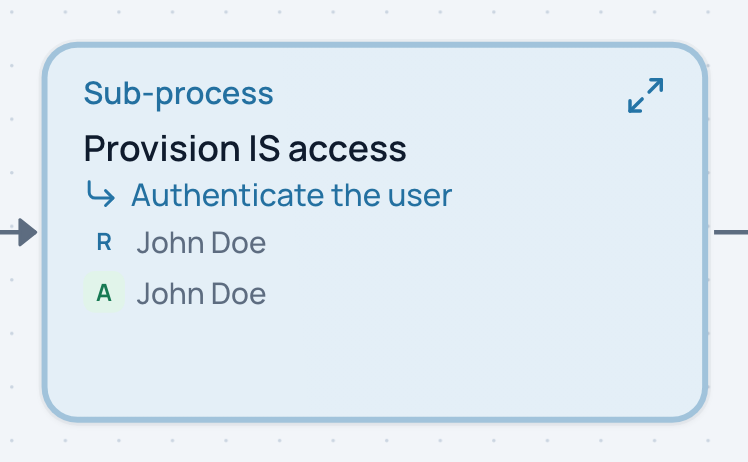
In the example, the step Provision IS access hands the work over to the process Authenticate the user.
- Sub-process step
- The process it delegates to: double-click to open
Read a card
A step card packs the main facts about the step:
- top left, the average duration, such as "45 min";
- top right, a coloured dot for the execution mode: red for Manual, amber for Semi, green for Auto;
- the name of the step;
- up to three RACI lines, each a letter and a name, such as R Jane Smith, then "+N" for the others;
- up to two application badges, then "+N".
When two steps have the same name, the editor numbers them, for example "Check the file (1)" and "Check the file (2)".

The card Configure the quote in the example: 30 minutes, Manual, four actors (three shown, then +1) and two applications.
- Average duration
- Execution mode: red Manual, amber Semi, green Auto
- Step name
- RACI actors
- Applications used
Add steps
- Click the step after which the new one must come. It is now selected.
- In the palette at the top of the canvas, click Step, Decision, Event or SubProcess. The new step appears right after the selected one.
- The Edit step panel opens on the new step. Give it a name and describe it. See Describe a step.
On a linear process, if no step is selected, the new step goes at the end. Hover a palette button to see where it will land: "Added right after …" or "Added at the end". A new step starts as Manual and Value-added.
An empty process shows "No steps yet." with an Add the first step button.
The steps list
The Show steps button, under the mode chip at the top left, opens a compact list of all the steps. Collapse steps closes it.
- Click a row to select the step and move the canvas to it.
- Hover a row and click the pencil (Open editor) to open its Edit step panel.
- Add step, at the bottom, adds a step.
- An arrow icon with the tooltip "Nothing leads to this step" marks a step that no other step leads to, apart from the first one. Check the outputs of the steps around it.
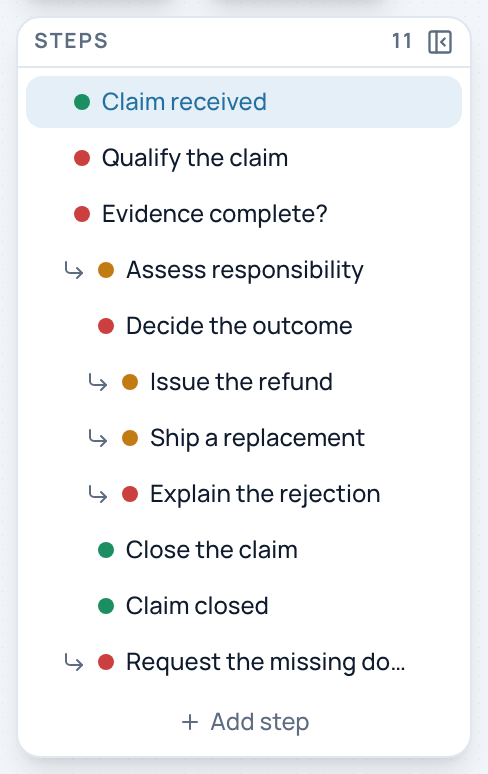
The steps list of a branched process: the rows of each branch are indented.
- Execution mode (a click changes it)
- Rows indented by branch
- Add step
- Collapse steps
Warning
The coloured dot at the start of each row is a button. A click changes the step's execution mode (Manual, Semi, Auto, then Manual again) and saves it at once.
Reorder
On a linear process, drag a card on the canvas, or a row in the steps list, to a new place. The order is saved by itself.
Once a process branches, cards are placed by the flow and cannot be dragged: "Order comes from the flow — edit the outputs of a step to change it". See Decisions, branches and loops.
Zoom and pan
Turn the mouse wheel to zoom in and out. Drag the empty background to move around. The buttons at the bottom left zoom in, zoom out and fit the whole process in the window.
Related pages
- Describe a step: RACI, applications and time: the Edit step panel.
- Decisions, branches and loops: Linear and Graph processes.
- Readings, swimlanes and PDF export: other ways to read the same process.
- Create or edit a process: the process window.