Optimize and align
Business capabilities
On this page
A capability is a stable business ability, such as "Sell to customer" or "Invoice customer". The app calls it "a stable business ability (APQC-style)". Capabilities change rarely, while processes and applications come and go. Linking them shows which applications and processes deliver each ability. Open the list from the sidebar: Alignment › Capabilities.
Capabilities are not programs. A program groups applications for IT purposes; a capability describes what the business does. Owners, Editors and Members create and edit capabilities; Owners and Editors delete them; Viewers read them.
The list
The toolbar holds Search a capability..., a domain filter (Filter by domain), a criticality filter (Filter by criticality: Critical, High, Medium, Low), Reset filters, the count and the New capability button.
The columns are Name, Domain, Criticality, Responsible, Processes and Apps (the number of linked processes and applications). Each row ends with Impact analysis, Edit and Delete.
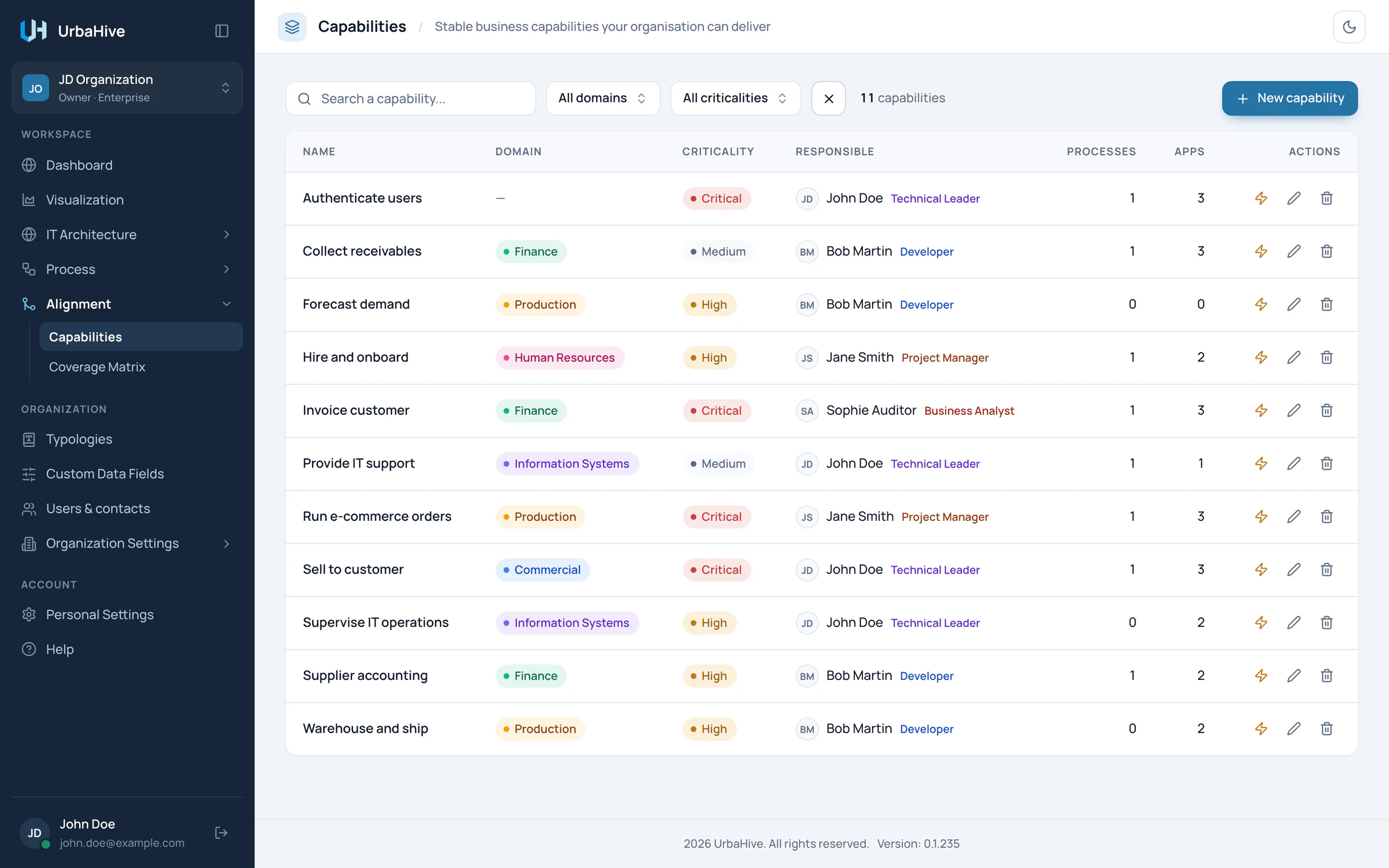
The capabilities of the example organization, with their criticality and how many processes and applications each one has.
- Search
- Filter by domain or criticality
- New capability
- Criticality
- Linked processes and applications
Create a capability
- Click New capability. The window "New capability" opens.
- Type a Name, for example "Sell to customer". It is the only required field.
- Fill the other fields (see the table).
- Under Applications, click + Add an application, pick one, and choose its relation.
- Click Create.
| Field | What to enter |
|---|---|
| Description | "One sentence: what this capability lets the organisation do." |
| Domain | A process domain, or No domain (cross-domain) for a capability shared by several domains. |
| Criticality | Critical, High, Medium (the default) or Low. |
| Responsible User | The person who answers for it: a member or a contact. |
| Parent capability | A broader capability it belongs to, or No parent (top-level). |
| Applications | The applications that realize it, each with a relation: Primary, Supporting or Data source. The same application can be linked several times with different relations. |
| Additional contacts | Other people to name. |
Custom fields defined by an Owner for capabilities appear at the bottom. Editing works the same way: click Edit, change the fields, then Update. With unsaved changes, Cancel asks "Discard changes?".
Read a capability
Click a row to open the "Capability details" window. It shows the description, the process domain, the parent capability, the people, then:
- Applications (N): the linked applications with their relation;
- Processes (N): the processes that realize the capability. Click one to open it in the editor.
The Edit tab at the bottom of the window opens the edit window.
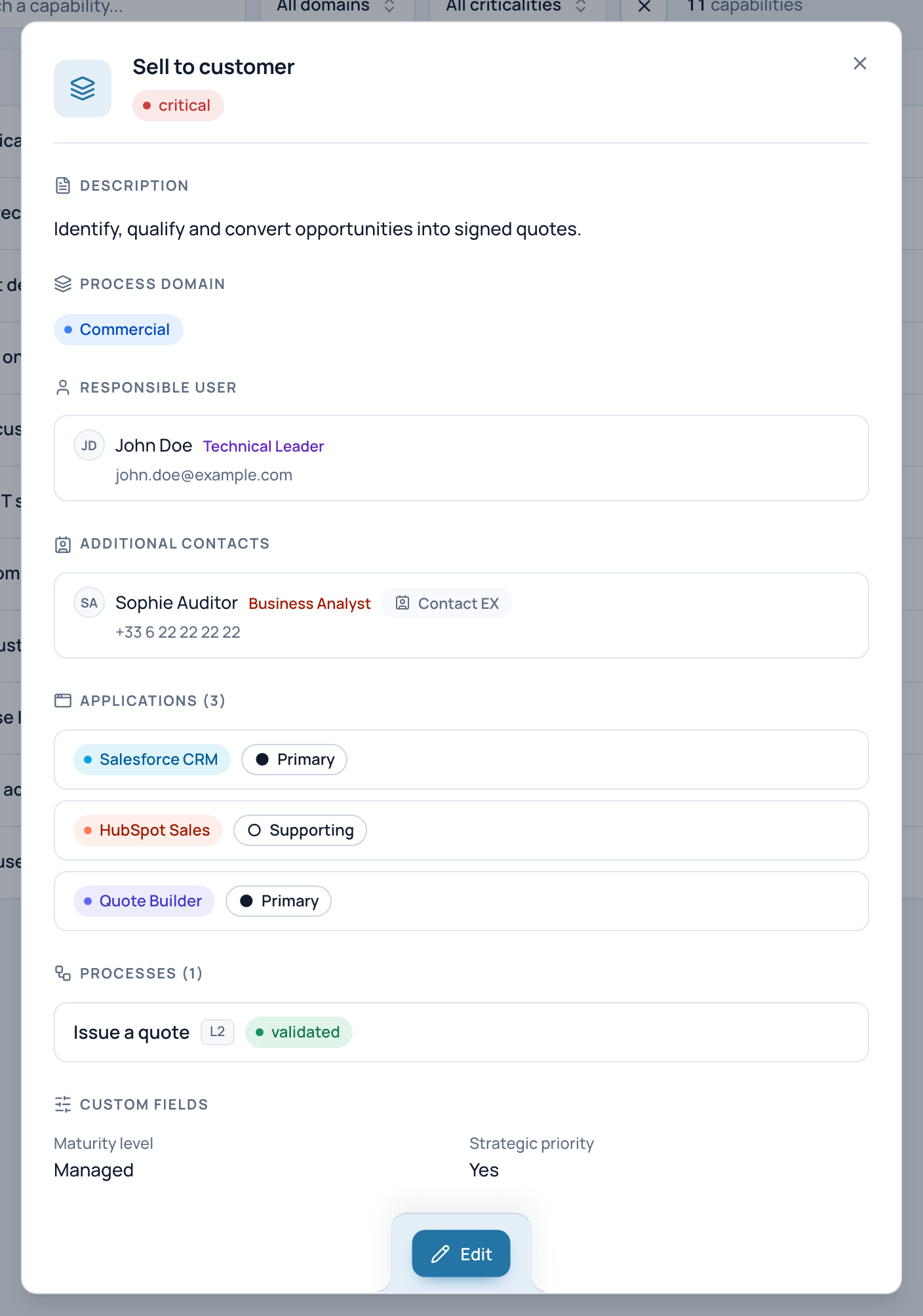
In the example, Sell to customer is realized by its applications and by the process Issue a quote.
- Applications and their relation
- Processes that realize it
- Edit
Link processes
You link a process to a capability from the process, not from the capability: open the process window and choose its Capability. A process realizes one capability; a capability can have many processes. See Create or edit a process.
Delete a capability
Click Delete on the row and confirm in "Delete capability?". Only Owners and Editors can do it. The linked processes are kept, without a capability. Its links to applications are removed, and the capabilities under it become top-level.
Note
Each link between a capability and an application also has a criticality, which colours the coverage matrix. The app gives every new link the criticality Medium and has no field to change it. The AI assistant can set it: see What the AI assistant does.
Related pages
- The coverage matrix: capabilities against applications.
- Impact analysis: everything linked to one capability.
- Register your applications: the applications you link.