Getting started
Create your account and sign in
On this page
This page shows every way to get into UrbaHive: creating an account, signing in with a password or with a code sent by e-mail, resetting a forgotten password, and signing out. On the hosted service you can create your own account. On an on-premise installation, accounts come from an invitation.
Create an account
On the hosted service, anyone can create an account at app.urbahive.com.
- On the sign-in page, click Create an account.
- Fill in First name, Last name and Email.
- Choose a Password and type it again in Confirm password. The checklist under the field turns green as each rule is met.
- Tick I accept the terms of service and privacy policy. The two links open the documents in a new tab.
- Click Create account. UrbaHive e-mails you a 6-digit code and shows Verify your email.
- Type the code. It is checked as soon as you type the sixth digit; you can also click Verify and continue. The code expires after 1 hour. If it does not arrive, click Resend code.
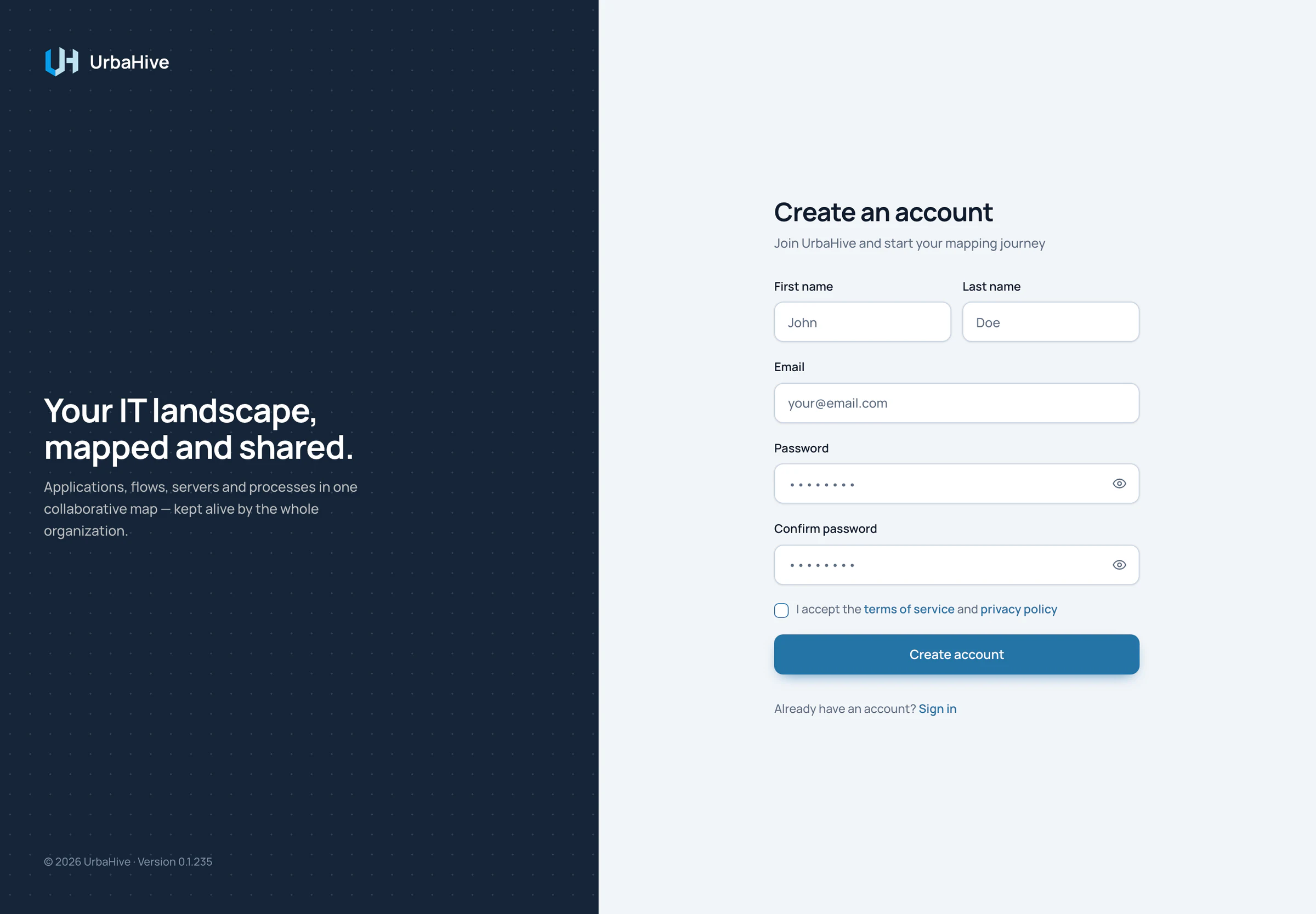
The Create an account page. The password rules appear under the Password field as soon as you start typing.
- First name and Last name
- Password (its rules appear as you type)
- Accept the terms
- Create account
A password needs at least 8 characters, with one lowercase letter, one uppercase letter, one number and one special character. The same rules apply wherever you set a password.
Your account comes with its own organization, named DefaultOrganization. You are its Owner, on the Free plan. It holds default typologies and a fictional demo company you can explore, change or delete. See Your first steps.
Note
On an on-premise installation there is no sign-up page. An Owner of your organization, or your administrator, invites you.
Sign in with your password
Signing in takes two steps: your address, then your password.
- Type your Email and click Sign in.
- Type your Password and click Sign in. The eye icon shows what you typed. If the address is wrong, click Change to go back.
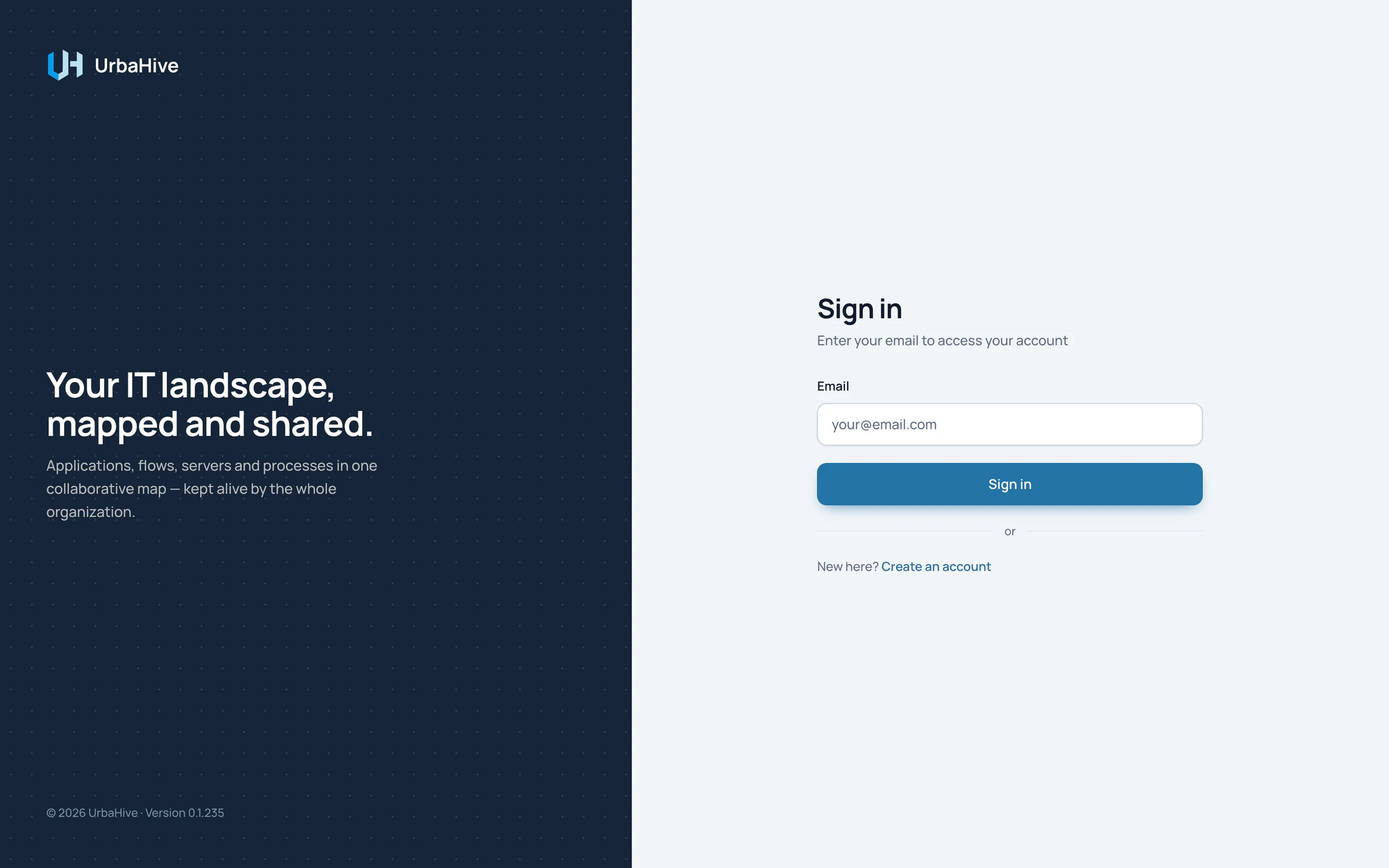
The first step asks only for your e-mail address.
- Sign in
- Create an account (hosted only)
The second step also offers Forgot password?, and under the Sign in button, One-time password.
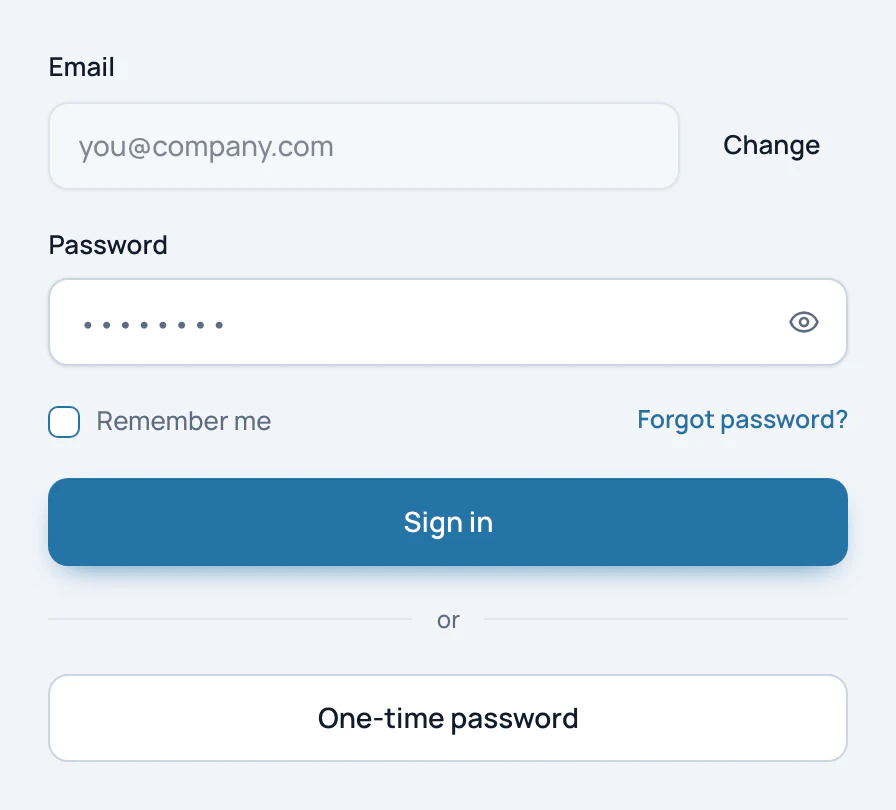
The password step, with Forgot password? above the Sign in button and One-time password below it.
- Change the address
- Password
- Forgot password?
- Sign in
- Sign in with a one-time code
Sign in with a one-time code
You can sign in without a password, with a code sent by e-mail.
- On the password step, click One-time password. Your address is carried over.
- Click Send code.
- Type the 6-digit code from the e-mail. It is checked on the sixth digit, or click Verify code. The code works once and expires after 1 hour.
If the e-mail does not arrive, Resend code becomes available after 30 seconds. Use a different email lets you change the address. The e-mail contains a code, not a link.
Note
On the hosted service, asking for a code for an address that has no account creates one. On an on-premise installation it is refused: "Accounts are created by invitation only".
Forgot your password
- On the password step, click Forgot password?.
- Check the address and click Send reset code. The Reset password page opens.
- Type the 6-digit code from the e-mail, or click Verify code. The code works once and expires after 1 hour.
- Type your New password and Confirm new password, then click Reset password.
- Click Go to the app. You are already signed in.
Once signed in, you can also change your password from Personal Settings. See Your profile, e-mail and password.
Your first sign-in after an invitation
When someone invites an address that has no account yet, UrbaHive sends the e-mail "You have been invited to UrbaHive".
- Click Accept Invitation in the e-mail. The link works once, for 1 hour, and signs you in.
- In the Required Information window, fill in First Name and Last Name, then click Save.
- In the Set Your Password window, choose a password and click Set Password. You can click Skip and sign in with codes instead.
- Accept the invitation from the You're invited banner at the top of the page.
If the link has expired, it opens a window that says "This link has expired". Click Send me a new code and sign in with that code. The invitation itself stays open for 7 days.
If you already have an account, you get a different e-mail with a Join UrbaHive button. Sign in as usual and accept the invitation in the app. See What the invited person sees.
Sign out
Click the Logout icon at the right of your name, at the foot of the sidebar.
Warning
Logout signs you out everywhere. Your other tabs and your other devices go back to the sign-in page too.
When a session ends without you asking, for example because you signed out on another device, the sign-in page says "Your session has ended. Sign in again to continue."
Related pages
- Your first steps: what to do once you are in.
- Your profile, e-mail and password: change your address or password.
- Invite people: how Owners bring colleagues in.
- Hosted and on-premise: what differs on your own servers.