Work together
Follow changes in the audit log
On this page
The audit log records who changed what, and when, in your organization, along with every call of the AI assistant. Open it from the sidebar: Organization Settings › Logs ("Monitor audit logs for your organization"). Every member can read it, whatever their role. Nobody can edit or delete it.
Find a change
The Search Filters card narrows the list:
- Start Date and End Date;
- Action: INSERT (a creation), UPDATE (a change), DELETE (a deletion) or SELECT (a read by the AI assistant);
- Object: the kind of element, such as Application or Flow;
- Name: type part of the element's name, then click Search.
Clear filters resets them. The filters are kept in the page address, so you can send a filtered view as a link.
Above the list, the number of entries shows as "N logs found". Choose 20, 50 or 100 entries per page with Rows per page. The columns are Date, User, Action, Object, Name and Changed Fields. The user is "System" when no person made the change directly. Click a user's name to see their details.
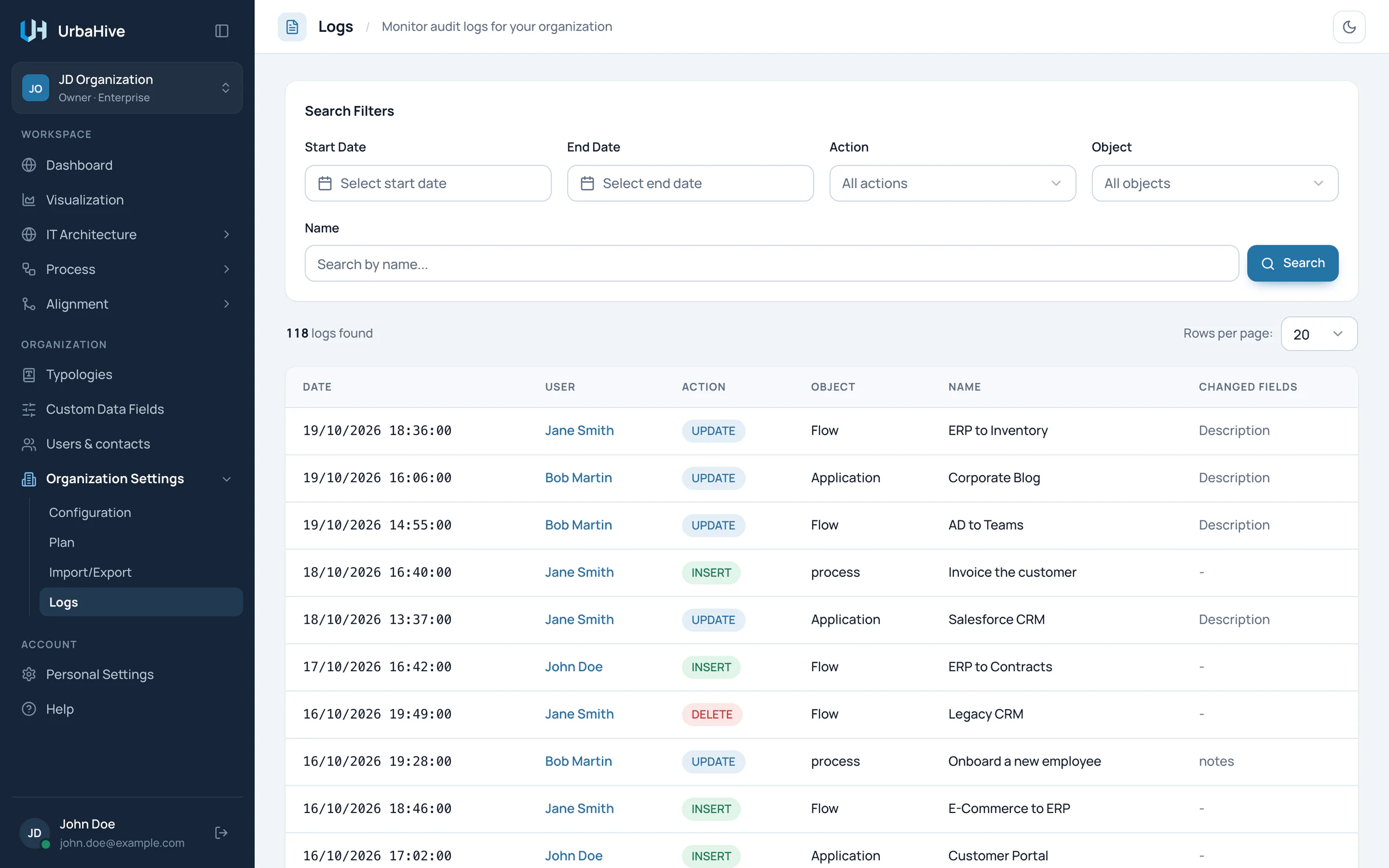
The Logs of the example organization: each row is one change, with the fields it touched.
- Dates, action, object, name
- Number of entries
- INSERT, UPDATE or DELETE
- Fields changed
See the before and after
Click a row to open the "Log Details" window. It shows the Date, the User, the Action and the Object. View Object opens the element itself, if it still exists.
- For a change (UPDATE), Changed Fields lists each changed field with its Old and New value. Complete Data Comparison shows the whole record Before and After.
- For a creation, Created Data shows what was created.
- For a deletion, Deleted Data shows what was deleted. This is where you find the content of an element that is gone.
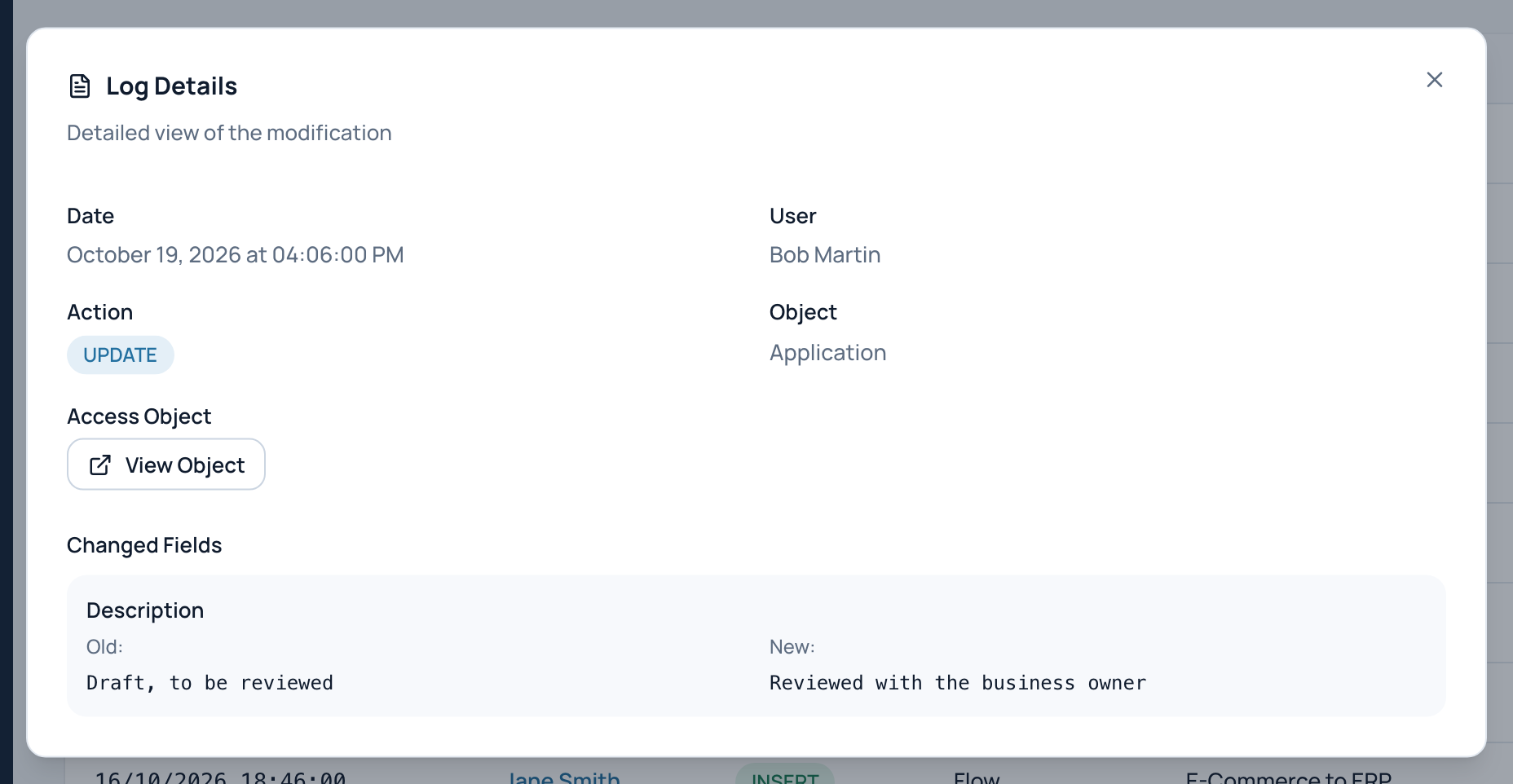
In the example, Bob Martin changed the description of an application: the window shows the old and the new text.
- Who, when, what
- View Object
- Old value
- New value
What is recorded
UrbaHive records every creation, change and deletion of:
- the organization itself and its typologies;
- programs, applications, servers, flows, architecture documents (DAT) and their versions;
- members, invitations and contacts;
- processes, steps, their links, applications and RACI;
- capabilities and their links to applications.
Some objects show with a technical name in lowercase, such as "process" or "capability".
AI assistant calls
Each call the AI assistant makes adds one row. Its Object is mcp_tool_call and its Name is the tool it used, such as list_applications. The User is the person whose token was used.
- Reads show as SELECT, creations as INSERT, changes as UPDATE.
- The details window shows a Tool call block with the status of the call: ok, error or denied (refused by the rules).
- A change made by the assistant also appears on the changed element's own row, with the user "System". The
mcp_tool_callrow next to it tells you who asked.
The token itself is never written in the log. See Permissions, tokens and safety.
Not recorded
- Changes to your personal profile.
- Changes to custom field definitions (the values of custom fields are recorded with their element).
- Additional contacts added to or removed from an element.
- The plan and billing.
On the dashboard
The dashboard's Recent activity card and its Activity · 30 days chart read the same log, without the assistant's reads. The Audit log link of the card opens this page. See Read the dashboard.
Related pages
- Roles and permissions: who can change what.
- Permissions, tokens and safety: what the assistant may do.
- Work with lists and windows: filters kept in the address.