Business processes
Decisions, branches and loops
On this page
Most processes are a straight line of steps. A decision lets the flow go up to three ways, for example "Approved" and "Refused". This page shows how to add branches, merge them, loop back to an earlier step, and hand work over to another process. Owners, Editors and Members can do all of this; changes are saved as you make them.
Linear or Graph
A chip at the top left of the canvas says how the process is held: Linear or Graph. "The mode is not a setting: it follows what the process holds."
- Linear. Each step is followed by the next one in order. You can drag cards and list rows to reorder them, and the Snake reading is available.
- Graph. Every arrow is written down, so a decision can send the flow three ways, and a branch can merge back or loop to an earlier step. Cards are placed by the flow.
Click the (i) button next to the chip, What do these modes mean?, for the same explanation. On a Graph process, the window also lists the steps that branch, with their outputs. Click one to go to that step. Close the window with Got it.
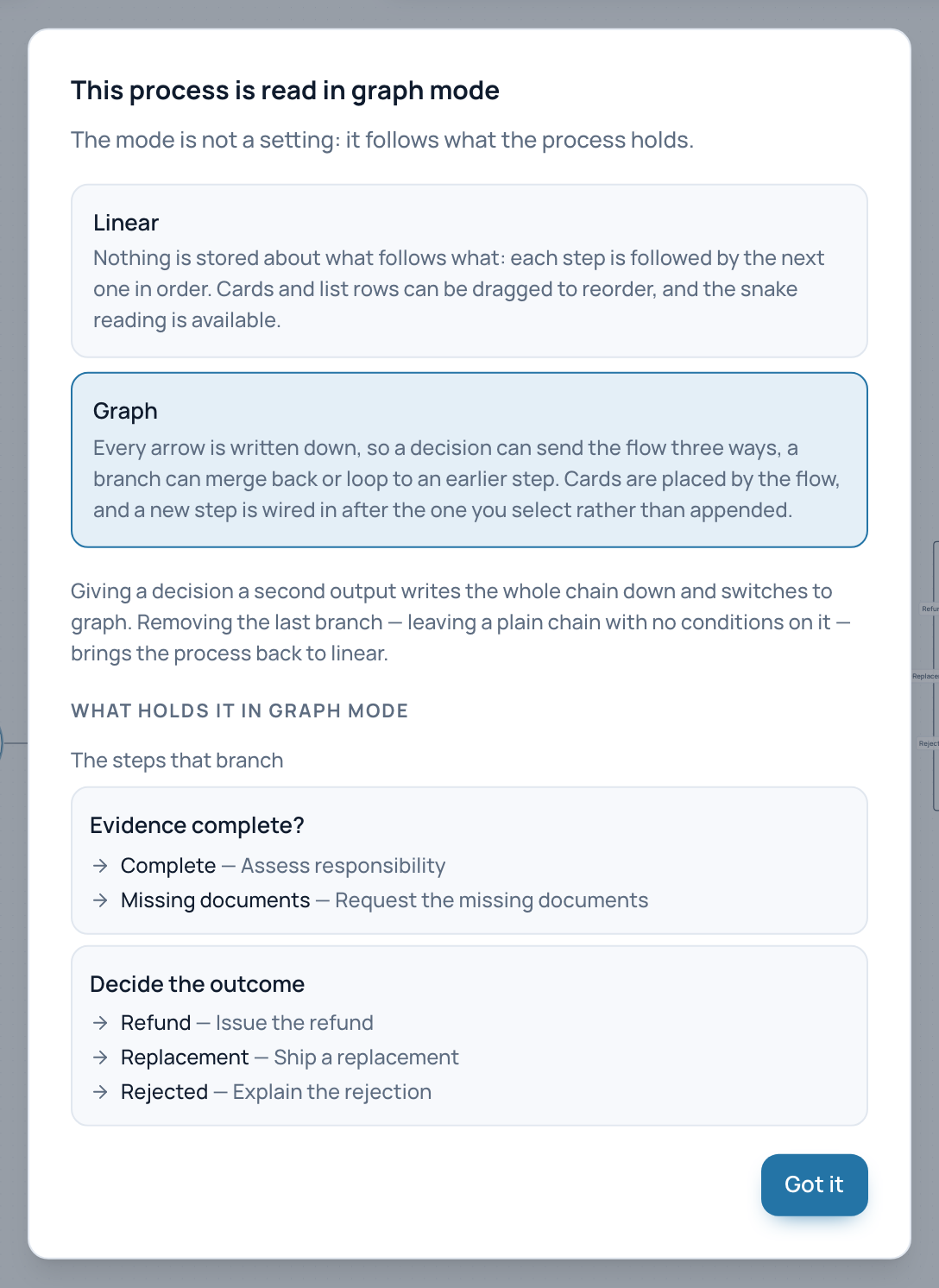
The explanation window of a Graph process lists the decisions that make it branch.
- The mode this process is in
- The steps that branch
- Got it
Add a branch
- Click the decision card. Its Edit step panel opens, with an Outputs section that shows where the decision leads now.
- Under the outputs, click New step to create a new destination, or Existing step to pick a step already in the process. A later step merges the branch back; an earlier step makes a loop.
- In the condition field of each output, type the condition, such as "Yes" or "Amount > 10k". It is saved when you leave the field or press Enter.
- To change where an output leads, pick another step in its target list. + New step in that list creates one.
A decision has up to three outputs. Giving a decision its second output switches the whole process to Graph.
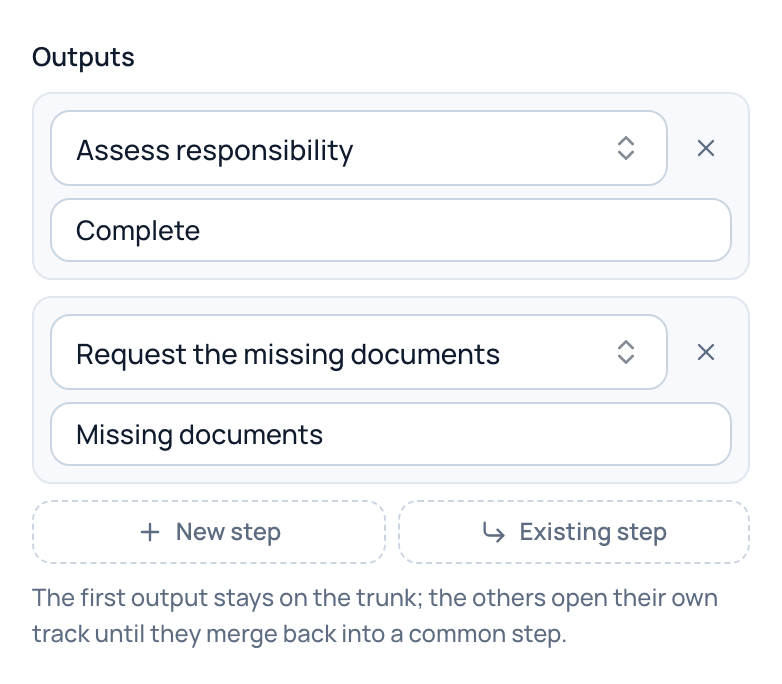
The outputs of a decision in the example: "Complete" leads on to the next check, "Missing documents" to a request for documents. A third output can still be added.
- Where this output leads
- Condition shown on the arrow
- Remove this output
- New step: a new destination
- Existing step: merge or loop back
Tip
Only a decision can branch. To make an ordinary step branch, change its Type to Decision first.
Read a branched process
Each condition is a small label on its arrow. An arrow that goes back to an earlier step is dashed, with an amber label. The first output of a decision stays on the main line; the others open their own track until they merge into a common step.
Events, steps, decisions, conditions, a merge, a loop back and a sub-process in one drawing.
Here is the same thing on a real screen.
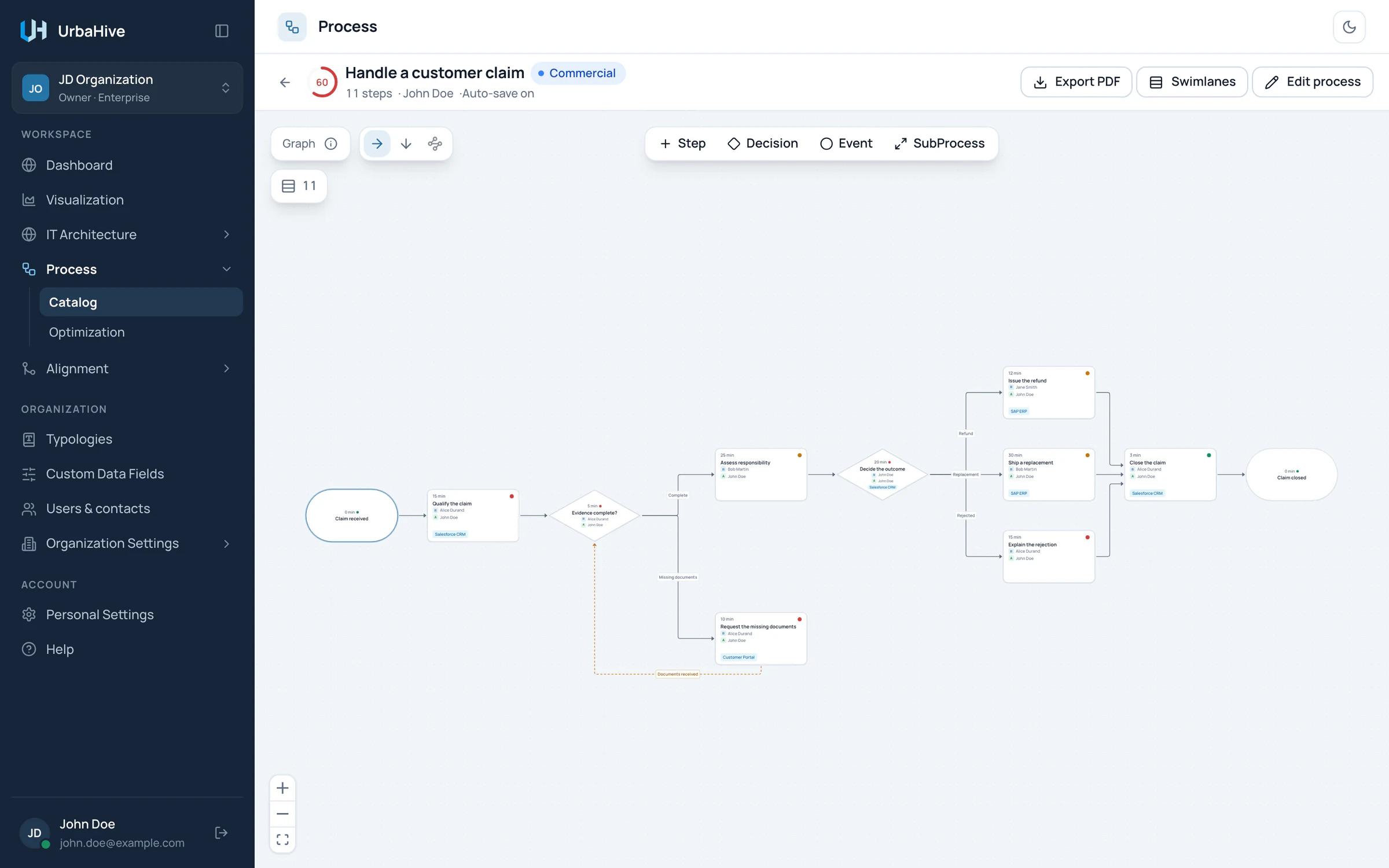
In the example, Handle a customer claim loops back while documents are missing, then splits three ways and merges again.
- Graph mode
- Condition on an arrow
- Loop back
- A decision with three outputs
- The branches merge
Next step
In Graph mode, every step that is not a decision shows a Next step field in its panel: the single step that follows it. Change it to move the step's arrow. It has no condition.
Back to Linear
On a Graph process, each output has a Remove this output button (X). When you remove the last branch and the process is a plain chain again, with no condition on any arrow, it returns to Linear.
Sub-process steps
A step of type Sub-process hands the work over to another process, for example a shared "Authenticate the user" used by several processes.
- Add a step with SubProcess in the palette, or change the Type of an existing step to Sub-process.
- In Delegates to, pick the process it hands over to.
The card then shows "↳" and the name of that process. Double-click the card to open it. The link also shows in the impact analysis of both processes.
Limits on a branched process
- The Snake reading is greyed out: "Snake flow is not available: this process is no longer linear."
- Cards cannot be dragged: "Order comes from the flow — edit the outputs of a step to change it".
- A new step is wired in after the step you select. With nothing selected, the palette stays greyed out: "Select the step to add after — on a branched process, a new step has to be wired into the flow".
Related pages
- Build a process in the editor: shapes, cards and the steps list.
- Describe a step: the Edit step panel.
- Readings, swimlanes and PDF export: read a branched process in swimlanes.